







Question: Data Set 1 X Time (s) . .. X Level (m) ... Y Level (m) ... X Level Ve.. . .. Y Level Ve...
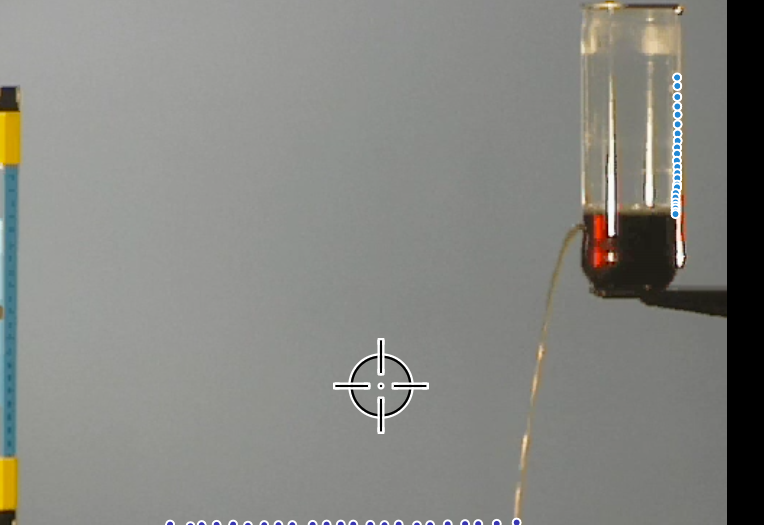
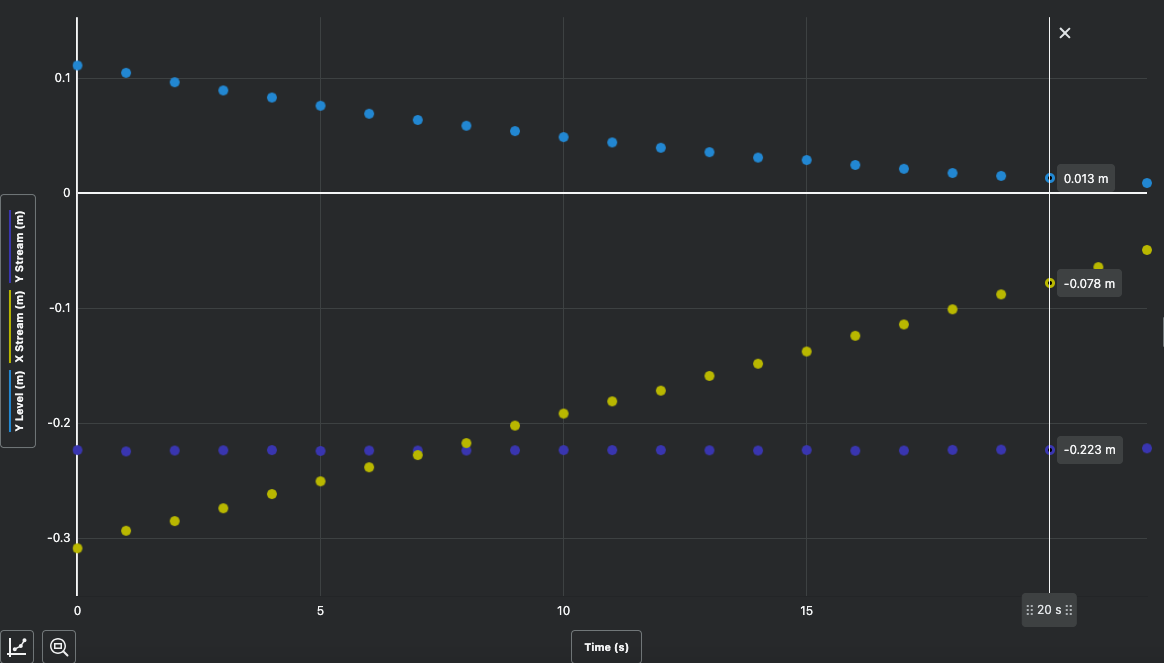
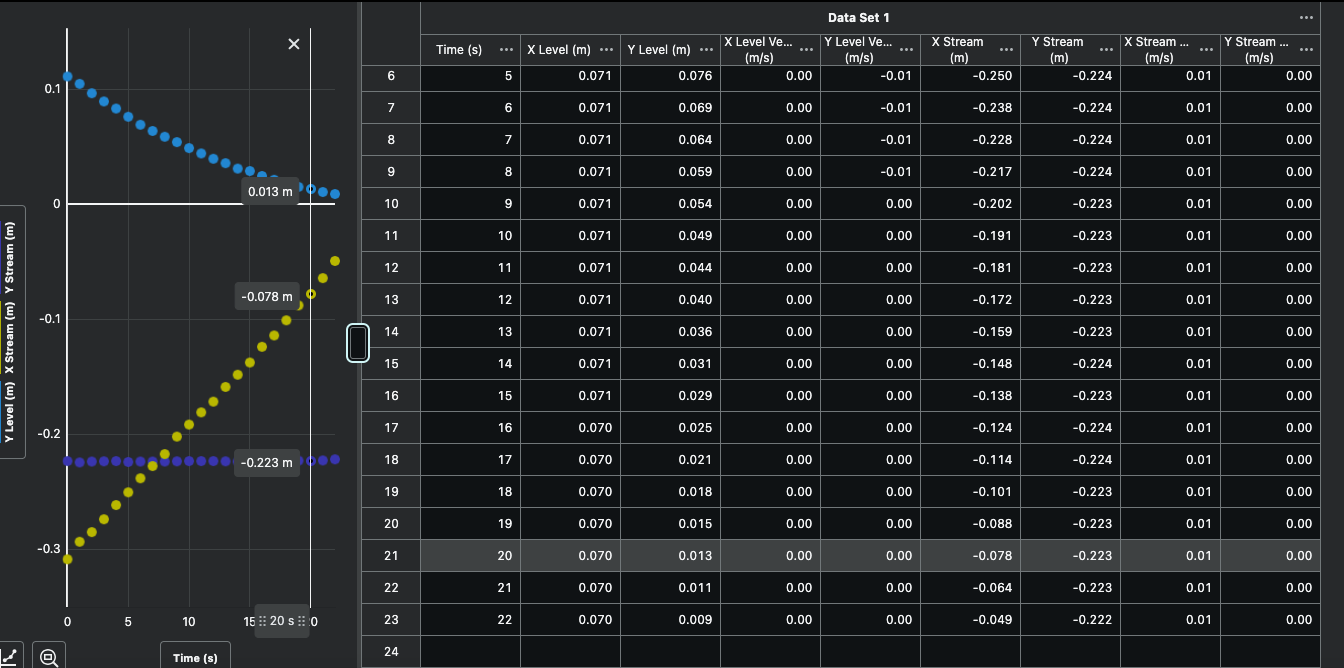
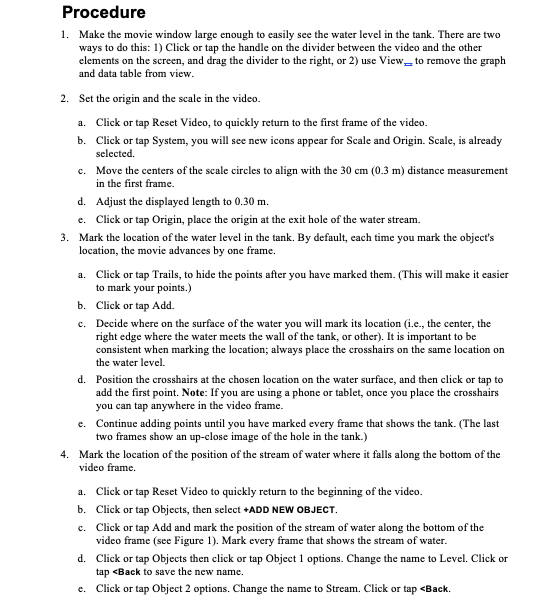
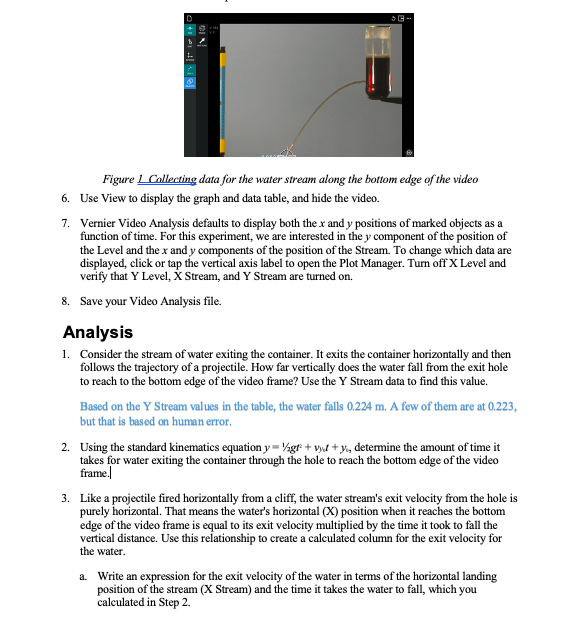
Data Set 1 X Time (s) . .. X Level (m) ... Y Level (m) ... X Level Ve.. . .. Y Level Ve... " ... X Stream Y Stream X Stream ... . .. Y Stream .. m/s (m/s) . .. (m) [m (m/s) 6 (m/s 5 0.1 0.071 0.076 0.00 -0.01 -0.250 -0.224 0.01 0.00 6 0.071 0.069 0.00 -0.01 -0.238 -0.224 0.01 0.00 8 0.071 0.064 0.00 -0.01 -0.228 -0.224 0.01 0.00 ..... 9 0.071 0.059 0.00 -0.01 -0.217 -0.224 0.01 0.00 0.013 m 'P.. 0 10 9 0.071 0.054 0.00 0.00 -0.202 -0.223 0.01 0.00 11 10 0.071 0.049 0.00 0.00 -0.191 -0.223 0.01 0.00 12 11 0.071 0.044 0.00 0.00 -0.181 -0.223 0.01 0.00 -0.078 m 13 12 0.071 0.040 0.00 0.00 -0.172 -0.1 -0.223 0.01 0.00 Y Level (m) X Stream (m) Y Stream (m) 14 13 0.071 0.036 0.00 0.00 -0.159 -0.223 0.01 0.00 15 14 0.071 0.031 0.00 0.00 -0.148 -0.224 0.01 0.00 16 15 0.071 0.029 0.00 0.00 -0.138 -0.223 0.01 0.00 -0.2 17 16 0.070 0.025 0.00 0.00 -0.124 -0.224 0.01 0.00 ...... ..... -0.223 m ).. 18 17 0.070 0.021 0.00 0.00 -0.114 -0.224 0.01 0.00 19 18 0.070 0.018 0.00 0.00 -0.101 -0.223 0.01 0.00 20 19 0.070 0.015 0.00 0.00 -0.088 -0.223 0.01 0.00 -0.3 21 20 0.070 0.013 0.00 0.00 -0.078 -0.223 0.01 0.00 22 21 0.070 0.011 0.00 0.00 -0.064 -0.223 0.01 0.00 5 10 15 :: 20 s :: 0 23 22 0.070 0.009 0.00 0.00 -0.049 -0.222 0.01 0.00 Time (s) 24Procedure 1. Make the movie window large enough to easily see the water level in the tank. There are two ways to do this: 1) Click or tap the handle on the divider between the video and the other elements on the screen, and drag the divider to the night, or 2) use View__ to remove the graph and data table from view. Set the origin and the scale in the video. d. . Click or tap Reset Video, to quickly return to the first frame of the video. Click or tap System, you will see new icons appear for Scale and Origin. Scale, 15 already selected. Move the centers of the scale circles to align with the 30 cm (0.3 m) distance measurement in the first frame. Adjust the displayed length to 0.30 m. Click or tap Origin, place the origin at the exit hole of the water stream. Mark the location of the water level in the tank. By default, each time vou mark the object's location, the movie advances by one frame. a. Click or tap Trails, to hide the points after you have marked them. (This will make it easier to mark your points. ) Click or tap Add. Decide where on the surface of the water you will mark its location (1.2, the center, the right edge where the water meets the wall of the tank, or other). It is important to be consistent when marking the location; always place the crosshairs on the same location on the water level. Position the crosshairs at the chosen location on the water surface, and then click or tap to add the first point. Note: If you are using a phone or tablet, once you place the crosshairs you can tap anywhere in the video frame. Continue adding points until you have marked every frame that shows the tank. (The last two frames show an up-close image of the hole in the tank.) Mark the location of the position of the stream of water where it falls along the bottom of the video frame. Click or tap Reset Video to quickly return to the beginning of the video. Click or tap Objects, then select +ADD NEW OBJECT. Click or tap Add and mark the position of the stream of water along the bottom of the video frame (see Figure 1), Mark every frame that shows the stream of water. Click or tap Objects then click or tap Object 1 options. Change the name to Level. Click or tap
Step by Step Solution
There are 3 Steps involved in it

Get step-by-step solutions from verified subject matter experts
 Study Help