







Question: Follow these steps to create a network scheme: 1. Using the information in Tables 1 and 2, assign static IP addresses to the three router
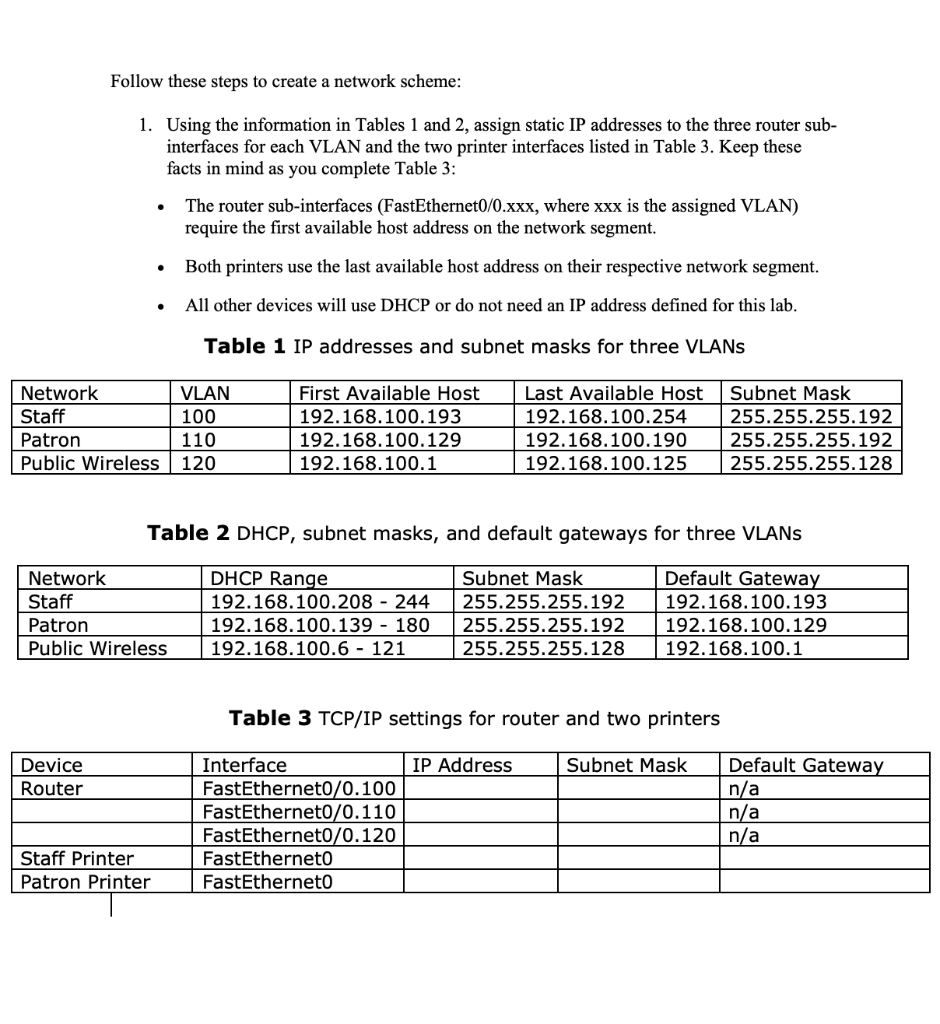
Follow these steps to create a network scheme: 1. Using the information in Tables 1 and 2, assign static IP addresses to the three router sub- interfaces for each VLAN and the two printer interfaces listed in Table 3. Keep these facts in mind as you complete Table 3: The router sub-interfaces (FastEthernet0/0.xxx, where xxx is the assigned VLAN) require the first available host address on the network segment. Both printers use the last available host address on their respective network segment. All other devices will use DHCP or do not need an IP address defined for this lab. Table 1 IP addresses and subnet masks for three VLANs | Network Staff Patron Public Wireless VLAN 100 110 120 First Available Host 192.168.100.193 192.168.100.129 192.168.100.1 Last Available Host 192.168.100.254 192.168.100.190 192.168.100.125 Subnet Mask 255.255.255.192 255.255.255.192 255.255.255.128 Table 2 DHCP, subnet masks, and default gateways for three VLANS Network Staff Patron Public Wireless DHCP Range 192.168.100.208 - 244 192.168.100.139 - 180 192.168.100.6 - 121 Subnet Mask 255.255.255.192 255.255.255.192 255.255.255.128 Default Gateway 192.168.100.193 192.168.100.129 192.168.100.1 Table 3 TCP/IP settings for router and two printers IP Address Subnet Mask Device Router Interface FastEthernet0/0.100 FastEthernet0/0.110 FastEthernet0/0.120 FastEtherneto FastEtherneto Default Gateway n/a n/a n/a Staff Printer Patron Printer
Step by Step Solution
There are 3 Steps involved in it

Get step-by-step solutions from verified subject matter experts
 Study Help