







Question: help with #7 New Perspectives Excel 2019 | Module 7: End of Module Project as the name of the PivotTable. Display the service rep names
help with #7 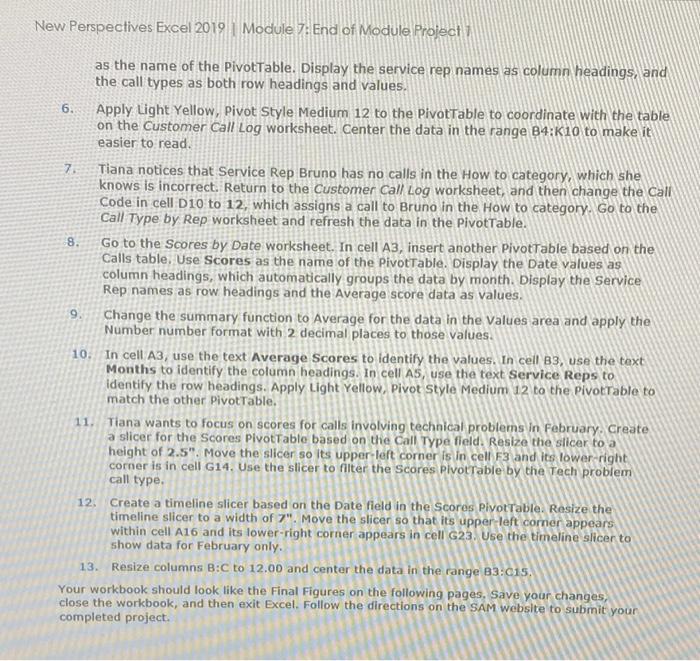
New Perspectives Excel 2019 | Module 7: End of Module Project as the name of the PivotTable. Display the service rep names as column headings, and the call types as both row headings and values. 6. Apply Light Yellow, Pivot Style Medium 12 to the PivotTable to coordinate with the table on the Customer Call Log worksheet. Center the data in the range B4:K10 to make it easier to read. 7. Tiana notices that Service Rep Bruno has no calls in the How to category, which she knows is incorrect. Return to the Customer Call Log worksheet, and then change the Call Code in cell D10 to 12, which assigns a call to Bruno in the How to category. Go to the Call Type by Rep worksheet and refresh the data in the PivotTable. 8. Go to the Scores by Date worksheet. In cell A3, insert another PivotTable based on the Calls table. Use Scores as the name of the PivotTable. Display the Date values as column headings, which automatically groups the data by month. Display the Service Rep names as row headings and the Average score data as values. 9. Change the summary function to Average for the data in the Values area and apply the Number number format with 2 decimal places to those values. 10. In cell A3, use the text Average Scores to identify the values. In cell B3, use the text Months to identify the column headings. In cell AS, use the text Service Reps to identify the row headings. Apply Light Yellow, Pivot Style Medium 12 to the PivotTable to match the other Pivot Table. 11. Tiana wants to focus on scores for calls involving technical problems in February. Create a slicer for the Scores PivotTable based on the Call Type field. Resize the slicer to a height of 2.5". Move the slicer so its upper-left corner is in cell F3 and its lower-right corner is in cell G14. Use the slicer to filter the Scores PivotTable by the Tech problem call type. 12. Create a timeline slicer based on the Date field in the Scores Pivot Table. Resize the timeline slicer to a width of 7". Move the slicer so that its upper-left corner appears within cell A16 and its lower-right corner appears in cell G23. Use the timeline slicer to show data for February only. 13. Resize columns B:C to 12.00 and center the data in the range B3:c15. Your workbook should look like the Final Figures on the following pages, Save your changes, close the workbook, and then exit Excel. Follow the directions on the SAM website to submit your completed project Step by Step Solution
There are 3 Steps involved in it
1 Expert Approved Answer
Step: 1 Unlock

Question Has Been Solved by an Expert!
Get step-by-step solutions from verified subject matter experts
Step: 2 Unlock
Step: 3 Unlock
 Study Help