







Question: how do i change these floating values into integers or rather rounded numbers using arcpy ( python)? Please see image below Label Values 3.81233173956221 4.50002415251779
how do i change these floating values into integers or rather rounded numbers using arcpy ( python)? Please see image below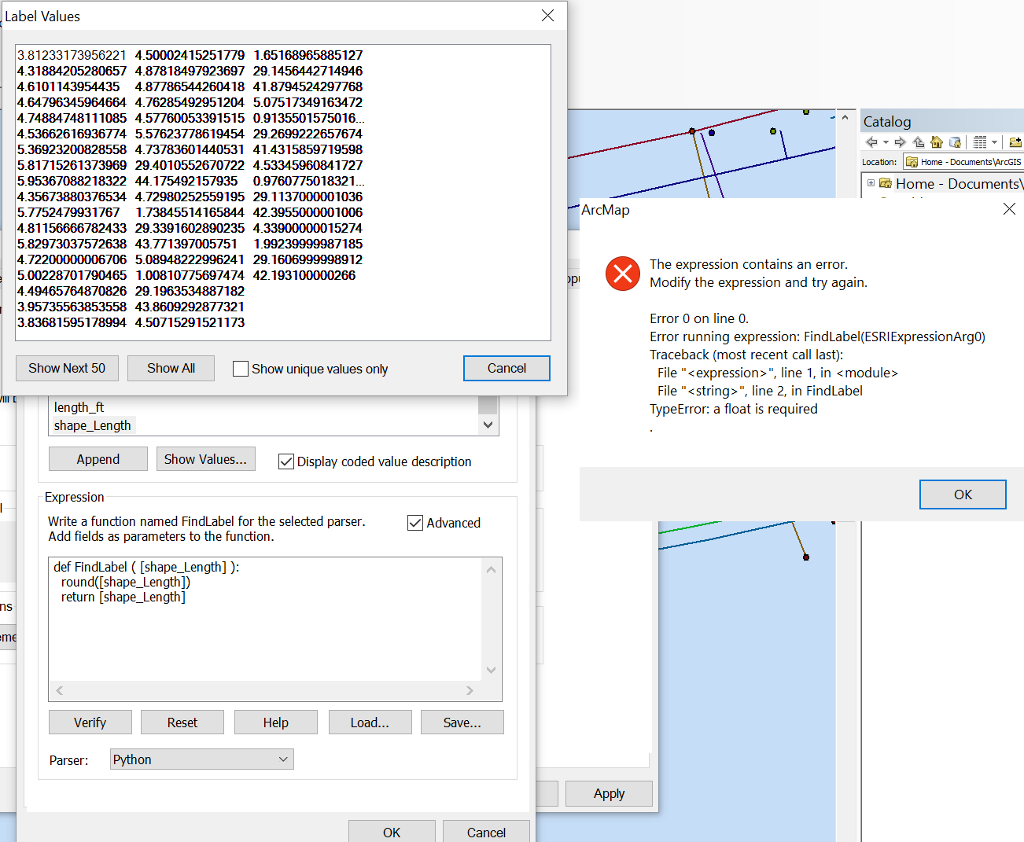
Label Values 3.81233173956221 4.50002415251779 1.65168965885127 4.31884205280657 4.87818497923697 29.1456442714946 4.6101143954435 487786544260418 41.8794524297768 4.64796345964664 4.76285492951204 5.07517349163472 4.74884748111085 4.57760053391515 0.9135501575016. 4.53662616936774 5.57623778619454 29.2699222657674 5.36923200828558 4.73783601440531 41.4315859719598 5.81715261373969 29.4010552670722 4.53345960841727 5.95367088218322 44.175492157935 0.9760775018321 4.35673880376534 4.72980252559195 29.1137000001036 5.7752479931767 1.73845514165844 42.3955000001006 4.81156666782433 29.3391602890235 4.33900000015274 5.82973037572638 43.77139700575 1.99239999987185 4.72200000006706 5.08948222996241 29.1606999998912 5.00228701790465 1.00810775697474 42.193100000266 4.49465764870826 29.1963534887182 3.95735563853558 43.8609292877321 3.83681595178994 4.50715291521173 Catalog Location: Home DocumentsArcGIS aHome - Documents ArcMap The expression contains an error Modify the expression and try again. Error 0 on line 0. Error running expression: FindLabel(ESRIExpressionArg0) Traceback (most recent call last): Show AlI Cancel File "
Step by Step Solution
There are 3 Steps involved in it

Get step-by-step solutions from verified subject matter experts
 Study Help