







Question: I need step-by-step instructions on how to complete this task using Oracle VirtualBox. Thank you! SAN with TrueNAS/Windows iSCSI connection Due April 5,2023 @ 11:59pm
I need step-by-step instructions on how to complete this task using Oracle VirtualBox. Thank you!
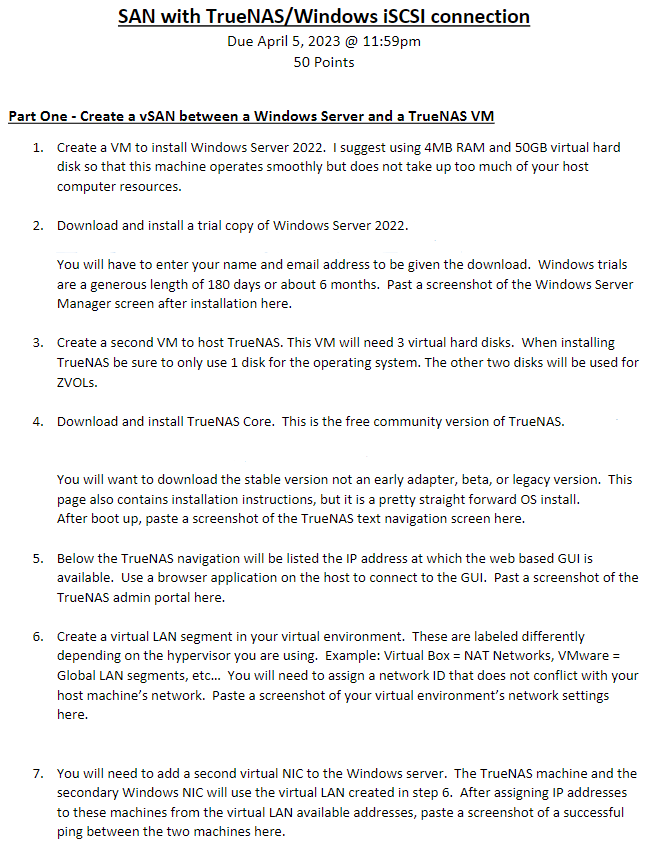
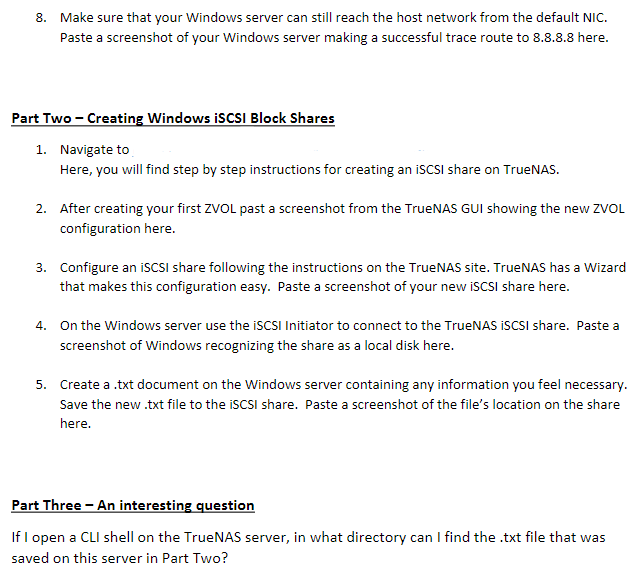
SAN with TrueNAS/Windows iSCSI connection Due April 5,2023 @ 11:59pm 50 Points Part One - Create a vSAN between a Windows Server and a TrueNAS VM 1. Create a VM to install Windows Server 2022. I suggest using 4MB RAM and 50GB virtual hard disk so that this machine operates smoothly but does not take up too much of your host computer resources. 2. Download and install a trial copy of Windows Server 2022 . You will have to enter your name and email address to be given the download. Windows trials are a generous length of 180 days or about 6 months. Past a screenshot of the Windows Server Manager screen after installation here. 3. Create a second VM to host TrueNAS. This VM will need 3 virtual hard disks. When installing TrueNAS be sure to only use 1 disk for the operating system. The other two disks will be used for ZVOLs. 4. Download and install TrueNAS Core. This is the free community version of TrueNAS. You will want to download the stable version not an early adapter, beta, or legacy version. This page also contains installation instructions, but it is a pretty straight forward OS install. After boot up, paste a screenshot of the TrueNAS text navigation screen here. 5. Below the TrueNAS navigation will be listed the IP address at which the web based GUI is available. Use a browser application on the host to connect to the GUI. Past a screenshot of the TrueNAS admin portal here. 6. Create a virtual LAN segment in your virtual environment. These are labeled differently depending on the hypervisor you are using. Example: Virtual Box = NAT Networks, VMware = Global LAN segments, etc... You will need to assign a network ID that does not conflict with your host machine's network. Paste a screenshot of your virtual environment's network settings here. 7. You will need to add a second virtual NIC to the Windows server. The TrueNAS machine and the secondary Windows NIC will use the virtual LAN created in step 6. After assigning IP addresses to these machines from the virtual LAN available addresses, paste a screenshot of a successful ping between the two machines here. 8. Make sure that your Windows server can still reach the host network from the default NIC. Paste a screenshot of your Windows server making a successful trace route to 8.8.8.8 here. Part Two - Creating Windows iSCSI Block Shares 1. Navigate to Here, you will find step by step instructions for creating an iSCSI share on TrueNAS. 2. After creating your first ZVOL past a screenshot from the TrueNAS GUI showing the new ZVOL configuration here. 3. Configure an iSCSI share following the instructions on the TrueNAS site. TrueNAS has a Wizard that makes this configuration easy. Paste a screenshot of your new iSCSI share here. 4. On the Windows server use the iSCSI Initiator to connect to the TrueNAS iSCSI share. Paste a screenshot of Windows recognizing the share as a local disk here. 5. Create a .txt document on the Windows server containing any information you feel necessary. Save the new .txt file to the iSCSI share. Paste a screenshot of the file's location on the share here. Part Three - An interesting question If I open a CLI shell on the TrueNAS server, in what directory can I find the .txt file that was saved on this server in Part Two
Step by Step Solution
There are 3 Steps involved in it

Get step-by-step solutions from verified subject matter experts
 Study Help