







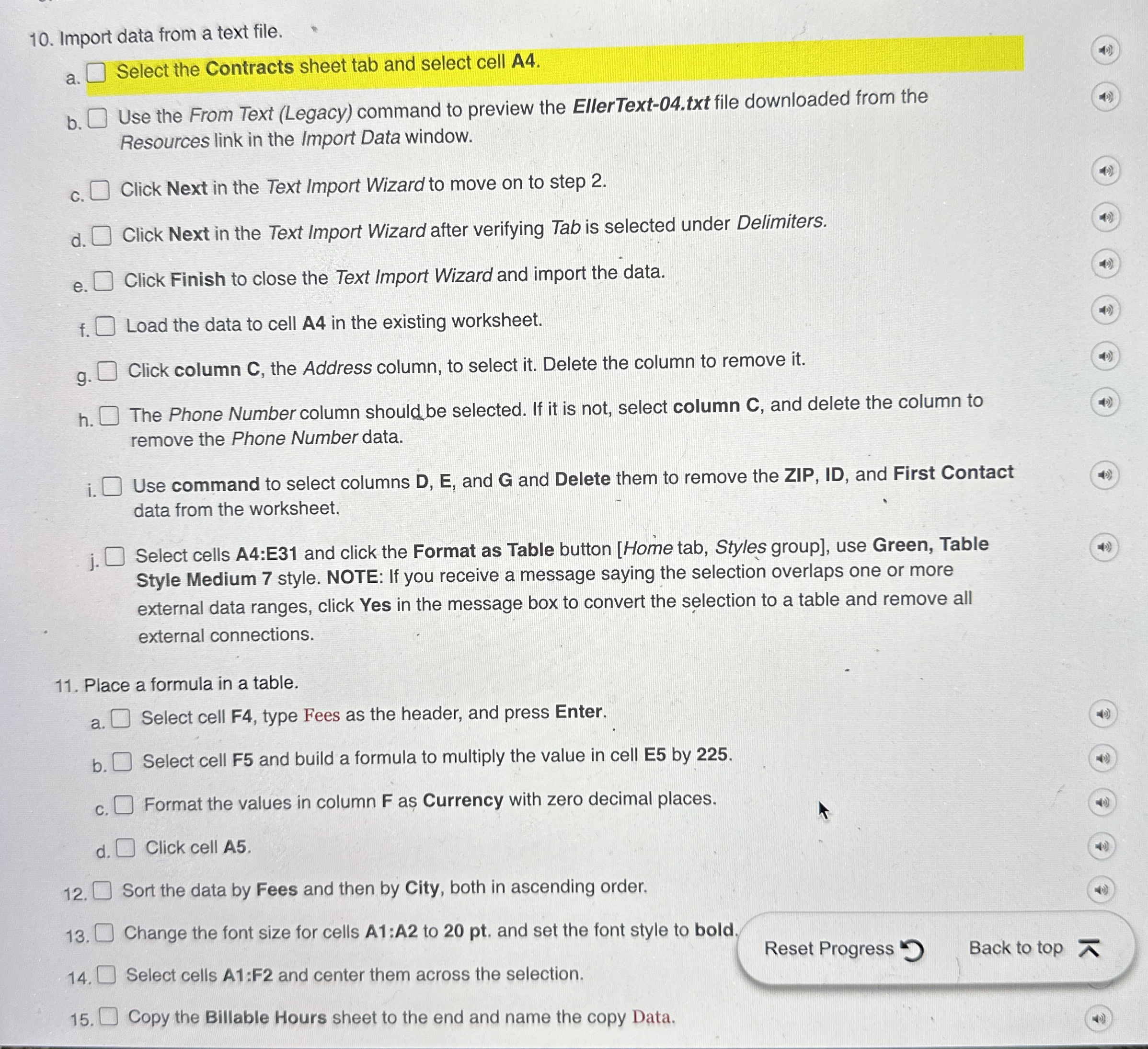
Question: Import data from a text file. a . Select the Contracts sheet tab and select cell A 4 . b . Use the From Text
Import data from a text file.
a
Select the Contracts sheet tab and select cell A
b
Use the From Text Legacy command to preview the EllerTexttxt file downloaded from the
Resources link in the Import Data window.
c
Click Next in the Text Import Wizard to move on to step
d
Click Next in the Text Import Wizard after verifying Tab is selected under Delimiters.
e
Click Finish to close the Text Import Wizard and import the data.
f
Load the data to cell A in the existing worksheet.
g
Click column C the Address column, to select it Delete the column to remove it
h
The Phone Number column should be selected. If it is not, select column C and delete the column to
remove the Phone Number data.
i
Use command to select columns D E and G and Delete them to remove the ZIP, ID and First Contact
data from the worksheet.
j
Select cells A:E and click the Format as Table button Home tab, Styles group use Green, Table
Style Medium style. NOTE: If you receive a message saying the selection overlaps one or more
external data ranges, click Yes in the message box to convert the selection to a table and remove all
external connections.
Place a formula in a table.
a
Select cell F type Fees as the header, and press Enter.
b
Select cell F and build a formula to multiply the value in cell E by
c
Format the values in column F as Currency with zero decimal places.
d
Click cell A
Sort the data by Fees and then by City, both in ascending order.
Change the font size for cells A:A to pt and set the font style to bold.
Select cells A:F and center them across the selection.
Copy the Billable Hours sheet to the end and name the copy Data.
Step by Step Solution
There are 3 Steps involved in it
1 Expert Approved Answer
Step: 1 Unlock

Question Has Been Solved by an Expert!
Get step-by-step solutions from verified subject matter experts
Step: 2 Unlock
Step: 3 Unlock
 Study Help