







Question: in VBA Initial- final- 5. Using range, anchorCell, the end property, select the range for the cells with the ID and SSN (Hint: Use xlDown
in VBA
Initial-
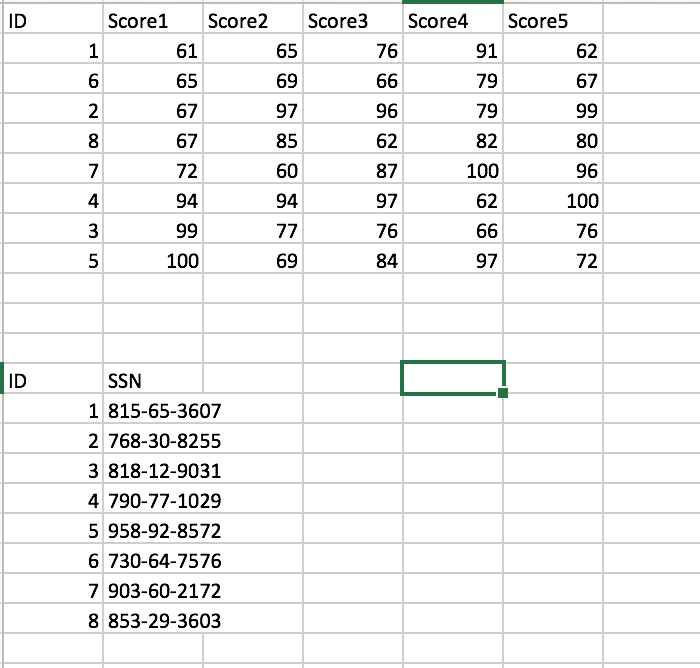
final-
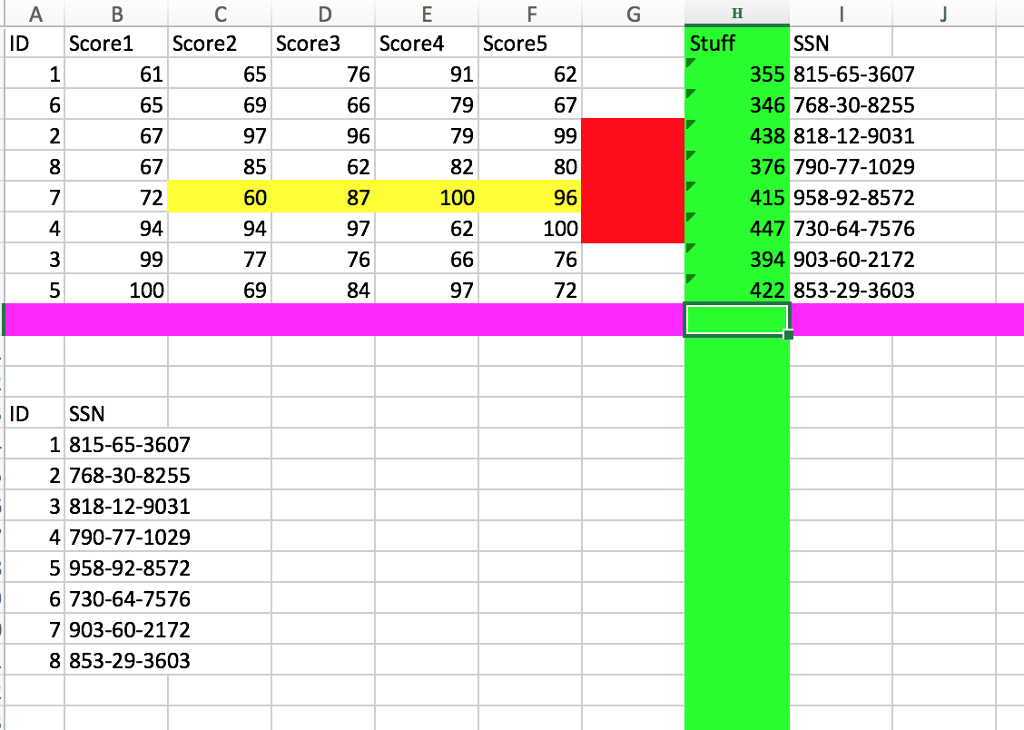
5. Using range, anchorCell, the end property, select the range for the cells with the ID and SSN (Hint: Use xlDown two times to get to the top of the desired range and three times to get to the bottom of the desired range.)
6. Using range, anchorCell, the end property and the currentRegion property to select the range for the cells with the ID and SSN
7. Using the anchorCell, offset with the end property and the FormulaR1C1properties place a formula under the column H that calculates the average over scores 1 to 5 for all rows 2 to 9.
10. Using the anchorCell and the offset property, redefine a new range with 4 rows and 4 columns with the upper left-hand corner being cell C4 (Hint: use the property Resize(#Rows, #Cols). Then highlight the following:
a. the 3-rd row from the top of the range of the data in yellow
b. the fifth column from the left of the range of the data in red
c. the Complete 7-th row from the top of the data in magenta
d. the complete 6-th column from the left of the data in green
ID Score1 Score Score3 Score4 Score5 61 65 67 67 72 94 65 69 97 85 60 94 76 91 79 79 82 100 62 62 67 96 62 87 97 76 84 80 96 100 76 72 4 100 69 97 SSN 1815-65-3607 2 768-30-8255 3 818-12-9031 4 790-77-1029 5 958-92-8572 6 730-64-7576 7 903-60-2172 8 853-29-3603
Step by Step Solution
There are 3 Steps involved in it

Get step-by-step solutions from verified subject matter experts
 Study Help