







Question: in visual studio 2015 using visual basic manageu Terms break mode data tip Edit and Continue feature breakpoint logical error tracepoint step through an application
in visual studio 2015 using visual basic
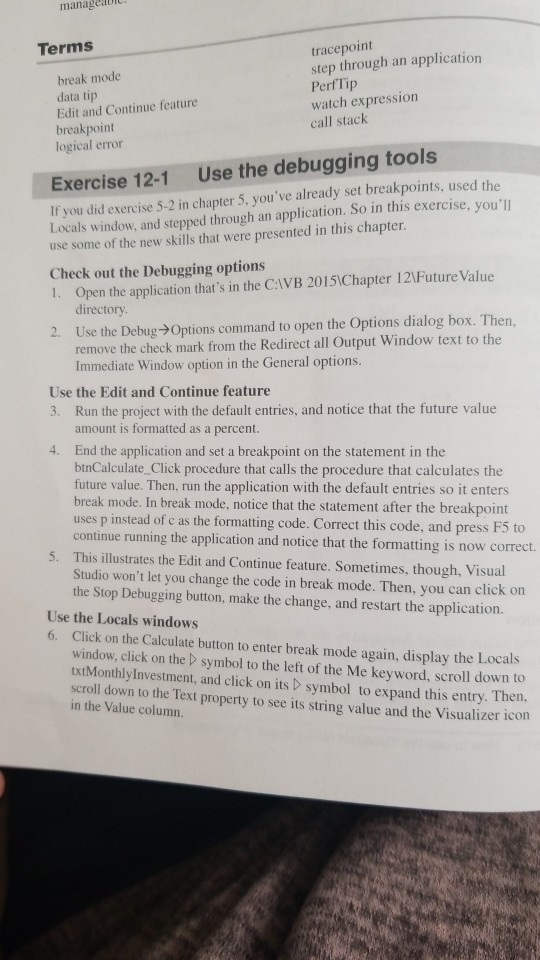
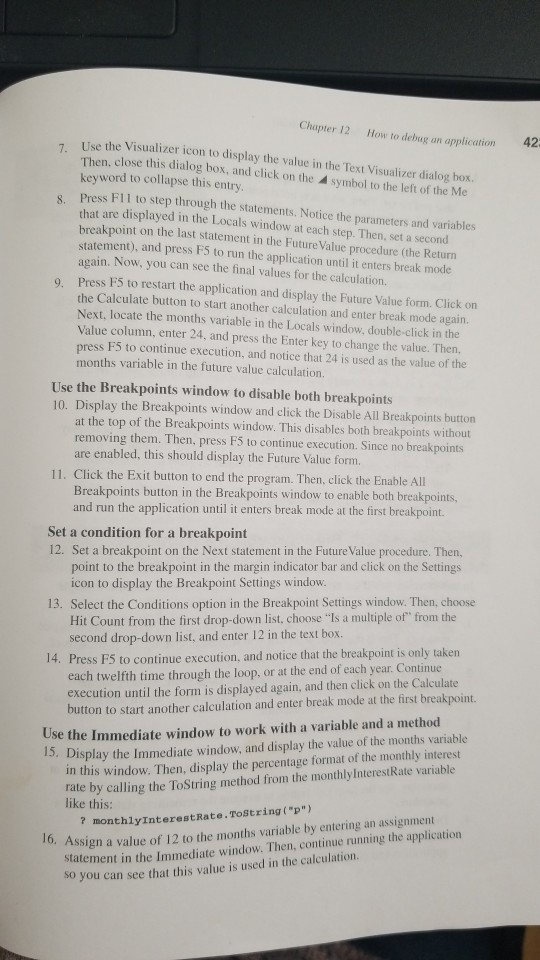
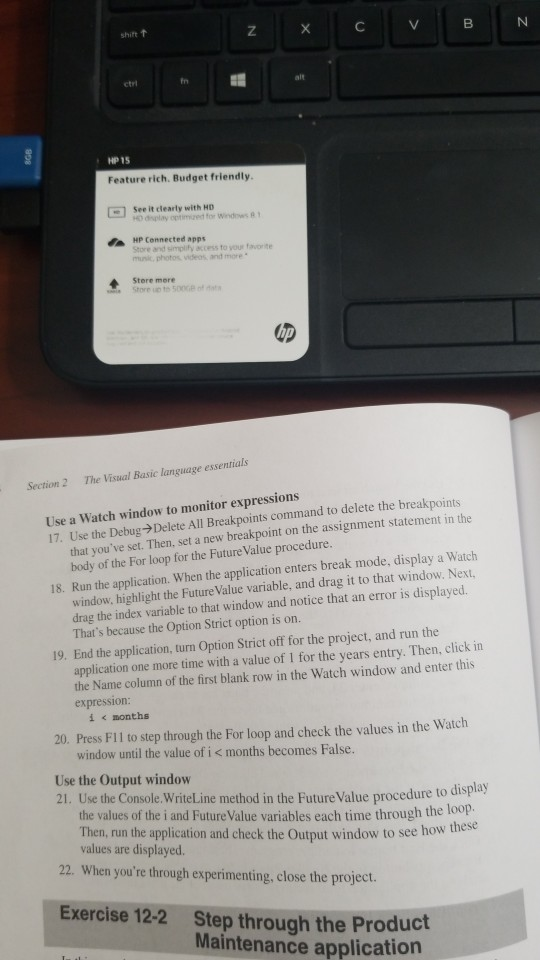
manageu Terms break mode data tip Edit and Continue feature breakpoint logical error tracepoint step through an application PerfTip watch expression call stack Exercise 12-1 Use the debugging tools If you did exercise 5-2 in chapter 5, you've already set breakpoints, used the Locals window, and stepped through an application. So in this exercise, you'll use some of the new skills that were presented in this chapter Check out the Debugging options 1. Open the application that's in the CAVB 20151Chapter 121Future Value directory Use the DebugOptions command to open the Options dialog box. Then, remove the check mark from the Redirect all Output Window text to the Immediate Window option in the General options. 2 Use the Edit and Continue feature 3. Run the project with the default entries, and notice that the future value amount is formatted as a percent. End the application and set a breakpoint on the statement in the btnCalculate_Click procedure that calls the procedure that calculates the future value. Then, run the application with the default entries so it enters break mode. In break mode, notice that the statement after the breakpoint uses p instead of c as the formatting code. Correct this code, and press F5 to continue running the application and notice that the formatting is now correct. This illustrates the Edit and Continue feature. Sometimes, though, Visual Studio won't let you change the code in break mode. Then, you can click on the Stop Debugging button, make the change, and restart the application. 4. 5. Use the Locals windows 6. Click on the Calculate button to enter break mode again, display the Locals window, click on the symbol to the left of the Me keyword, scroll down to txtMonthlyInvestment, and click on its symbol to expand this entry. Then scroll down to the Text property to see its string value and the Visualizer ic in the Value column. Chapter 12 How to debug an application Use the Visualizer icon to display the value in the Text Visualizer dialog box. 42 Then, close this dialog box, and click on the symbol to the left of the Me keyword to collapse this entry Press F11 to step through the statements. Notice the parameters and variables that are displayed in the Locals window at each step. Then, set a second breakpoint on the last statement in the Future Value procedure (the Return statement), and press F5 to run the application until it enters break mode ain. Now, you can sec the final values for the calculation. Press F5 to restart the application and display the Future Value form. Click on e button to start another calculation and enter break mode again. Next, locate the months variable in the Locals window, double-click in the Value column, enter 24, and press the Enter key to change the value. Then, press F5 to continue execution, and notice that 24 is used as the value of the months variable in the future value calculation Use the Breakpoints window to disable both breakpoints 10. Display the Breakpoints window and click the Disable All Breakpoints button at the top of the Breakpoints window. This disables both breakpoints without removing them. Then, press F5 to continue execution. Since no breakpoints are enabled, this should display the Future Value form. 11. Click the Exit button to end the program. Then, click the Enable All Breakpoints button in the Breakpoints window to enable both breakpoints, and run the application until it enters break mode at the first breakpoint. Set a condition for a breakpoint 12. Set a breakpoint on the Next statement in the Future Value procedure. Then, point to the breakpoint in the margin indicator bar and click on the Settings icon to display the Breakpoint Settings window. 13. Select the Conditions option in the Breakpoint Settings window. Then, choose Hit Count from the first drop-down list, choose "Is a multiple of from the second drop-down list, and enter 12 in the text box Press F5 to continue execution, and notice that the breakpoint is only taken each twelfth time through the loop, or at the end of each year. Continue execution until the form is displayed again, and then click on the Calculate button to start another calculation and enter break mode at the first breakpoint. 14. Use the Immediate window to work with a variable and a method 15. Display the Immediate window, and display the value of the months variable rate by calling the ToString method from the monthlylnterestRate variable like this: in this window. Then, display the percentage format of the monthly interest ? monthlyInterestRate.Tostring("p) sign a value of 12 to the months variable by entering an assignment statement in the Immediate window. Then, continue running the application so you can see that this value is used in the calculation. shift t ctri fn alt HP15 Feature rich. Budget friendly see it clearly with HD H0 display optimed for Windows MP Connected apps Store and simplity access to your favorite munic, photos. videas and more A Stere more Section 2 The Visual Basic language essentials Use a Watch window to monitor expressions 17. Use the DebugDelete All Breakpoints command to delete the breakpoints that you've set. Then, set a new breakpoint on the assignment statement in the body of the For loop for the Future Value procedure window, highlight the Future Value variable, and drag it to that window. Next, drag the index variable to that window and notice that an error is displayed. That's because the Option Strict option is on 18. Run the application. When the application enters break mode, display a Watch 19. End the application, turn Option Strict off for the project, and run the application one more time with a value of 1 for the years entry. Then, click in the Name column of the first blank row in the Watch window and enter this expression: i
Step by Step Solution
There are 3 Steps involved in it

Get step-by-step solutions from verified subject matter experts
 Study Help