







Question: Instructions In your HTML file, add an image tag with an image of your choice. Below that image, add a Reply div. Below that, add
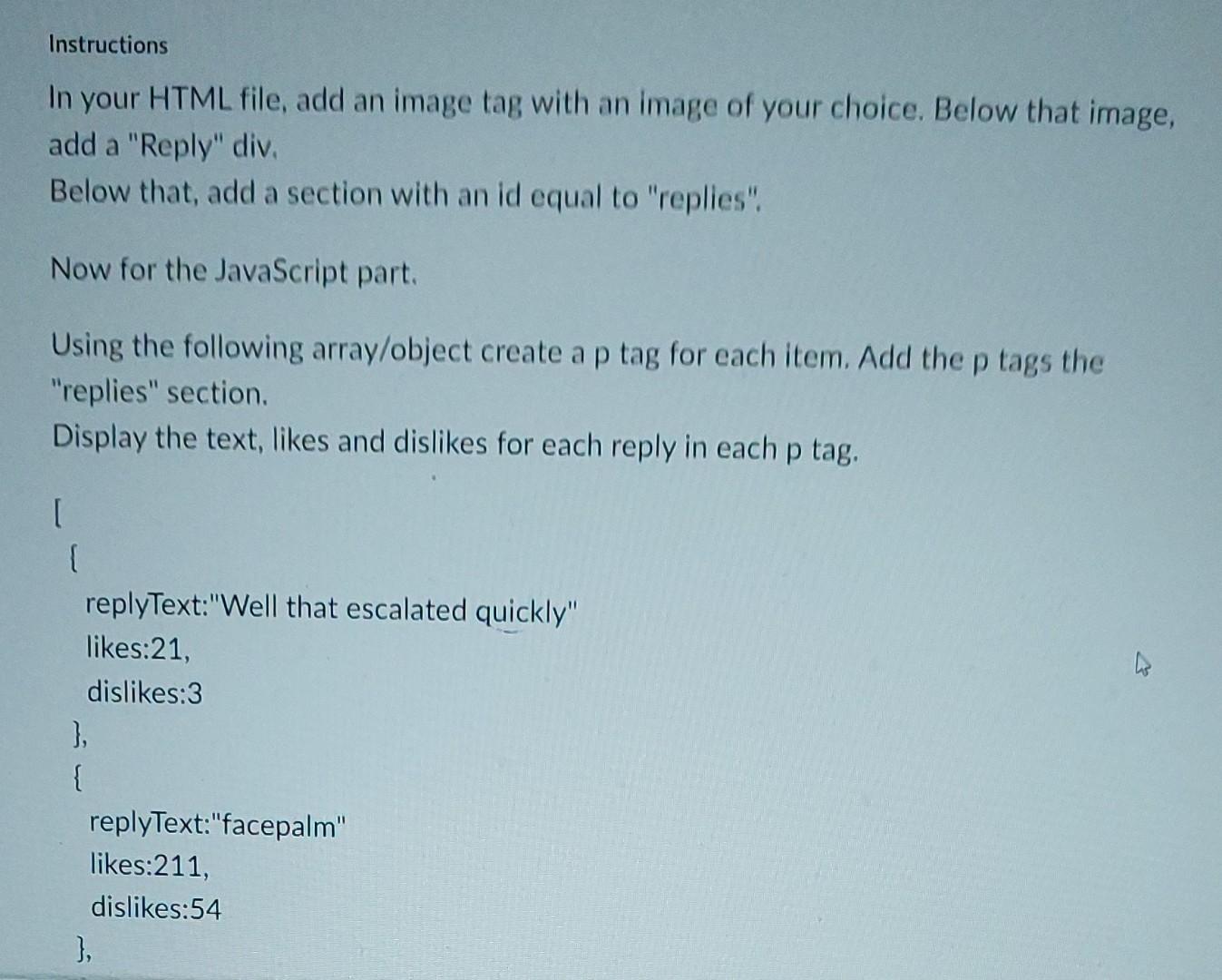
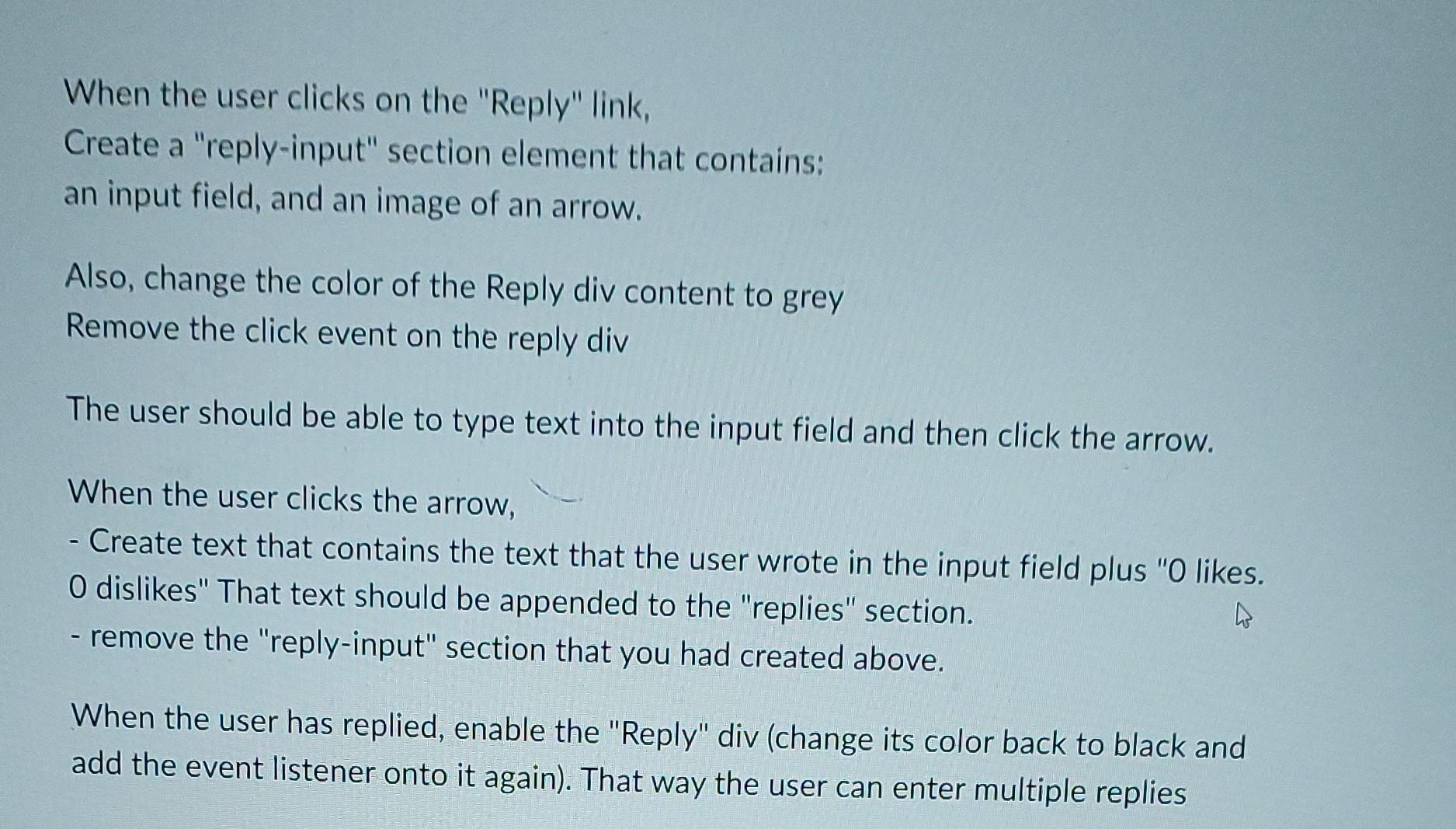
Instructions In your HTML file, add an image tag with an image of your choice. Below that image, add a "Reply" div. Below that, add a section with an id equal to "replies". Now for the JavaScript part. Using the following array/object create a p tag for each item. Add the p tags the "replies" section. Display the text, likes and dislikes for each reply in each p tag. replyText: "Well that escalated quickly" likes:21, dislikes:3 \} \{ replyText:"facepalm" likes: 211 , dislikes:54 When the user clicks on the "Reply" link, Create a "reply-input" section element that contains: an input field, and an image of an arrow. Also, change the color of the Reply div content to grey Remove the click event on the reply div The user should be able to type text into the input field and then click the arrow. When the user clicks the arrow, - Create text that contains the text that the user wrote in the input field plus "0 likes. 0 dislikes" That text should be appended to the "replies" section. - remove the "reply-input" section that you had created above. When the user has replied, enable the "Reply" div (change its color back to black and add the event listener onto it again). That way the user can enter multiple replies
Step by Step Solution
There are 3 Steps involved in it

Get step-by-step solutions from verified subject matter experts
 Study Help