







Question: La b Assignments for Chapter 2 We have created six lab assignments for this chapter: Lab2-1 to Lab2-6. We have also included six lab-report sheets,
Lab Assignments for Chapter 2
We have created six lab assignments for this chapter: Lab2-1 to Lab2-6. We have also included six lab-report sheets, which means that each lab assignment needs to be reported in a separate sheet. The six lab assignments are related to six application-layer protocols we discussed in this chapter. The lab assignment for SSH protocol has been moved to Chapter 10 because it involves security issues. It is strongly recommended that the student carefully study and digest the corresponding protocols before working on the related lab assignment. It is necessary that the student carefully study the instructions in the lab assignment for Chapter 1 before starting this assignment.
Lab2-6: DNS
There are several network administration tools for Microsoft Windows and UNIX-like operating systems that are useful for network troubleshooting as well as for educational purposes. Among these tools are the following:
dig (Domain Information Groper) is used for querying DNS servers. This utility replaces older tools such as nslookup.
ipconfig (Internet Protocol Configuration) for Windows or ifconfig (Interface Configuration) for UNIX-like operating systems is used to configure, control, and query TCP/IP network interface parameters.
Assignment
This lab is made of three parts. In Part I, we use the dig utility. In Part II, we use ipcon- fig utility. Finally, in Part III, we use Wireshark to find more information about the packets exchanged by the DNS protocol.
Part I: Using dig
The dig utility is used for querying DNS name servers for any DNS records. If you do not have this utility in your system, you can download the command line interface (CLI) version of this utility from the following website.
http://members.shaw.caicholas.fong/dig/
The installation and setup instruction is on the same website. You can find the dig manual page on the website below:
https://www.isc.org/software/bind/documentation/arm95#man.dig
Alternatively you can run dig (and many other command line interface utility tools) from many websites who offer this service for free. For this lab, we run dig from the following website:
http://www.kloth.net
You can access the above site and select Services and then dig.
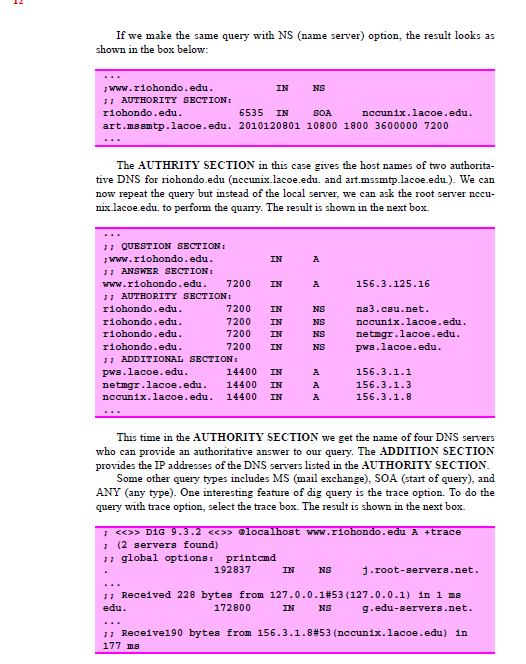
This time dig shows you the root servers ., followed by the servers responsible for edu. domains, and finally followed by the name servers responsible for rio- hondo.edu. domains.
Questions
Do the following query and answer the following question in your lab report.
1. Obtain the IP address of your campus.
2. Find the name and IP addresses of DNS servers who can provide an authoritative answer to the above query.
3. Run the Question 1 with trace option and interpret the result.
4. Run a DNS query to obtain IP of your mail server (MS option).
Part II: Using ipconfig
Select Run from the Start Menu of your computer, type cmd and press OK. In the command screen window type ipconfig/all and press enter. The current TCP/IP set- tings of your network are displayed.
Questions
Using the result of running ipconfig, answer the following question in your lab report.
1. What is the host name?
2. What is the connection-specific DNS suffix?
3. What is the physical (data-link) address?
4. What is the IP address?
5. What is the IP address of the default gateway? This address is the IP address of the host on the local subnet that provides the physical connection to remote networks.
Part III: Using Wireshark to Capture DNS Packets
To make sure that the packets we are going to captured are exchanged between the DNS servers and the host and are not saved in the host cache memory, start this section by emptying the DNS records from the host memory and the browser cache memory as shown below:
First, in the command screen window type ipconfig/flushdns and press enter to clear DNS record from the cache memory of your computer. Next, clear your browser's cache memory.
Open the Wireshark and start capturing. In your browser type the web address of your campus and press enter. Wireshark starts to capture packets. Type dns (lowercase) in the filter field and press Apply so that only DNS messages are displayed. Stop cap- turing and save the captured file.
The packet list pane of the Wireshark displays several DNS packets. In the packet details pane, make sure that the Internet Protocol box and all the boxes above it are collapsed (have plus sign). Expand Domain Name System and all the subsequent boxes below It.
Questions
Using the captured information, answer the following question in your lab report.
1. Do the DNS messages use the service of UDP or TCP?
2. What are the source and destination port numbers for the query DNS message?
3. What are the source and destination port numbers for the response DNS message?
4. To what IP address and what network the query message is sent?
5. What is the query message ID number? What is the response message ID number?
What is the purpose of this field?
6. How many bits are in the flag field of a DNS message?
7. Which bit in the flag field determines whether the message is a query or a response?
8. Which bits are only used in the response message? What is the function of these bits in the response message?
9. What are the number of questions records, answer records, authority records, and addition records in the query message?
10. Interpret the information in the questions-and-answer sections of the packets.
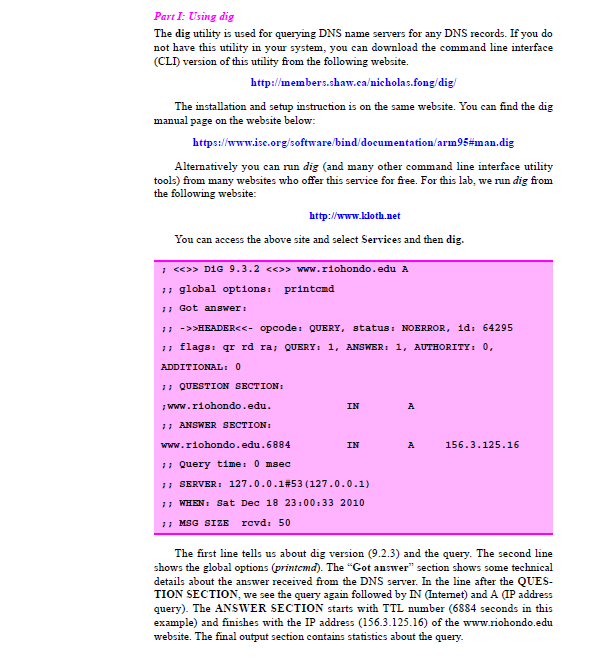
Part I: Using dig The dig utility is used for querying DNS name servers for any DNS records. If you do not have this utility in your system, you can download the command line interface (CLI) version of this utility from the following website. http://members.shaw.ca nicholas.fong dig The installation and setup instruction is on the same website. You can find the di manual page on the website below: https://www.isc.org/software/bind/documentation arm95#man.dig Alternatively you can run dig (and many other command line interface utility tools) from many websites who offer this service for free. For this lab, we run dig from the following website: http://www.kloth.net You can access the above site and select Services and then dig. 1 D1G 9.3.2 www.riohondo.edu A global options Got answeri ->> HEADER D1G 9.3.2 www.riohondo.edu A global options Got answeri ->> HEADER
Step by Step Solution
There are 3 Steps involved in it

Get step-by-step solutions from verified subject matter experts
 Study Help