







Question: Lab assignment # 9 Topics: Python GUI Problem Statement: This assignment is a continuation of last LA and it s a small part of the
Lab assignment #
Topics: Python GUI
Problem Statement:
This assignment is a continuation of last LA and its a small part of the final project. The purpose
of this lab assignment is to gain experience in pythons tkinter GUI Application. In this assignment,
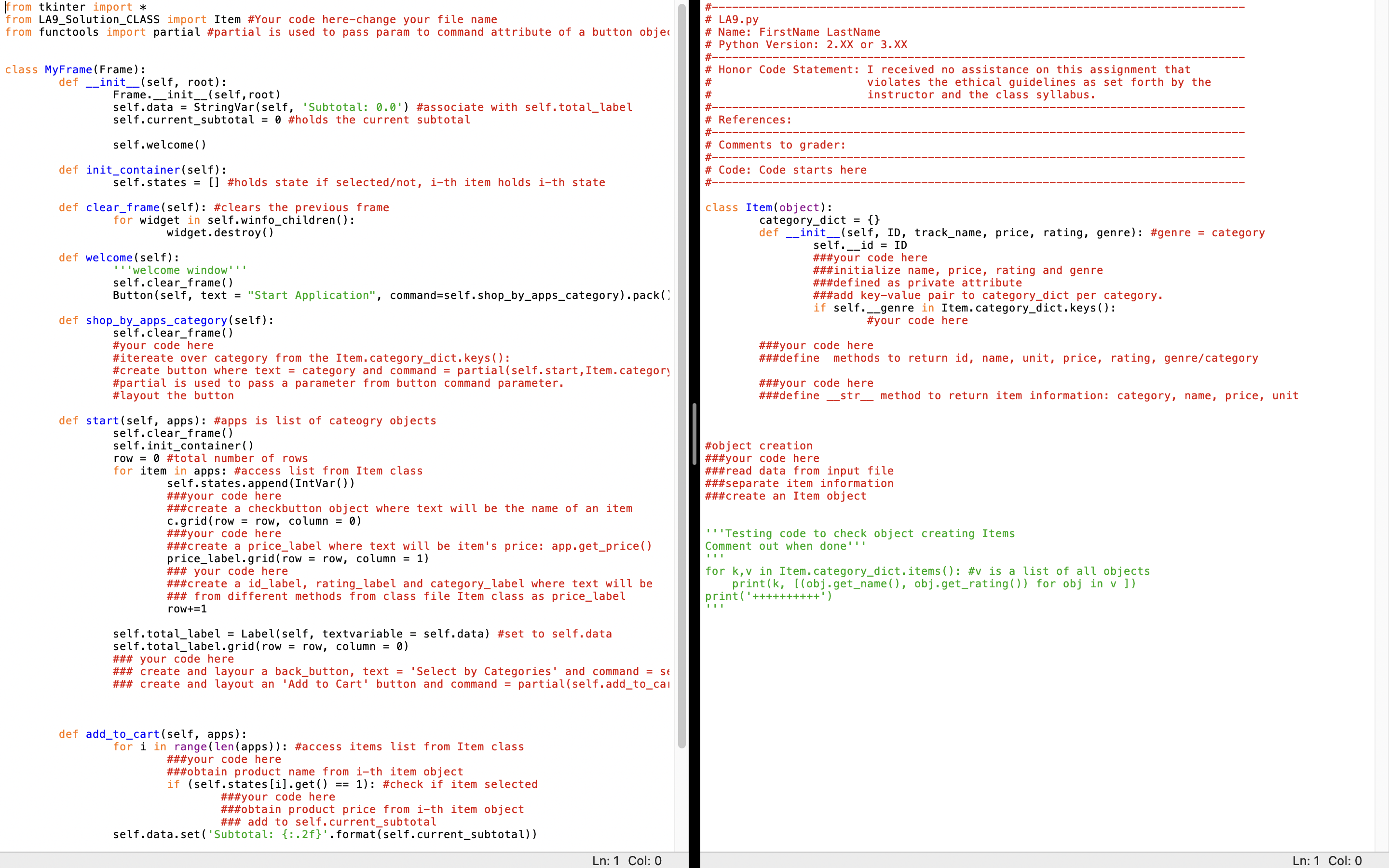
we will design a simple small appsstore. The details are provided in the template file. Write down
the code where it says ###your code here
Design Solution:
The assignment is composed of two different files: CLASS and GUI file. In this assignment we
will learn about the connection between a GUI interface to the backend class definition of the
program.
CLASS file contains a simple Apps Item class definition to describe an application. Each
product information is composed of: categorygenre name, price, ratings and product
ID The information will be read from a given sample input file this file is different from
the project file but follow same format The file looks as follows:
IDname,price,rating,category it Note the order of information
You need to read the information from the file and store it in a category dictionary. This
dictionary will be a class variable in the Item class. The key will be a category name and
the values will be list of Item objects. Details provided in the CLASS file. Once the
information is read, an Apps Item object will be created and added to dictionary per
category. You need to complete the Item class definition. You can test the CLASS file
separately by printing the information in the category dictionary. A testing code is
provided at the end of the class file.
GUI file is composed of most of the graphical component information. The GUI looks
very similar to the previous LA Major differences from previous one are listed below:
a GUI file will import CLASS files Apps Item class and this way will have access to
category dictionary.
b Shopbyappscategory is a new method added. This allows the user to
choose apps by category. For this assignment there are two categories only:
games and weather. Selecting a particular category will call start method with a
parameter: Item.categorydictcategory which is essentially a list of apps
object for that particular category. More implementation details are given.
Sample Output:
First window: Start ordering will start the program. This will be a button, pressing the
button will start the code and take user to the second window
Second Window: Second window will display the following category window, each of
the category name shown is actually a button, clicking on the button will take to the list
of apps for that category.
Third Window: User will be displayed with all the apps available for that category. For
this assignment, apps information is obtained from a file and stored in a dictionary. This
dictionary will be imported from CLASS to GUI file. The information to be displayed to
the users are: name checkbutton price label IDlabel ratinglabel and
categorygenre label as follows:
This window also contains subtotal label, select by categories label to select a different
category and an Add to Cart button.
Check button: are interactive buttons to selectunselect an item. When user presses the
check button that means the item is being selected. Following is a sample code to create a
check button.
How to create a checkbutton:
var IntVar #associate an IntVar with
c Checkbuttonroot text"egg", variablevar #obtain the name from the Item class method
cpack
By default, the variable is set to if the button is selected, and otherwise. variableAssociates
a Tkinter variable to the check button. When the check button is pressed, the variable is toggled
between and Method get returns the current selection value.
Item selected and add to cart: Two apps Item selected and subtotal shown below. After
selection, pressing Add to Cart button will display the subtotal label at the left.
User can press select by categories button to select another category and perform
similar operation as in #
Submission:
All submission will be via BlackBoard as directed.
Helpful resources: lab instructor, lecture videos, slides and codes, python documentation
The codes need to be written in the firstnamelastnameLACLASS.py and
firstnamelastnameLAGUI.py files.
Step by Step Solution
There are 3 Steps involved in it
1 Expert Approved Answer
Step: 1 Unlock

Question Has Been Solved by an Expert!
Get step-by-step solutions from verified subject matter experts
Step: 2 Unlock
Step: 3 Unlock
 Study Help