







Question: Links and websites for Part 1: 1) https://www.makerspaces.com/what-is-a-makerspace/ 2) assorted ideas: https://www.edsurge.com/research/guides/how-to-build-your-makerspace 3) lego ideas: https://education.lego.com/en-us/lessons?searchTerm=maker 4) knex ideas: https://education.lego.com/en-us/lessons?searchTerm=maker 5) assorted ideas: https://ideas.demco.com/blog/makerspaces-in-schools/ 6)
Links and websites for Part 1:
1) https://www.makerspaces.com/what-is-a-makerspace/
2) assorted ideas: https://www.edsurge.com/research/guides/how-to-build-your-makerspace
3) lego ideas: https://education.lego.com/en-us/lessons?searchTerm=maker
4) knex ideas: https://education.lego.com/en-us/lessons?searchTerm=maker
5) assorted ideas: https://ideas.demco.com/blog/makerspaces-in-schools/
6) crafting ideas: https://www.pinterest.com/dianalrendina/makerspace-arts-crafts/?autologin=true
7) assorted ideas: https://www.edutopia.org/blog/fostering-creativity-with-makerspaces-nicholas-provenzano
8) Makey-Makey electronics ideas: https://www.instructables.com/makeymakey/
Youtube link for teacher hacks: https://www.youtube.com/watch?v=ZgAoGH_6Qbc
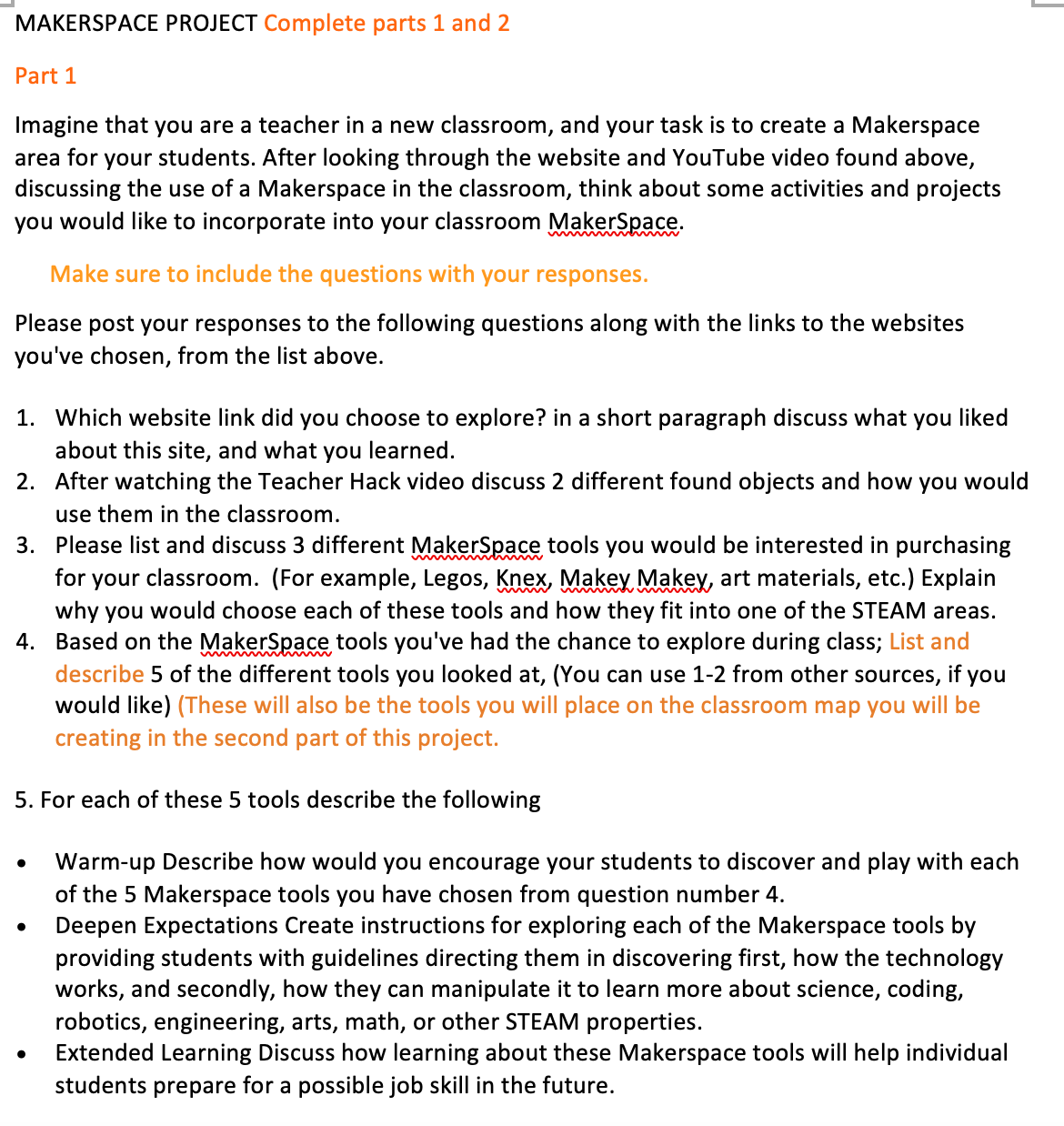
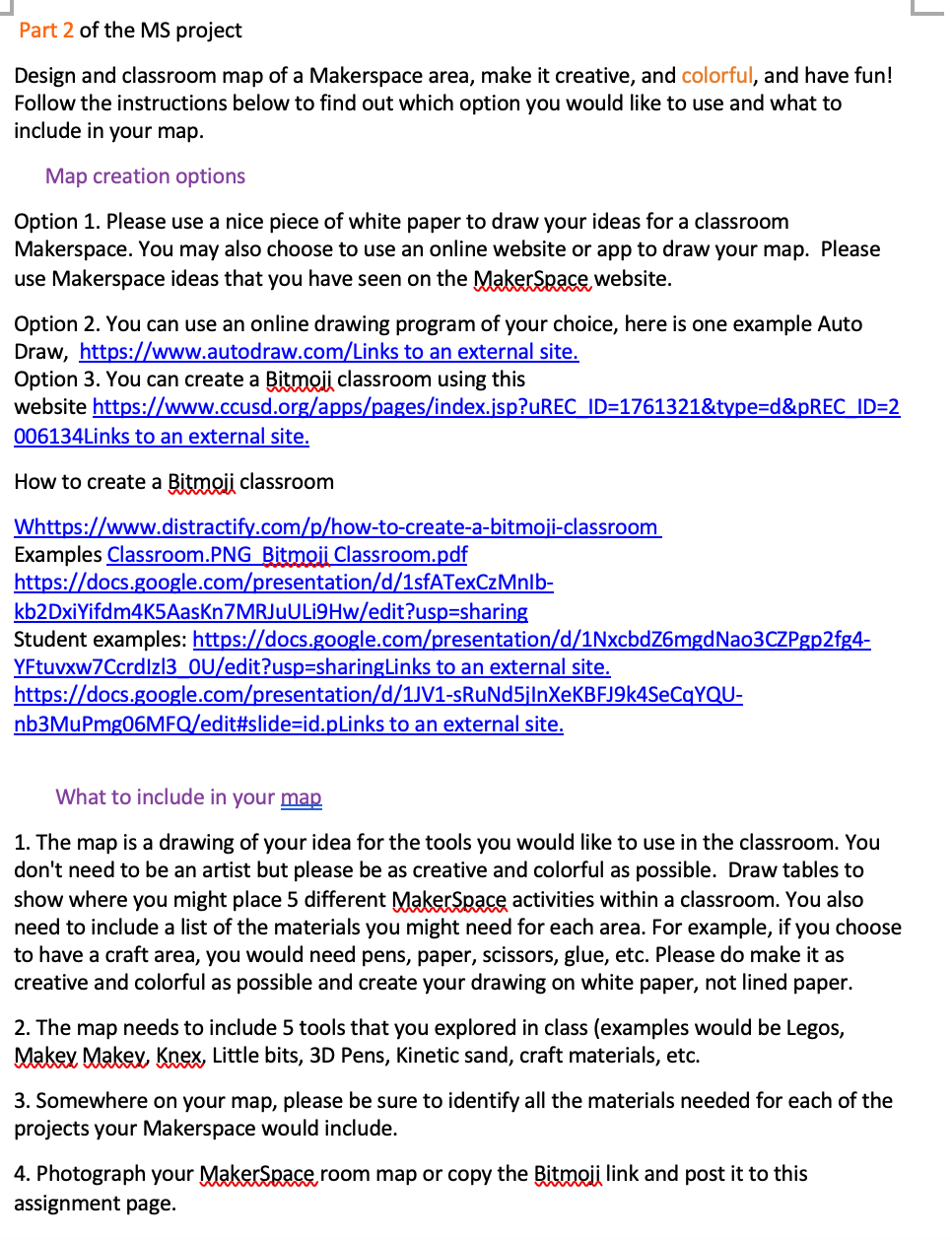
MAKERSPACE PROJECT Complete parts 1 and 2 Part 1 Imagine that you are a teacher in a new classroom, and your task is to create a Makerspace area for your students. After looking through the website and YouTube video found above, discussing the use of a Makerspace in the classroom, think about some activities and projects you would like to incorporate into your classroom MakerSpace. Please post your responses to the following questions along with the links to the websites you've chosen, from the list above. 1. Which website link did you choose to explore? in a short paragraph discuss what you liked about this site, and what you learned. 2. After watching the Teacher Hack video discuss 2 different found objects and how you would use them in the classroom. 3. Please list and discuss 3 different MakerSpace tools you would be interested in purchasing for your classroom. (For example, Legos, 533x, Makey Mam art materials, etc.) Explain why you would choose each of these tools and how they fit into one of the STEAM areas. 4. Based on the MakerSpace tools you've had the chance to explore during class; List and describe 5 of the different tools you looked at, (You can use 1-2 from other sources, if you would like) (These will also be the tools you will place on the classroom map you will be creating in the second part of this project. 5. For each of these 5 tools describe the following o Warm-up Describe how would you encourage your students to discover and play with each of the 5 Makerspace tools you have chosen from question number 4. o Deepen Expectations Create instructions for exploring each of the Makerspace tools by providing students with guidelines directing them in discovering first, how the technology works, and secondly, how they can manipulate it to learn more about science, coding, robotics, engineering, arts, math, or other STEAM properties. 0 Extended Learning Discuss how learning about these Makerspace tools will help individual students prepare for a possible job skill in the future. Part 2 of the MS project Design and classroom map of a Makerspace area, make it creative, and colorful, and have fun! Follow the instructions below to find out which option you would like to use and what to include in your map. Map creation options Option 1. Please use a nice piece of white paper to draw your ideas for a classroom Makerspace. You may also choose to use an online website or app to draw your map. Please use Makerspace ideas that you have seen on the MakerSpace website. Option 2. You can use an online drawing program of your choice, here is one example Auto Draw, https://www.autodraw.com/Links to an external site. Option 3. You can create a Bitmoji classroom using this website https://www.ccusd.org/apps/pages/index.jsp?uREC ID=1761321&type=d&pREC ID=2 006134Links to an external site. How to create a Bitmoji classroom Whttps://www.distractify.com/p/how-to-create-a-bitmoji-classroom Examples Classroom.PNG Bitmoji Classroom.pdf https://docs.google.com/presentation/d/1sfATexCzMnib- kb2DxiYifdm4K5Aaskn7MRJuULi9Hw/edit?usp=sharing Student examples: https://docs.google.com/presentation/d/1NxcbdZ6mgdNao3CZPgp2fg4- YFtuvxw7Ccrdlz13 OU/edit? usp=sharingLinks to an external site. https://docs.google.com/presentation/d/1JV1-sRuNd5jinXeKBFJ9k4SeCqYQU- nb3MuPmg06MFQ/edit#slide=id.pLinks to an external site. What to include in your map 1. The map is a drawing of your idea for the tools you would like to use in the classroom. You don't need to be an artist but please be as creative and colorful as possible. Draw tables to show where you might place 5 different MakerSpace activities within a classroom. You also need to include a list of the materials you might need for each area. For example, if you choose to have a craft area, you would need pens, paper, scissors, glue, etc. Please do make it as creative and colorful as possible and create your drawing on white paper, not lined paper. 2. The map needs to include 5 tools that you explored in class (examples would be Legos, Makey Makey, Knex, Little bits, 3D Pens, Kinetic sand, craft materials, etc. 3. Somewhere on your map, please be sure to identify all the materials needed for each of the projects your Makerspace would include. 4. Photograph your MakerSpace room map or copy the Bitmoji link and post it to this assignment page
Step by Step Solution
There are 3 Steps involved in it

Get step-by-step solutions from verified subject matter experts
 Study Help