







Question: (MATLAB) function dataMat = genFakeData(nRep) rng('shuffle'); if nRep error('nRep must be 1 or greater'); end if nRep ~= round(nRep) error('nRep must be a whole number');
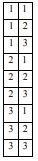 (MATLAB)
function dataMat = genFakeData(nRep)
rng('shuffle');
if nRep
error('nRep must be 1 or greater');
end
if nRep ~= round(nRep)
error('nRep must be a whole number');
end
var1 = [1 1 2 2]; % IV1: first two at level 1, second two at level 2 v
ar2 = [1 2 1 2]; % IV2: first & third at level 1, second & fourth at lvl 2
dataMat = [var1' var2'];
dataMat = repmat(dataMat,nRep,1); % THINK: what do nRep and 1 represent?
nTrials = size(dataMat,1);
trialNums = (1:nTrials)';
correct = round(rand(nTrials,1));
dataMat = [trialNums dataMat correct];
QUESTION: Modify genFakedata Add a new input argument to genFakeData2 called nLevels. This will change the number of levels of each variable (as opposed to the hard-coded 2 levels in the original genFakeData). Lets still assume that there are still always two variables (var1 and var2) and that each of them has the same number of levels as the other (whatever number is input as nLevels). In other words, if nLevels is 6, then the code should create two variables, each with 6 levels. To the left is an example of what the two columns of dataMat should look like if genFakeData2 is run with nLevels = 3. Do you notice a pattern in the numbers in the first column? The second? How many times does the pattern repeat? Think about what these would look like if nLevels = 4 or nLevels = 5. Use this insight to change how var1 and var2 are defined, making use of nLevels to make the appropriate sequence of values. Hint: Try using repmat([1 2 3]', 3, 1) and comparing to the example table above. What do you notice? Also try using repmat(1, 3, 1) and repmat(2, 3, 1) and comparing to the table above. It may help to use a for loop to build one of the columns
Step by Step Solution
There are 3 Steps involved in it

Get step-by-step solutions from verified subject matter experts
 Study Help