







Question: Matlab Image Processing Exercises 1. Download the sample image 2. Read the image into Matlab. (im_0) 3. Display the image. 4. Convert im_0 into grayscale
Matlab Image Processing Exercises
1. Download the sample image
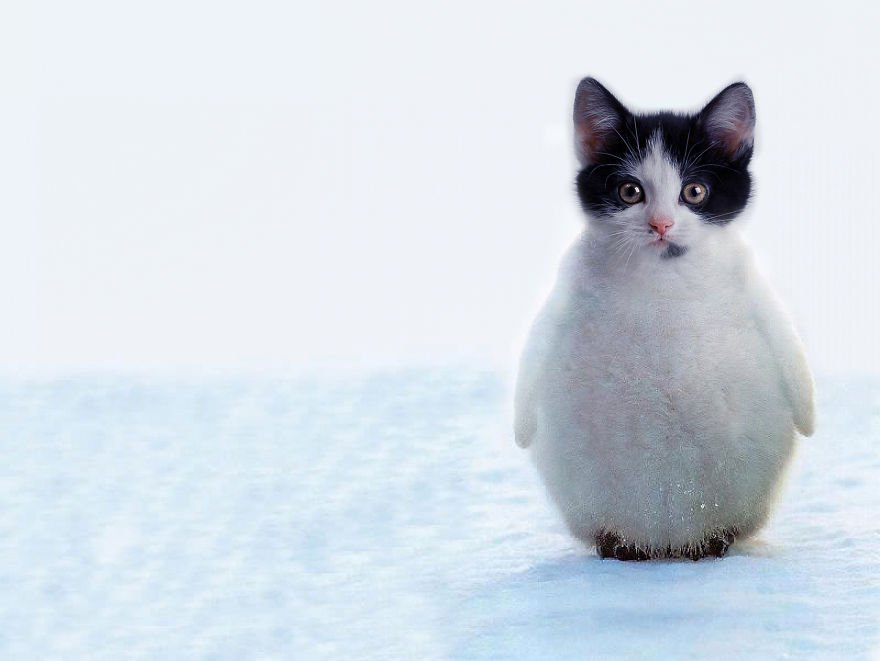
2. Read the image into Matlab. (im_0)
3. Display the image.
4. Convert im_0 into grayscale and display the grayscale image in a separate window. (im_1)
5. Resize im_0 into half of its original size (half in the x and y direction). (im_2)
6. Resize im_0 by setting 64 pixels in one direction. Keep the aspect ratio of the image. (im_3)
7. Use the ginput command to get the coordinates of a rectangular box in the image for object selection. For example, select the animal in the sample image.
8. Extract the rectangular sub-image and display the sub-image in a separate window. (sub_0)
9. Resize the sub-image into half of its original size, and then paste this smaller sub-image (sub_1) into the original image (im_0) to a place you define. You can paste a series of sub-images, such as size (sub_2), 1/8 size (sub_3) of the sub-image, into different locations in the original image (im_0).
10. Save the final image as your version of animal hybrids.
Step by Step Solution
There are 3 Steps involved in it

Get step-by-step solutions from verified subject matter experts
 Study Help