







Question: Mobile App Development Previous Assignment: In Android Studio, create a spinner that has drop down function on it (NOT tab view). Place a scroll bar
Mobile App Development
Previous Assignment: In Android Studio, create a spinner that has drop down function on it (NOT tab view). Place a scroll bar inside the dropdown of the spinner. The categories inside the spinner include: vegetable, fruit, meat, drink. Clicking on each section will pop up a fragment section below. Here, I clicked on the vegetable section, which leads me to a page displaying vegetables and their expiration dates.
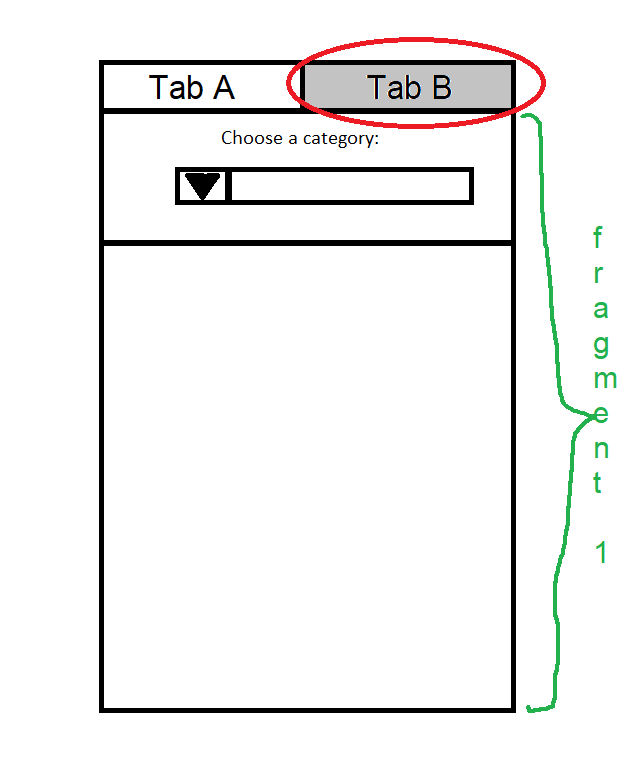
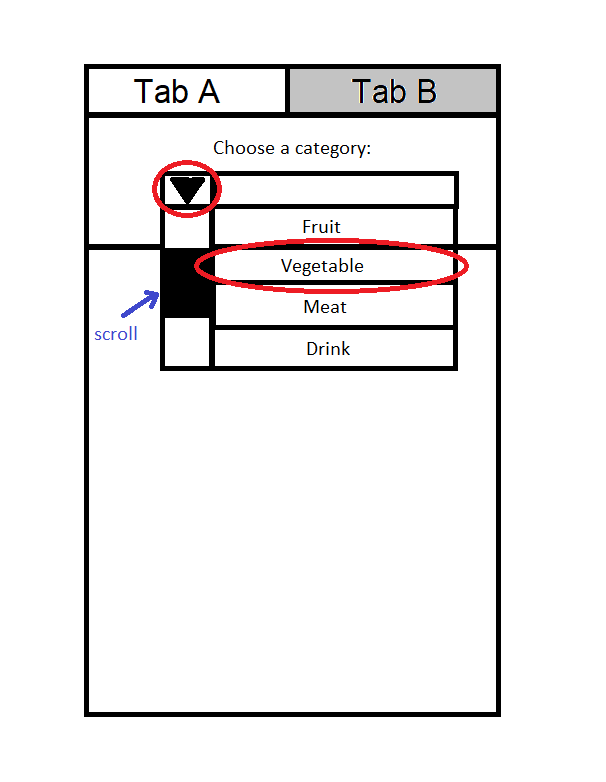
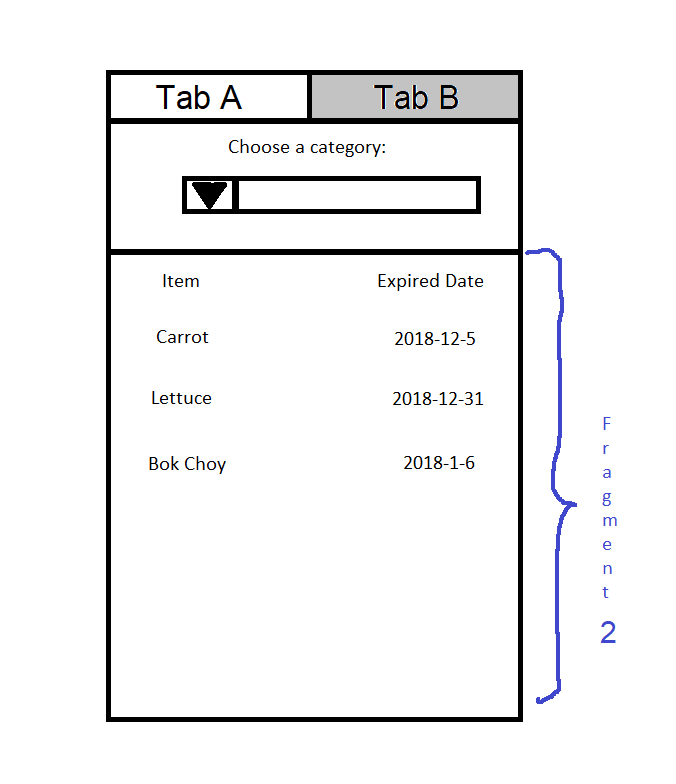
Current Assignment: Create a tab view, which has Tab A and Tab B. Tab A is empty, but Tab B contains a spinner that has a drop down function on it. Place a scroll bar inside the dropdown of the spinner. The categories inside the spinner include: vegetable, fruit, meat, drink. Clicking on each section will pop up a fragment section below. Here, I clicked on the vegetable section, which leads me to a page displaying vegetables and their expiration dates.
This question was answered before in here, so you can find your solution for the new assignment with the given codes below:
https://www.chegg.com/homework-help/questions-and-answers/mobile-app-development-android-studio-create-spinner-drop-function-tab-view--place-scroll--q30248762
Note: Post XML and Java codes for both the main activity and the fragments. You only need to create the vegetable fragment, I will code the rest based on the vegetable fragment. Do not screenshot the code, please write out the code. Please TEST the code out before posting the XML and Java Codes for both the main activity and the fragments.
activity_main.xml:
xml version="1.0" encoding="utf-8"?> RelativeLayout xmlns:android="http://schemas.android.com/apk/res/android" xmlns:app="http://schemas.android.com/apk/res-auto" xmlns:tools="http://schemas.android.com/tools" android:layout_width="match_parent" android:layout_height="match_parent" tools:context=".MainActivity"> Spinner android:layout_width="wrap_content" android:layout_height="wrap_content" android:layout_centerHorizontal="true" android:id="@+id/spinnerList"/> FrameLayout android:layout_width="match_parent" android:layout_height="match_parent" android:layout_below="@+id/spinnerList" android:layout_marginTop="4dp" android:id="@+id/fragment" /> RelativeLayout>
veg_layout.xml:
xml version="1.0" encoding="utf-8"?> LinearLayout xmlns:android="http://schemas.android.com/apk/res/android" android:layout_width="match_parent" android:layout_height="match_parent" android:orientation="vertical" android:padding="12dp" android:id="@+id/vegLayout"> LinearLayout android:layout_width="match_parent" android:layout_height="wrap_content" android:orientation="horizontal"> TextView android:layout_width="wrap_content" android:layout_height="wrap_content" android:text="Item" android:layout_weight="1" android:textStyle="bold" android:textColor="#080808" /> TextView android:layout_width="wrap_content" android:layout_height="wrap_content" android:text="Expired Date" android:layout_weight="1" android:textStyle="bold" android:textColor="#080808" android:gravity="end" /> LinearLayout> LinearLayout android:layout_width="match_parent" android:layout_height="wrap_content" android:orientation="horizontal" android:layout_marginTop="6dp"> TextView android:layout_width="wrap_content" android:layout_height="wrap_content" android:text="Carrot" android:layout_weight="1" /> TextView android:layout_width="wrap_content" android:layout_height="wrap_content" android:text="2018-12-5" android:layout_weight="1" android:textAlignment="viewEnd" /> LinearLayout> LinearLayout android:layout_width="match_parent" android:layout_height="wrap_content" android:orientation="horizontal"> TextView android:layout_width="wrap_content" android:layout_height="wrap_content" android:text="Lettuce" android:layout_weight="1" /> TextView android:layout_width="wrap_content" android:layout_height="wrap_content" android:text="2018-12-31" android:layout_weight="1" android:textAlignment="viewEnd" /> LinearLayout> LinearLayout android:layout_width="match_parent" android:layout_height="wrap_content" android:orientation="horizontal"> TextView android:layout_width="wrap_content" android:layout_height="wrap_content" android:text="Bok Choy" android:layout_weight="1" /> TextView android:layout_width="wrap_content" android:layout_height="wrap_content" android:text="2018-1-6" android:layout_weight="1" android:textAlignment="viewEnd" /> LinearLayout> LinearLayout>
MainActivity.java:
package com.green.chegg; //import android.app.Fragment; import android.app.Fragment; import android.app.FragmentManager; import android.app.FragmentTransaction; import android.support.v7.app.AppCompatActivity; import android.os.Bundle; import android.view.View; import android.widget.AdapterView; import android.widget.ArrayAdapter; import android.widget.Spinner; import java.util.ArrayList; import java.util.List; public class MainActivity extends AppCompatActivity { @Override protected void onCreate(Bundle savedInstanceState) { super.onCreate(savedInstanceState); setContentView(R.layout.activity_main); List itemList=new ArrayList(); //spinner item list itemList.add("Fruit"); itemList.add("Vegetable"); itemList.add("Meat"); itemList.add("Drink"); Spinner spinner=findViewById(R.id.spinnerList); //spinner ArrayAdapter listAdapter=new ArrayAdapter(this,android.R.layout.simple_spinner_item,itemList); listAdapter.setDropDownViewResource(android.R.layout.simple_spinner_dropdown_item); spinner.setAdapter(listAdapter); //setting adapter to spinner spinner.setOnItemSelectedListener(new AdapterView.OnItemSelectedListener() { //on item select listener @Override public void onItemSelected(AdapterView> parent, View view, int position, long id) { switch (position) { case 0://for fruit break; case 1://for veg loadFragment(new vegFragment()); break; case 2://for meat break; case 3://for drink break; } } @Override public void onNothingSelected(AdapterView> parent) { } }); } private void loadFragment(Fragment fragment) { // create a FragmentManager FragmentManager fm = getFragmentManager(); // create a FragmentTransaction to begin the transaction and replace the Fragment FragmentTransaction fragmentTransaction = fm.beginTransaction(); // replace the FrameLayout with new Fragment fragmentTransaction.replace(R.id.fragment, fragment); fragmentTransaction.commit(); // save the changes } } vegFragment.java:
package com.green.chegg; import android.app.Fragment; import android.os.Bundle; import android.support.annotation.NonNull; import android.support.annotation.Nullable; import android.view.LayoutInflater; import android.view.View; import android.view.ViewGroup; public class vegFragment extends Fragment { @Nullable @Override public View onCreateView(@NonNull LayoutInflater inflater, @Nullable ViewGroup container, @Nullable Bundle savedInstanceState) { return inflater.inflate(R.layout.veg_layout,container,false); //inflating layout } }Tab A Tab B Choose a category: 1 Tab A Tab B Choose a category: 1
Step by Step Solution
There are 3 Steps involved in it

Get step-by-step solutions from verified subject matter experts
 Study Help