







Question: Mostly stuck around the first part Internal Control and Cash Using Excel for a Bank Reconciliation Lori Anders of Wilderness Associates is getting ready to
Mostly stuck around the first part
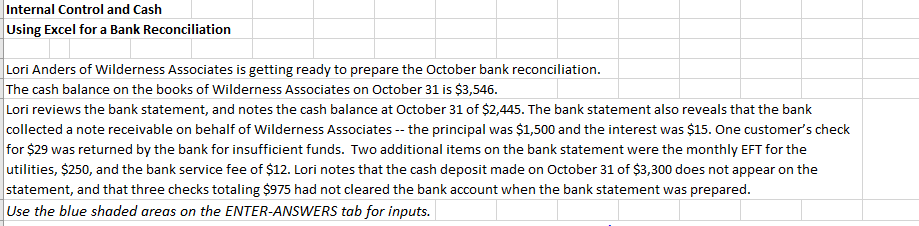
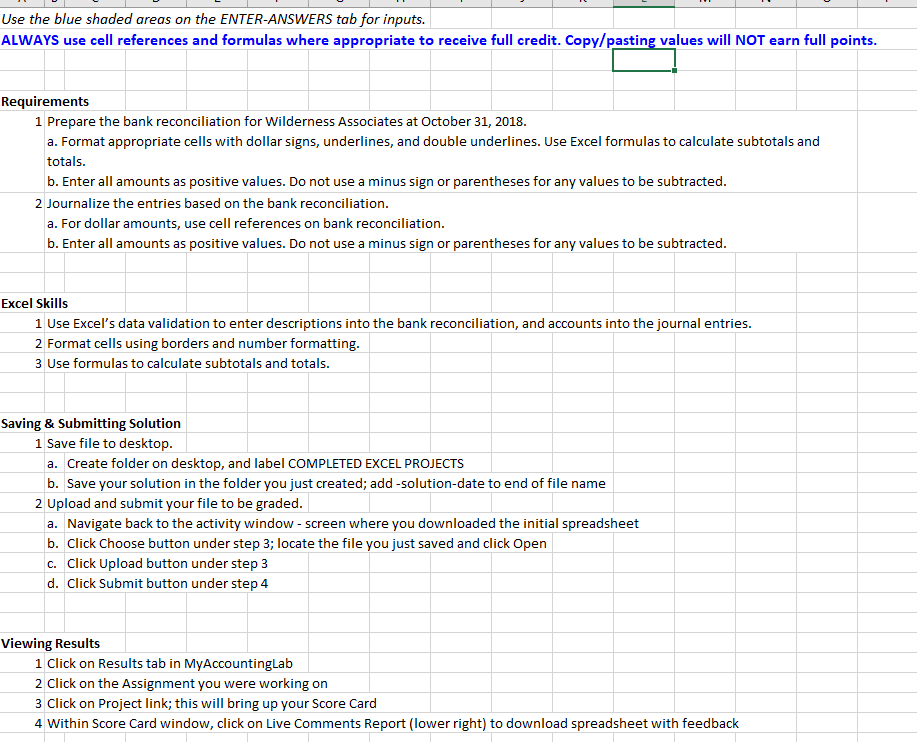
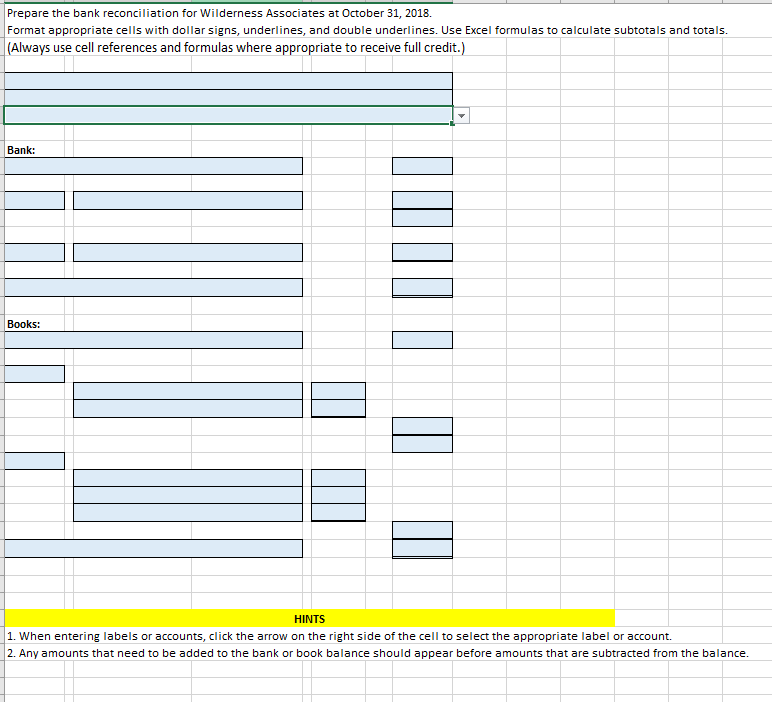
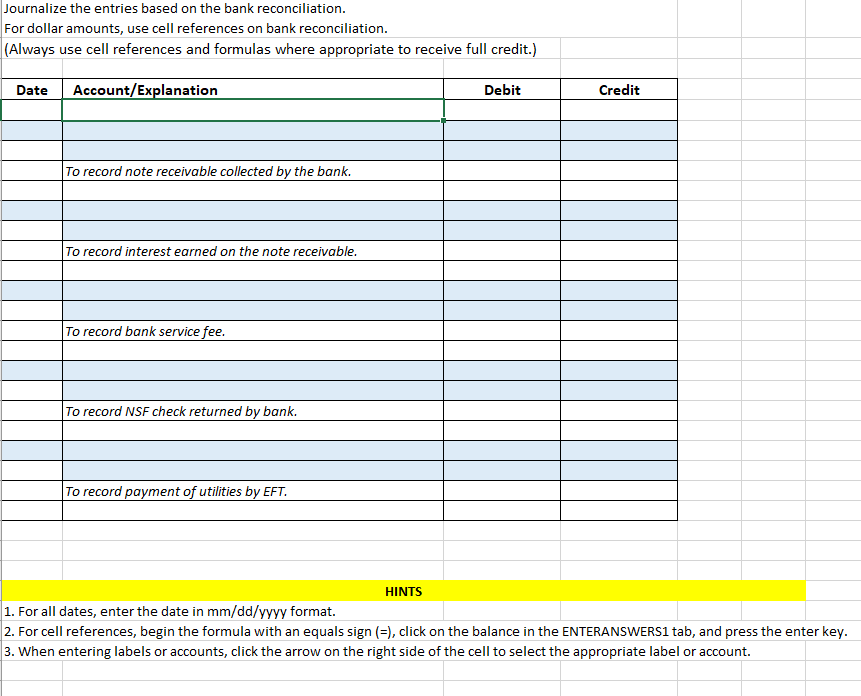
Internal Control and Cash Using Excel for a Bank Reconciliation Lori Anders of Wilderness Associates is getting ready to prepare the October bank reconciliation. The cash balance on the books of Wilderness Associates on October 31 is $3,546. Lori reviews the bank statement, and notes the cash balance at October 31 of $2,445. The bank statement also reveals that the bank collected a note receivable on behalf of Wilderness Associates -- the principal was $1,500 and the interest was $15. One customer's check for $29 was returned by the bank for insufficient funds. Two additional items on the bank statement were the monthly EFT for the utilities, $250, and the bank service fee of $12. Lori notes that the cash deposit made on October 31 of $3,300 does not appear on the statement, and that three checks totaling $975 had not cleared the bank account when the bank statement was prepared. Use the blue shaded areas on the ENTER-ANSWERS tab for inputs. Use the blue shaded areas on the ENTER-ANSWERS tab for inputs. ALWAYS use cell references and formulas where appropriate to receive full credit. Copy/pasting values will NOT earn full points. Requirements 1 Prepare the bank reconciliation for Wilderness Associates at October 31, 2018. a. Format appropriate cells with dollar signs, underlines, and double underlines. Use Excel formulas to calculate subtotals and totals. b. Enter all amounts as positive values. Do not use a minus sign or parentheses for any values to be subtracted. 2 Journalize the entries based on the bank reconciliation. a. For dollar amounts, use cell references on bank reconciliation. b. Enter all amounts as positive values. Do not use a minus sign or parentheses for any values to be subtracted. Excel Skills 1 Use Excel's data validation to enter descriptions into the bank reconciliation, and accounts into the journal entries. 2 Format cells using borders and number formatting. 3 Use formulas to calculate subtotals and totals. Saving & Submitting Solution 1 Save file to desktop. a. Create folder on desktop, and label COMPLETED EXCEL PROJECTS b. Save your solution in the folder you just created; add-solution-date to end of file name 2 Upload and submit your file to be graded. a. Navigate back to the activity window - screen where you downloaded the initial spreadsheet b. Click Choose button under step 3; locate the file you just saved and click Open C. Click Upload button under step 3 d. Click Submit button under step 4 Viewing Results 1 Click on Results tab in My Accountinglab 2 Click on the Assignment you were working on 3 Click on Project link; this will bring up your Score Card 4 Within Score Card window, click on Live Comments Report (lower right) to download spreadsheet with feedback Prepare the bank reconciliation for Wilderness Associates at October 31, 2018 Format appropriate cells with dollar signs, underlines, and double underlines. Use Excel formulas to calculate subtotals and totals (Always use cell references and formulas where appropriate to receive full credit.) Bank: Books: HINTS 1. When entering labels or accounts, click the arrow on the right side of the cell to select the appropriate label or account. 2. Any amounts that need to be added to the bank or book balance should appear before amounts that are subtracted from the balance Journalize the entries based on the bank reconciliation. For dollar amounts, use cell references on bank reconciliation. (Always use cell references and formulas where appropriate to receive full credit.) Account/Explanation Debit Credit Date To record note receivable collected by the bank. To record interest earned on the note receivable. To record bank service fee To record NSF check returned by bank. To record payment of utilities by EFT. HINTS |1. For all dates, enter the date in mm/dd/yyyy format. 2. For cell references, begin the formula with an equals sign (=), click on the balance in the ENTERANSWERS1 tab, and press the enter key. 3. When entering labels or accounts, click the arrow on the right side of the cell to select the appropriate label or account
Step by Step Solution
There are 3 Steps involved in it

Get step-by-step solutions from verified subject matter experts
 Study Help