







Question: MS-Excel Assignment Open the file named Excel Assignment.xlsx from your folder then do the following: Follow the following instructions, the correct solution should be look
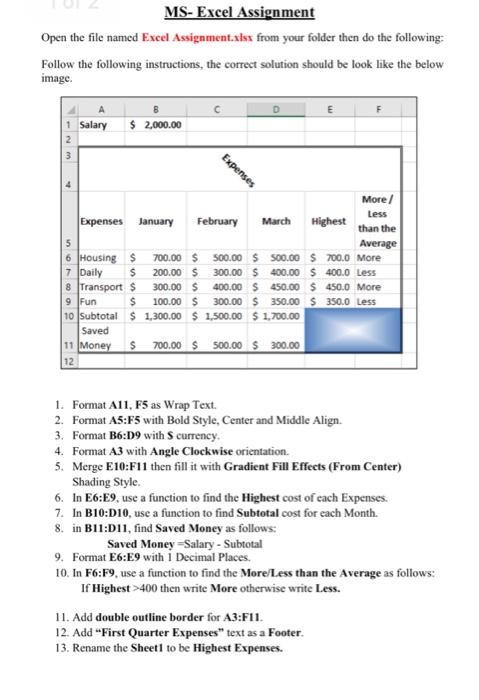
MS-Excel Assignment Open the file named Excel Assignment.xlsx from your folder then do the following: Follow the following instructions, the correct solution should be look like the below image. C Salary $ 2,000.00 wN Expenses More Less Expenses January February March Highest than the 5 Average 6 Housings 700.00 $ 500.00 $ 500.00 $ 700.0 More 7 Daily $ 200.00 $ 300.00 $ 400.00 $ 400.0 Less 8 Transport $ 300.00 $ 400.00 $ 450.00 $ 450.0 More 9 Fun $ 100.00 $ 300.00 $ 350.00 $ 350.0 Less 10 Subtotal $ 1,300.00 $ 1,500.00 $ 1,700.00 Saved 11 Money 700.00 $ 500.00 $ 300.00 12 1. Format A11, F5 as Wrap Text 2. Format A5:F5 with Bold Style, Center and Middle Align. 3. Format B6:09 with currency 4. Format A3 with Angle Clockwise orientation 5. Merge E10:F11 then fill it with Gradient Fill Effects (From Center) Shading Style. 6. In E6:59, use a function to find the Highest cost of each Expenses. 7. In B10:010, use a function to find Subtotal cost for each Month. 8. in B11:011, find Saved Money as follows: Saved Money Salary - Subtotal 9. Format E6:9 with 1 Decimal Places 10. In F6:F9, use a function to find the More Less than the Average as follows: If Highest >400 then write More otherwise write Less. 11. Add double outline border for A3:F11. 12. Add "First Quarter Expenses" text as a Footer. 13. Rename the Sheet1 to be Highest Expenses
Step by Step Solution
There are 3 Steps involved in it

Get step-by-step solutions from verified subject matter experts
 Study Help