







Question: Needed answer in C# Lab 07-1 Display a test scores array In this exercise, you'll enhance the Score Calculator form of Lab 03-2 so it
Needed answer in C#
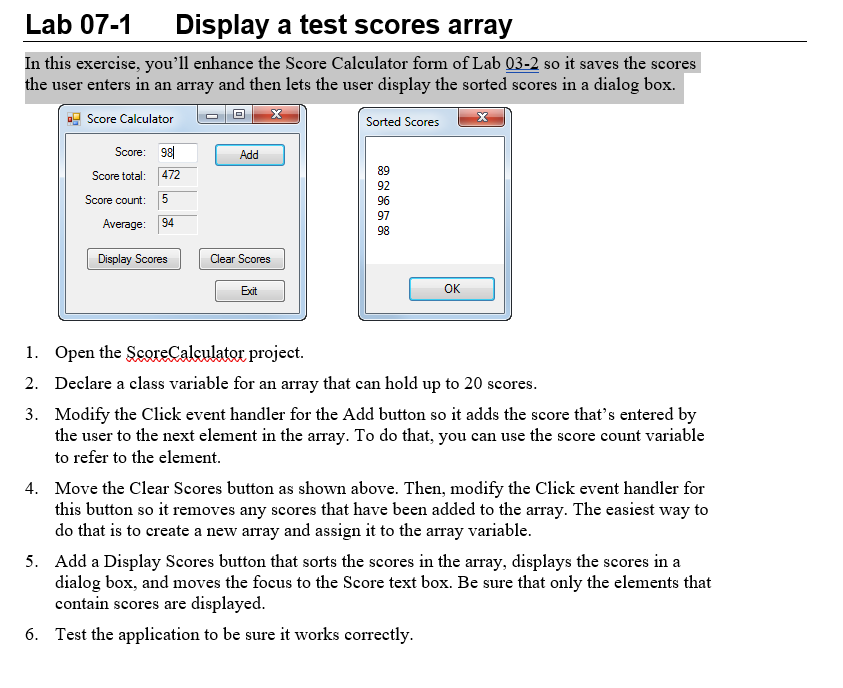
Lab 07-1 Display a test scores array In this exercise, you'll enhance the Score Calculator form of Lab 03-2 so it saves the scores the user enters in an array and then lets the user display the sorted scores in a dialog box. Score Calculator Score: 98 Score total: 472 Sorted Scores Add 89 92 96 97 98 Score count: 5 Average: 94 Display Scores Clear Scores Exit OK 1. 2. 3. Open the ScoreCalculator project Declare a class variable for an array that can hold up to 20 scores Modify the Click event handler for the Add button so it adds the score that's entered by the user to the next element in the array. To do that, you can use the score count variable to refer to the element Move the Clear Scores button as shown above. Then, modify the Click event handler for this button so it removes any scores that have been added to the array. The easiest way to do that is to create a new array and assign it to the array variable 4. 5. Add a Display Scores button that sorts the scores in the array, displays the scores in a dialog box, and moves the focus to the Score text box. Be sure that only the elements that contain scores are displayed 6. Test the application to be sure it works correctly Lab 07-1 Display a test scores array In this exercise, you'll enhance the Score Calculator form of Lab 03-2 so it saves the scores the user enters in an array and then lets the user display the sorted scores in a dialog box. Score Calculator Score: 98 Score total: 472 Sorted Scores Add 89 92 96 97 98 Score count: 5 Average: 94 Display Scores Clear Scores Exit OK 1. 2. 3. Open the ScoreCalculator project Declare a class variable for an array that can hold up to 20 scores Modify the Click event handler for the Add button so it adds the score that's entered by the user to the next element in the array. To do that, you can use the score count variable to refer to the element Move the Clear Scores button as shown above. Then, modify the Click event handler for this button so it removes any scores that have been added to the array. The easiest way to do that is to create a new array and assign it to the array variable 4. 5. Add a Display Scores button that sorts the scores in the array, displays the scores in a dialog box, and moves the focus to the Score text box. Be sure that only the elements that contain scores are displayed 6. Test the application to be sure it works correctly
Step by Step Solution
There are 3 Steps involved in it

Get step-by-step solutions from verified subject matter experts
 Study Help