







Question: new perspective excel 2019 module 5 end of module 2 project 9. Apply the defined names Expenses_2018, Expenses_2019, Expenses_2020, and Expenses_2021 to the formulas in
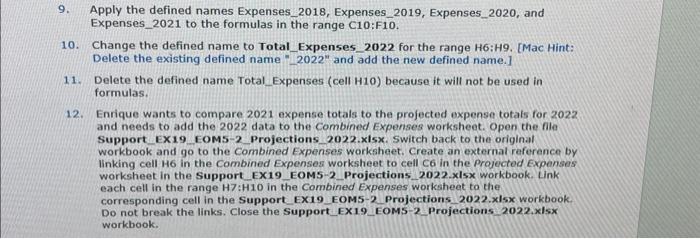
9. Apply the defined names Expenses_2018, Expenses_2019, Expenses_2020, and Expenses_2021 to the formulas in the range C10:F10. 10. Change the defined name to Total_Expenses_2022 for the range H6:H9. [Mac Hint: Delete the existing defined name " 2022 " and add the new defined name.] 11. Delete the defined name Total_Expenses (cell H10) because it will not be used in formulas. 12. Enrique wants to compare 2021 expense totals to the projected expense totats for 2022 and needs to add the 2022 data to the Combined Expenses worksheet. Open the file Support EX19_EOM5-2 Projections_2022.x15x. Switch back to the original workbook and go to the Combined Expenses worksheet. Create an external reference by linking cell H6 in the Combined Expenses worksheet to cell C6 in the Projectod Expenses worksheet in the Support EX19 EOMS-2 Projections 2022.xlsx workbook. Unk each cell in the range H7:H1O in the Combined Expenses worksheet to the corresponding cell in the Support EX19 EOM5-2 Projections 2022, xlsx workbook. Do not break the links. Close the Support EX19_ EOMS-2 Projections_2022, xlsx workbook
Step by Step Solution
There are 3 Steps involved in it

Get step-by-step solutions from verified subject matter experts
 Study Help