







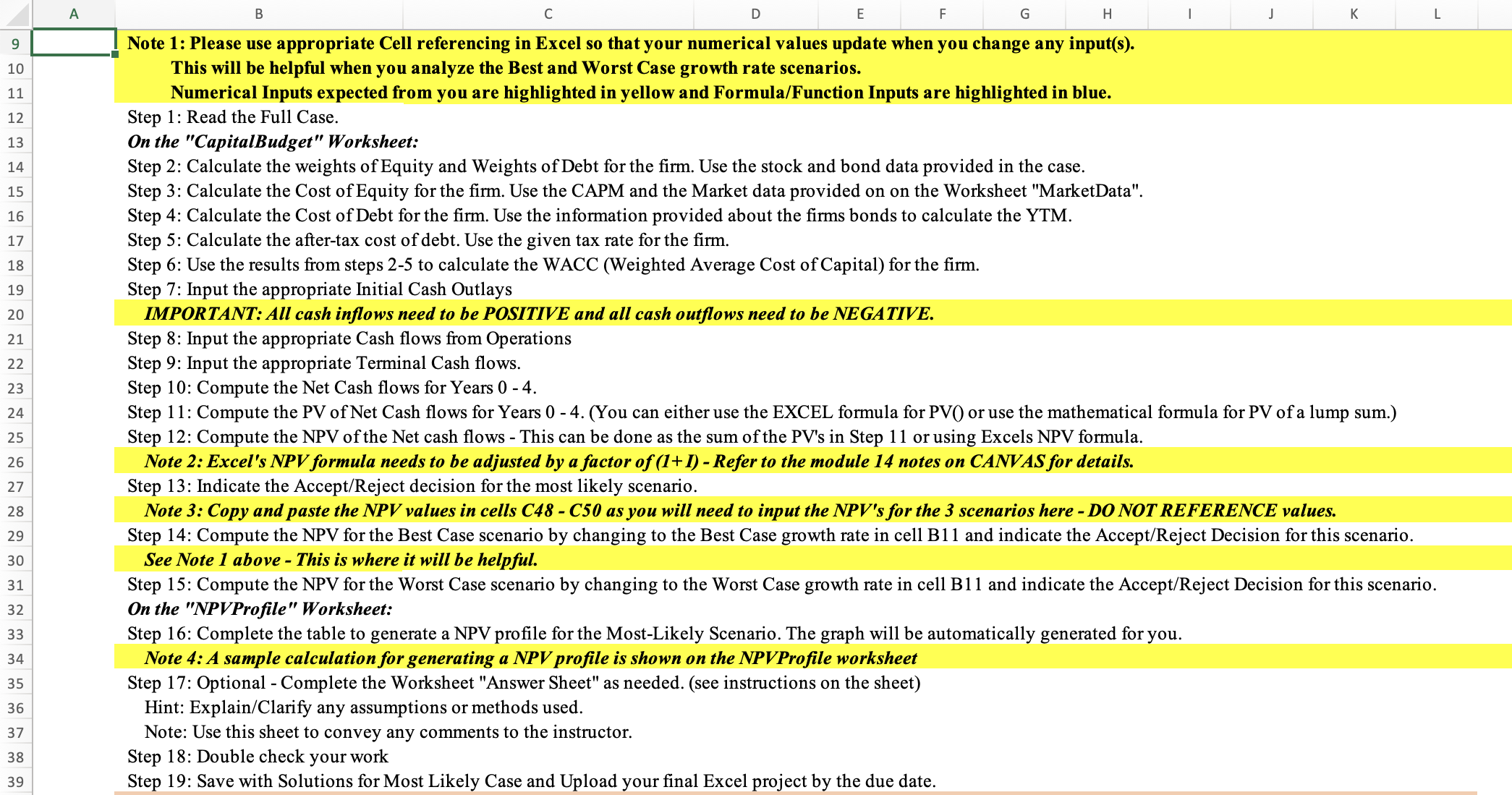
Question: Note 1 : Please use appropriate Cell referencing in Excel so that your numerical values update when you change any input ( s ) .
Note : Please use appropriate Cell referencing in Excel so that your numerical values update when you change any inputs
This will be helpful when you analyze the Best and Worst Case growth rate scenarios.
Numerical Inputs expected from you are highlighted in yellow and FormulaFunction Inputs are highlighted in blue.
Step : Read the Full Case.
On the "CapitalBudget" Worksheet:
Step : Calculate the weights of Equity and Weights of Debt for the firm. Use the stock and bond data provided in the case.
Step : Calculate the Cost of Equity for the firm. Use the CAPM and the Market data provided on on the Worksheet "MarketData".
Step : Calculate the Cost of Debt for the firm. Use the information provided about the firms bonds to calculate the YTM
Step : Calculate the aftertax cost of debt. Use the given tax rate for the firm.
Step : Use the results from steps to calculate the WACC Weighted Average Cost of Capital for the firm.
Step : Input the appropriate Initial Cash Outlays
IMPORTANT: All cash inflows need to be POSITIVE and all cash outflows need to be NEGATIVE.
Step : Input the appropriate Cash flows from Operations
Step : Input the appropriate Terminal Cash flows.
Step : Compute the Net Cash flows for Years
Step : Compute the NPV of the Net cash flows This can be done as the sum of the PVs in Step or using Excels NPV formula.
Note : Excel's NPV formula needs to be adjusted by a factor of Refer to the module notes on CANVAS for details.
Step : Indicate the AcceptReject decision for the most likely scenario.
Note : Copy and paste the NPV values in cells C C as you will need to input the NPVs for the scenarios here DO NOT REFERENCE values.
See Note above This is where it will be helpful.
On the "NPVProfile" Worksheet:
Step : Complete the table to generate a NPV profile for the MostLikely Scenario. The graph will be automatically generated for you.
Note : A sample calculation for generating a NPV profile is shown on the NPVProfile worksheet
Step : Optional Complete the Worksheet "Answer Sheet" as needed. see instructions on the sheet
Hint: ExplainClarify any assumptions or methods used.
Note: Use this sheet to convey any comments to the instructor.
Step : Double check your work
Step : Save with Solutions for Most Likely Case and Upload your final Excel project by the due date.
Step by Step Solution
There are 3 Steps involved in it
1 Expert Approved Answer
Step: 1 Unlock

Question Has Been Solved by an Expert!
Get step-by-step solutions from verified subject matter experts
Step: 2 Unlock
Step: 3 Unlock
 Study Help