







Question: Objective After completing this activity you should know how to: - Use BlueJ to experiment with objects. - Create an object and call methods. -
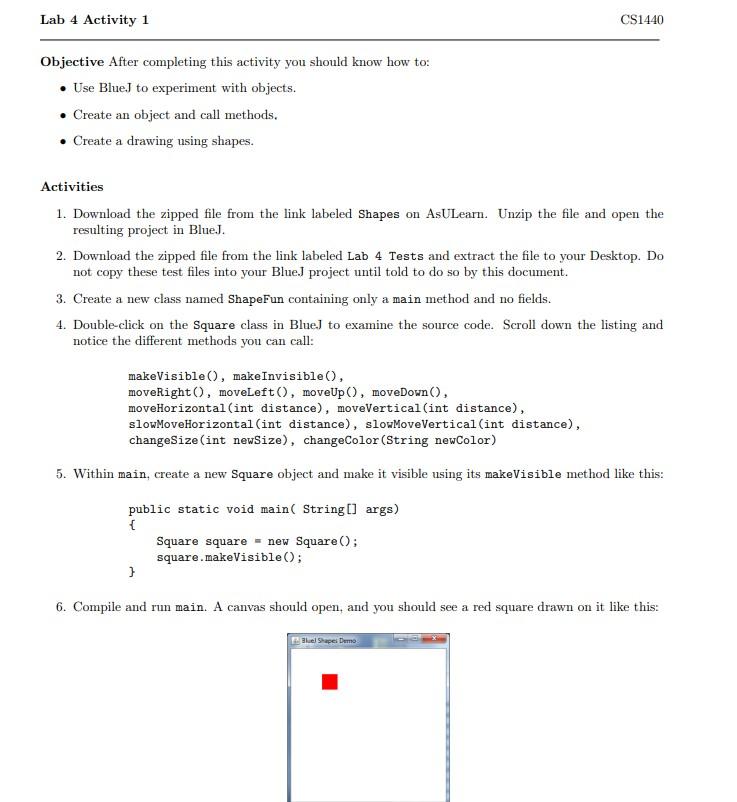
Objective After completing this activity you should know how to: - Use BlueJ to experiment with objects. - Create an object and call methods. - Create a drawing using shapes. Activities 1. Download the zipped file from the link labeled Shapes on AsULearn. Unzip the file and open the resulting project in BlueJ. 2. Download the zipped file from the link labeled Lab 4 Tests and extract the file to your Desktop. Do not copy these test files into your BlueJ project until told to do so by this document. 3. Create a new class named ShapeFun containing only a main method and no fields. 4. Double-click on the Square class in BlueJ to examine the source code. Scroll down the listing and notice the different methods you can call: makeVisible (), makeInvisible(), moveRight(), moveLeft(), moveUp(), moveDown(), moveHorizontal (int distance), moveVertical (int distance), slowMoveHorizontal (int distance), slowMoveVertical (int distance), changeSize(int newSize), changeColor (String newColor) 5. Within main, create a new Square object and make it visible using its makeVisible method like this: public static void main( String[] args) \{ Square square = new Square(); square.makeVisible(); 6. Compile and run main. A canvas should open, and you should see a red square drawn on it like this: 7. Use the moveHorizontal method to move the square. The moveHorizontal method takes an int expression as an argument. Try moving 50 pixels by inserting the following line of code into main below the call to makeVisible: square.moveHorizontal (50); 8. Compile and re-run main. You must recompile and re-run main after each of the following steps in order to observe the changes. 9. Try passing a negative number as an argument to moveHorizontal. Try 50. What happens when you use 200? 10. Try adding calls to moveVertical and changesize and passing different integer values as arguments. 11. Move the square to the upper left corner of the screen and make it take up the full size of the window. (This has the effect of setting the background color of the canvas to red.) 12. Change the color to green using the call square. changeColor ("green"); 13. Add a circle and triangle to your canvas by adding appropriate code to main below the line that introduces the square. 14. Notice a big difference between this activity and the snow person activity from Lab 0: the objects you are making now stick around. In Lab 0 your snow person disappeared if you closed BlueJ. Here we are writing code to create shape objects instead of temporarily creating them in the BlueJ workbench. 15. Copy TestShapeFun. java into your BlueJ project. Run the test and correct any errors. 16. Zip and upload your solution to AsULearn. Your entire grade for this activity will come from passing Checkstyle
Step by Step Solution
There are 3 Steps involved in it

Get step-by-step solutions from verified subject matter experts
 Study Help