


Question: OBJECTIVE To overview of the Packet Tracer Program. EQUIPMENTS/SOFTWARE USED No Name of the Component / Equipment /Software 1 Packet Tracer Software https://www.netacad.com/portal/resources/packet-tracer 2 Videos
OBJECTIVE
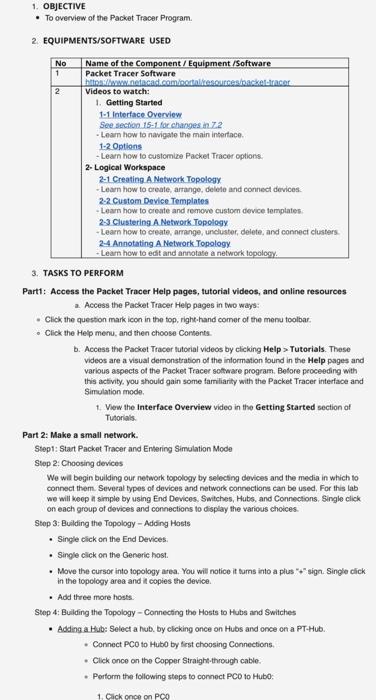
To overview of the Packet Tracer Program.
EQUIPMENTS/SOFTWARE USED
No
Name of the Component / Equipment /Software
1
Packet Tracer Software
https://www.netacad.com/portal/resources/packet-tracer
2
Videos to watch:
Getting Started
1-1 Interface Overview
See section 15-1 for changes in 7.2
- Learn how to navigate the main interface.
1-2 Options
- Learn how to customize Packet Tracer options.
2- Logical Workspace
2-1 Creating A Network Topology
- Learn how to create, arrange, delete and connect devices.
2-2 Custom Device Templates
- Learn how to create and remove custom device templates.
2-3 Clustering A Network Topology
- Learn how to create, arrange, uncluster, delete, and connect clusters.
2-4 Annotating A Network Topology
- Learn how to edit and annotate a network topology.
TASKS TO PERFORM
Part1: Access the Packet Tracer Help pages, tutorial videos, and online resources
Access the Packet Tracer Help pages in two ways:
Click the question mark icon in the top, right-hand corner of the menu toolbar.
Click the Help menu, and then choose Contents.
Access the Packet Tracer tutorial videos by clicking Help > Tutorials. These videos are a visual demonstration of the information found in the Help pages and various aspects of the Packet Tracer software program. Before proceeding with this activity, you should gain some familiarity with the Packet Tracer interface and Simulation mode.
View the Interface Overview video in the Getting Started section of Tutorials.
Part 2: Make a small network.
Step1: Start Packet Tracer and Entering Simulation Mode
Step 2: Choosing devices
We will begin building our network topology by selecting devices and the media in which to connect them. Several types of devices and network connections can be used. For this lab we will keep it simple by using End Devices, Switches, Hubs, and Connections. Single click on each group of devices and connections to display the various choices.
Step 3: Building the Topology Adding Hosts
Single click on the End Devices.
Single click on the Generic host.
Move the cursor into topology area. You will notice it turns into a plus + sign. Single click in the topology area and it copies the device.
Add three more hosts.
Step 4: Building the Topology Connecting the Hosts to Hubs and Switches
Adding a Hub: Select a hub, by clicking once on Hubs and once on a PT-Hub.
Connect PC0 to Hub0 by first choosing Connections.
Click once on the Copper Straight-through cable.
Perform the following steps to connect PC0 to Hub0:
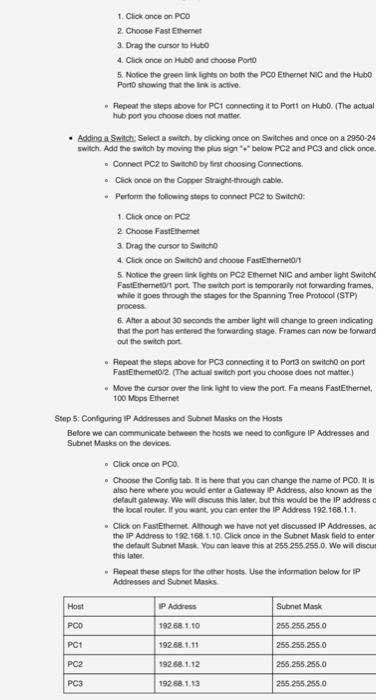
1. Click once on PC0
2. Choose Fast Ethernet
3. Drag the cursor to Hub0
4. Click once on Hub0 and choose Port0
5. Notice the green link lights on both the PC0 Ethernet NIC and the Hub0 Port0 showing that the link is active.
Repeat the steps above for PC1 connecting it to Port1 on Hub0. (The actual hub port you choose does not matter.
Adding a Switch: Select a switch, by clicking once on Switches and once on a 2950-24 switch. Add the switch by moving the plus sign "+" below PC2 and PC3 and click once.
Connect PC2 to Switch0 by first choosing Connections.
Click once on the Copper Straight-through cable.
Perform the following steps to connect PC2 to Switch0:
1. Click once on PC2
2. Choose FastEthernet
3. Drag the cursor to Switch0
4. Click once on Switch0 and choose FastEthernet0/1
5. Notice the green link lights on PC2 Ethernet NIC and amber light Switch0 FastEthernet0/1 port. The switch port is temporarily not forwarding frames, while it goes through the stages for the Spanning Tree Protocol (STP) process.
6. After a about 30 seconds the amber light will change to green indicating that the port has entered the forwarding stage. Frames can now be forwarded out the switch port.
Repeat the steps above for PC3 connecting it to Port3 on switch0 on port FastEthernet0/2. (The actual switch port you choose does not matter.)
Move the cursor over the link light to view the port. Fa means FastEthernet, 100 Mbps Ethernet
Step 5: Configuring IP Addresses and Subnet Masks on the Hosts
Before we can communicate between the hosts we need to configure IP Addresses and Subnet Masks on the devices.
Click once on PC0.
Choose the Config tab. It is here that you can change the name of PC0. It is also here where you would enter a Gateway IP Address, also known as the default gateway. We will discuss this later, but this would be the IP address of the local router. If you want, you can enter the IP Address 192.168.1.1.
Click on FastEthernet. Although we have not yet discussed IP Addresses, add the IP Address to 192.168.1.10. Click once in the Subnet Mask field to enter the default Subnet Mask. You can leave this at 255.255.255.0. We will discuss this later.
Repeat these steps for the other hosts. Use the information below for IP Addresses and Subnet Masks.
Host
IP Address
Subnet Mask
PC0
192.68.1.10
255.255.255.0
PC1
192.68.1.11
255.255.255.0
PC2
192.68.1.12
255.255.255.0
PC3
192.68.1.13
255.255.255.0
Step 6: Connecting Hub0 to Switch0
To connect like-devices, like a Hub and a Switch, we will use a Cross-over cable. Click once the Cross-over Cable from the Connections options.
Move the Connections cursor over Hub0 and click once.
Select Port2 (actual port does not matter).
Move the Connections cursor to Switch0.
Click once on Switch0 and choose FastEthernet0/3 (actual port does not matter).
The link light for switch port FastEthernet0/3 will begin as amber and eventually change to green as the Spanning Tree Protocol transitions the port to forwarding.
Step 7: Save the Packet Tracer file
Save the Packet Tracer file as PT Basic.
 OBJECTIVE To overview of the Packet Tracer Program. EQUIPMENTS/SOFTWARE USED No
Name of the Component / Equipment /Software 1 Packet Tracer Software https://www.netacad.com/portal/resources/packet-tracer

1. Click once on PCO 2. Choose Fast Ethernet 3. Drag the cursor to Hubo 4. Click once on Hub and choose Porto 5. Notice the green link lights on both the PCO Ethernet NIC and the Hubo Pont showing that the link is active Repeat the steps above for PC1 connecting it to Portt on Hubo. (The actual hub port you choose does not matter Adding a Switch: Select a swich, by dicking once on Switches and once on a 2950-24 switch. Add the switch by moving the plus signs below PC2 and PC3 and click once. Connect PC2 to Swacho by Sent choosing Connections, . Click once on the Copper Straight-through cable Perform the following steps to connect PC210 Switch 1. Click once on PC2 2 Choose FastEthemet 3. Drag the cursor to Switch 4. Click once on Switch and choose FastEthernet 5. Notice the green link lights on PC2 Ethernet NIC and amber light Switch FastEthernet port. The switch port is temporarily not forwarding frames, while it goes through the stages for the Spanning Tree Protocol (STP) process 6. After a about 30 seconds the amber light will change to green indicating that the port has entered the forwarding stage Frames can now be forward out the switch port Repeat the steps above for PC connecting it to Port3 on switcho on port FastEthemet012(The actual switch port you choose does not matter.) Move the cursor over the link light to view the port. Fa means FastEthernet 100 Mbps Ethernet Step 5: Configuring IP Addresses and Subnet Masks on the Hosts Before we can communicate between the hosts we need to configure IP Addresses and Subnet Masks on the devices. . Click once on PCO Choose the Config tab. It is here that you can change the name of PCO. It is also here where you would enter a Gateway P Address, also known as the default gateway. We will discuss this later, but this would be the IP address the local router. If you want, you can enter the IP Address 192.168.1.1 . Click on FastEthernet Although we have not yet discussed IP Addresses, a the IP Address to 192.168.1.10. Click once in the Subnet Mask field to enter the default Subnet Mask You can leave this at 255 255.255.0. We will discut this later Repeat these steps for the other hosts. Use the information below for IP Addresses and Subnet Masks Host IP Address Subnet Mask PCO 19268.1.10 255.255.255.0 PC1 59268.1.11 255.255.255.0 PC2 1928 1.12 255.255.255.0 PCS 19268.1.13 255.255.255.0 1. OBJECTIVE To overview of the Packet Tracer Program 2 EQUIPMENTS/SOFTWARE USED No 1 Name of the Component / Equipment/Software Packet Tracer Software httpswww.netocad.com portal sourceshackeracer 2 Videos to watch: 1. Getting Started 1-1 Interface Overview See section. 15-1 for changes in 72 - Learn how to navigate the main interface 1-2 Options - Learn how to customize Packet Tracer options. 2- Logical Workspace 2-1 Creating A Network Topology Learn how to create, arrange, delete and connect devices. 2-2 Custom Device Templates - Learn how to create and remove custom device templates 2-3 Clustering A Network Topology -Learn how to create, arrange, uncluster, delete, and connect clusters 24 Annotating A Network. Topology - Learn how to edit and annotate a network topology 3. TASKS TO PERFORM Part1: Access the Packet Tracer Help pages, tutorial videos, and online resources Access the Packet Tracer Help pages in two ways: Click the question mark icon in the top, right-hand comer of the menu toolbar Click the Help menu, and then choose Contents b. Access the Packet Tracer tutorial videos by clicking Help > Tutorials. These videos are a visual demonstration of the information found in the Help pages and various aspects of the Packet Tracer software program. Before proceeding with this activity, you should gain some familiarity with the Packet Tracer interface and Simulation mode 1. View the Interface Overview video in the Getting Started section of Tutorials Part 2: Make a small network. Step1: Start Packet Tracer and Entering Simulation Mode Step 2: Choosing devices We will begin building our network topology by selecting devices and the media in which to connect them. Several types of devices and network connections can be used. For this lab we will keep it simple by using End Devices Switches, Hubs, and Connections. Single click on each group of devices and connections to display the various choices. Step 3: Building the Topology - Adding Hosts Single click on the End Devices Single click on the Generic host. . Move the cursor into topology area. You will notice it turns into a plus sign. Single click in the topology area and it copies the device. Add three more hosts Step 4: Building the Topology - Connecting the Hosts to Hubs and Switches Adding a Hub: Select a hub, by clicking once on Hubs and once on a PT-Hub. Connect PCO to Hubo by first choosing Connections . Click once on the Copper Straight through cable. Perform the following steps to connect PCO to Hubo 1. Cack once on PCO

Step by Step Solution

There are 3 Steps involved in it

1 Expert Approved Answer
Step: 1 Unlock blur-text-image
Question Has Been Solved by an Expert!

Get step-by-step solutions from verified subject matter experts

Step: 2 Unlock
Step: 3 Unlock

Students Have Also Explored These Related Databases Questions!