







Question: Operation When this application starts, a blank Add Incident form is displayed. To retrieve a customer, the user enters a customer D and clicks the
Operation
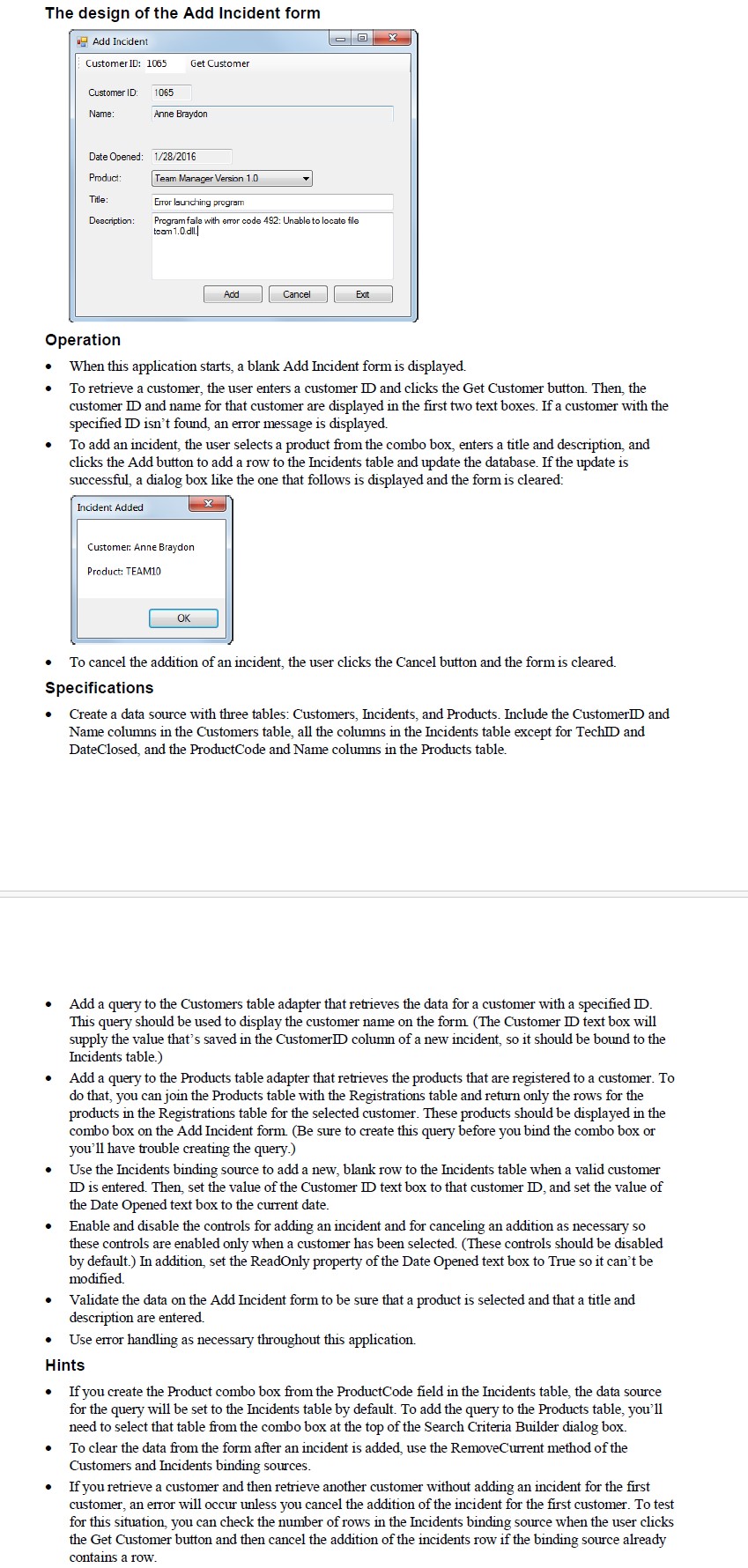
When this application starts, a blank Add Incident form is displayed.
To retrieve a customer, the user enters a customer D and clicks the Get Customer button. Then, the
customer ID and name for that customer are displayed in the first two text boxes. If a customer with the
specified ID isn't found, an error message is displayed.
To add an incident, the user selects a product from the combo box, enters a title and description, and
clicks the Add button to add a row to the Incidents table and update the database. If the update is
successful, a dialog box like the one that follows is displayed and the form is cleared:
To cancel the addition of an incident, the user clicks the Cancel button and the form is cleared.
Specifications
Create a data source with three tables: Customers, Incidents, and Products. Include the CustomerDD and
Name columns in the Customers table, all the columns in the Incidents table except for TechDD and
DateClosed, and the ProductCode and Name columns in the Products table.
Add a query to the Customers table adapter that retrieves the data for a customer with a specified D
This query should be used to display the customer name on the form The Customer text box will
supply the value that's saved in the CustomerDD column of a new incident, so it should be bound to the
Incidents table.
Add a query to the Products table adapter that retrieves the products that are registered to a customer. To
do that, you can join the Products table with the Registrations table and return only the rows for the
products in the Registrations table for the selected customer. These products should be displayed in the
combo box on the Add Incident form. Be sure to create this query before you bind the combo box or
you'll have trouble creating the query.
Use the Incidents binding source to add a new, blank row to the Incidents table when a valid customer
D is entered. Then, set the value of the Customer text box to that customer and set the value of
the Date Opened text box to the current date.
Enable and disable the controls for adding an incident and for canceling an addition as necessary so
these controls are enabled only when a customer has been selected. These controls should be disabled
by default. In addition, set the ReadOnly property of the Date Opened text box to True so it can't be
modified.
Validate the data on the Add Incident form to be sure that a product is selected and that a title and
description are entered.
Use error handling as necessary throughout this application.
Hints
If you create the Product combo box from the ProductCode field in the Incidents table, the data source
for the query will be set to the Incidents table by default. To add the query to the Products table, you'll
need to select that table from the combo box at the top of the Search Criteria Builder dialog box.
To clear the data from the form after an incident is added, use the RemoveCurrent method of the
Customers and Incidents binding sources.
If you retrieve a customer and then retrieve another customer without adding an incident for the first
customer, an error will occur unless you cancel the addition of the incident for the first customer. To test
for this situation, you can check the number of rows in the Incidents binding source when the user clicks
the Get Customer button and then cancel the addition of the incidents row if the binding source already
contains a row.
Step by Step Solution
There are 3 Steps involved in it
1 Expert Approved Answer
Step: 1 Unlock

Question Has Been Solved by an Expert!
Get step-by-step solutions from verified subject matter experts
Step: 2 Unlock
Step: 3 Unlock
 Study Help