







Question: Inside the main folder, create another folder labelled as part_two. This folder should contain the following files: main.m Add.m Subtract.m Multiply.m Divide.m Menu.m The
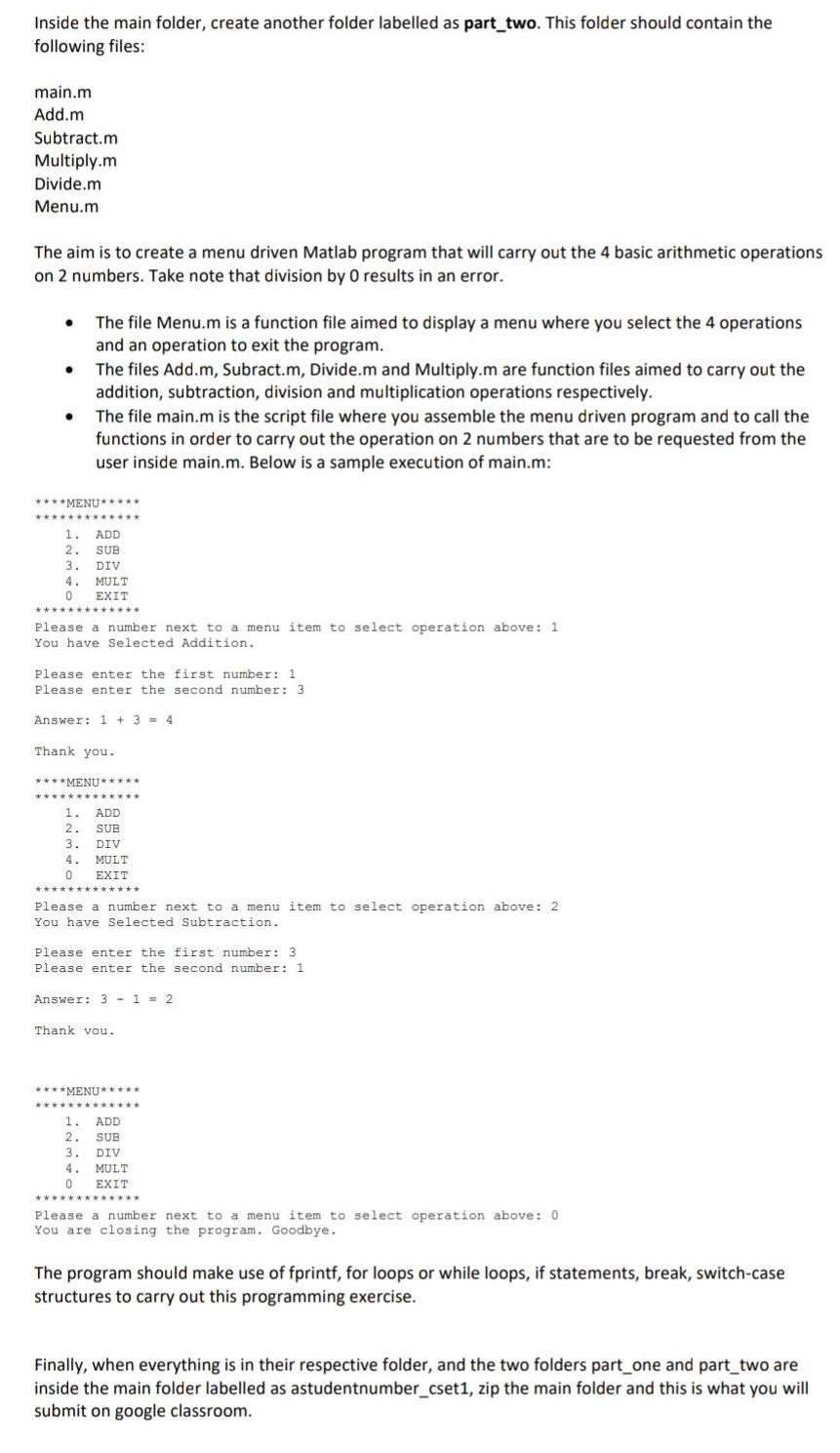
Inside the main folder, create another folder labelled as part_two. This folder should contain the following files: main.m Add.m Subtract.m Multiply.m Divide.m Menu.m The aim is to create a menu driven Matlab program that will carry out the 4 basic arithmetic operations on 2 numbers. Take note that division by 0 results in an error. The file Menu.m is a function file aimed to display a menu where you select the 4 operations and an operation to exit the program. The files Add.m, Subract.m, Divide.m and Multiply.m are function files aimed to carry out the addition, subtraction, division and multiplication operations respectively. The file main.m is the script file where you assemble the menu driven program and to call the functions in order to carry out the operation on 2 numbers that are to be requested from the user inside main.m. Below is a sample execution of main.m: ****MENU***** 1. ADD 2. SUB 3. DIV 4. MULT XIT Please a number next to a menu item to select operation above: 1 You have Selected Addition. Please enter the first number: 1 Please enter the second number: 3 Answer: 1 + 3 - 4 Thank you. ****MENU***** 1. ADD SUB 3. DIV MULT O EXIT 4. Please a number next to a menu item to select operation above: 2 You have Selected Subtraction. Please enter the first number: 3 Please enter the second number: 1 Answer: 3 - 1 = 2 Thank vou. ****MENU***** 1. ADD SUB 3. DIV MULT EXIT Please a number next to a menu item to select operation above: 0 You are closing the program. Goodbye. The program should make use of fprintf, for loops or while loops, if statements, break, switch-case structures to carry out this programming exercise. Finally, when everything is in their respective folder, and the two folders part_one and part two are inside the main folder labelled as astudentnumber_cset1, zip the main folder and this is what you will submit on google classroom.
Step by Step Solution
3.49 Rating (146 Votes )
There are 3 Steps involved in it

Get step-by-step solutions from verified subject matter experts
Document Format (2 attachments)

60915c5dae734_209541.pdf
180 KBs PDF File

60915c5dae734_209541.docx
120 KBs Word File
 Study Help