







Question: Please do it on Android Studio. Chapter 1 Assignment In this challenge, you will use Snackbar to display a message of Correct! or Incorrect! replacing
Please do it on Android Studio.
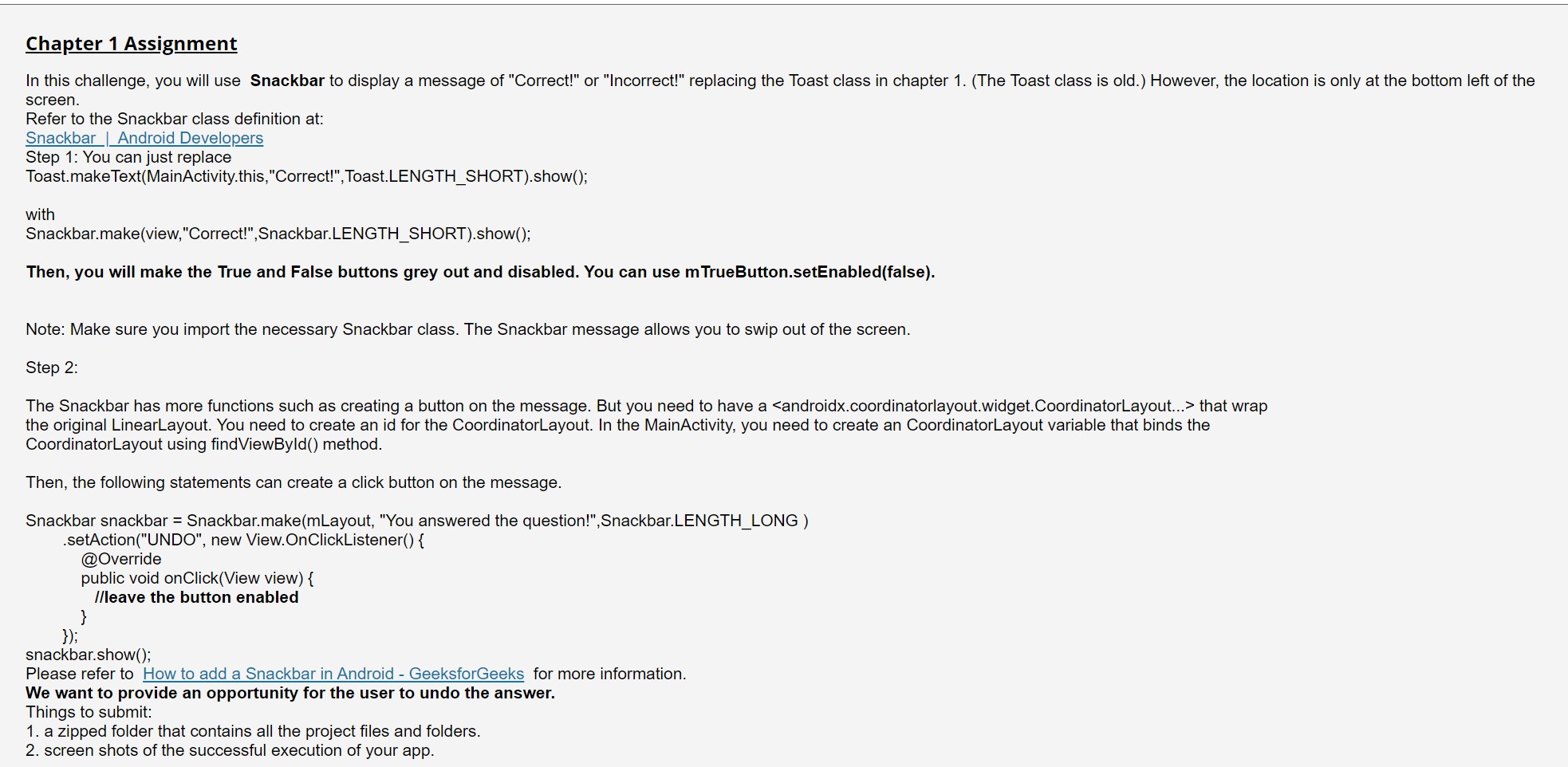
Chapter 1 Assignment In this challenge, you will use Snackbar to display a message of "Correct!" or "Incorrect!" replacing the Toast class in chapter 1 . (The Toast class is old.) However, the location is only at the bottom left screen. Refer to the Snackbar class definition at: Snackbar | Android Developers Step 1: You can just replace Toast.makeText(MainActivity.this,"Correct!",Toast.LENGTH_SHORT).show(); with Snackbar.make(view,"Correct!",Snackbar.LENGTH_SHORT).show(); Then, you will make the True and False buttons grey out and disabled. You can use mTrueButton.setEnabled(false). Note: Make sure you import the necessary Snackbar class. The Snackbar message allows you to swip out of the screen. Step 2: The Snackbar has more functions such as creating a button on the message. But you need to have a
Step by Step Solution
There are 3 Steps involved in it

Get step-by-step solutions from verified subject matter experts
 Study Help