







Question: Please do not copy and paste answer from another question on this site. For this program, you will use inheritance to develop an Asteroid class
Please do not copy and paste answer from another question on this site.
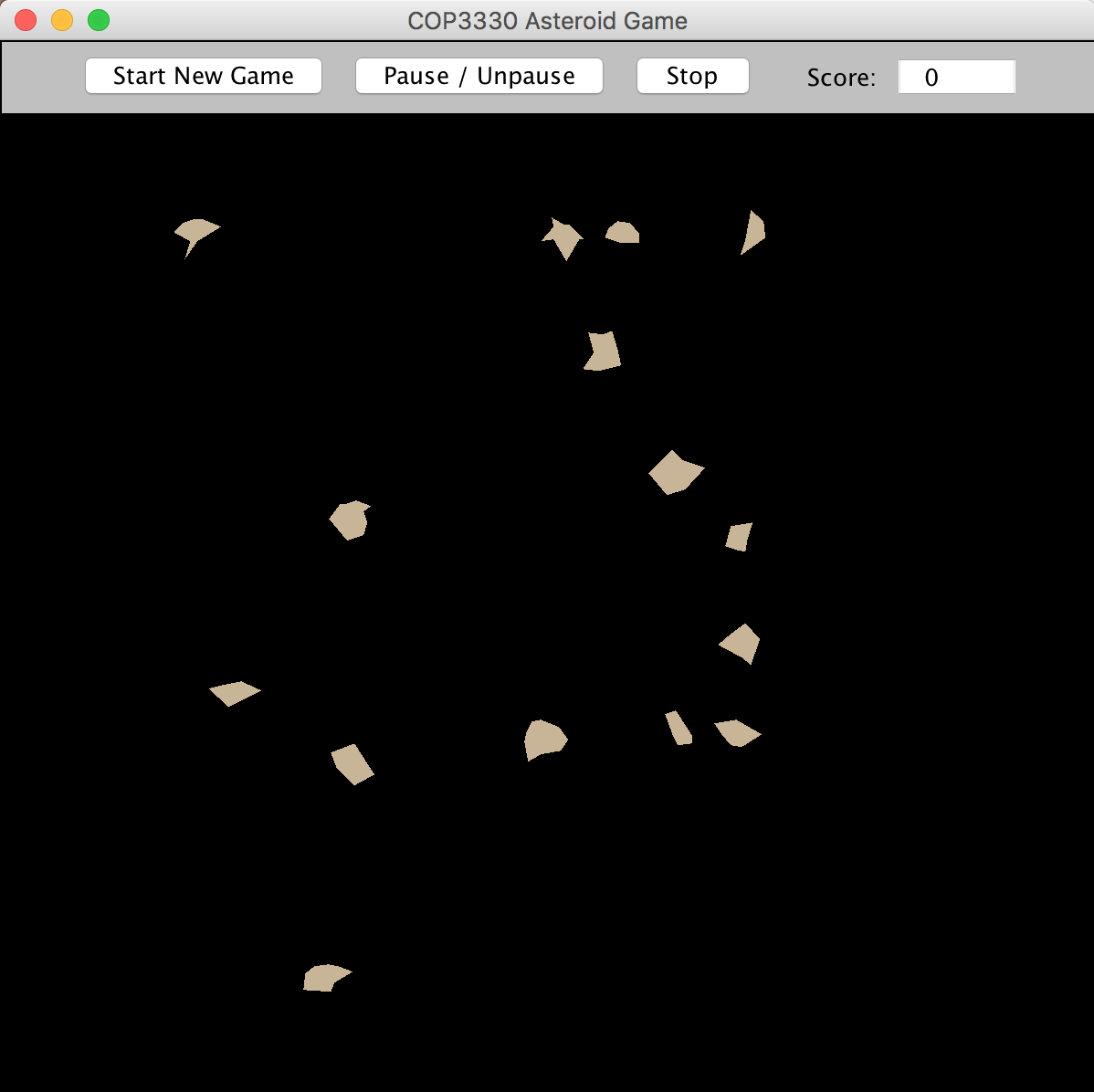
For this program, you will use inheritance to develop an Asteroid class that satisfies certain requirements. You will also develop a separate AsteroidField test driver class to create a field of asteroids. The number of asteroids to create will be determined by the value of a command-line argument, as further described below and in lecture. Your test driver will use the "Blobz.jar" external JAR file discussed in lecture to display your asteroid field in a dynamic simulation context. The output of the program should appear as shown below, with the asteroids all flowing across the field of view in all directions. When the asteroids move offscreen, they will reappear near the opposite corners as described for the "flow" mode discussed in lecture.
To run the simulation, press the "Start New Game" button. The "Pause/Unpause" button will pause and unpause the motion of the objects. Press "Stop" to end the simulation. You can press "Start New Game" to start over while the simulation is running or after the "Stop" button has been pressed, but you must unpause first if the simulation has been paused.
Test Folder Setup
1. Download the AsteroidsTest.zip file and place it on your desktop.
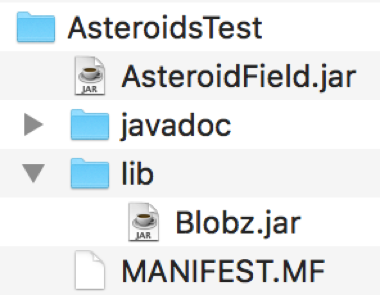
2. Unzip the file. This will create an AsteroidsTest folder with the following structure:
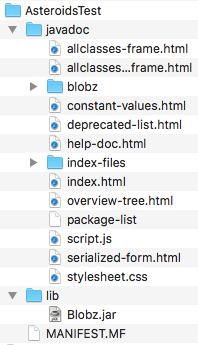
The javadoc subfolder contains the Java API documentation for the classes in Blobz.jar. This documentation will be useful to you as you build the various parts of your Asteroids game. To view the javadocs, simply use a browser open the index.html file in this subfolder. Bookmark the page so it is easy to find later. From this page, you will be able to view the Javadocs for all classes in the Blobz package.
The AsteroidsTest folder also contains two other important components
- a "lib" subfolder that contains the Blobz.jar simulation engine; and
- a "MANIFEST.MF" file that you will use for building an executable JAR file that uses the simulation engine as an external library.
Eclipse Project Setup
1. Create a Java application project called "Asteroids" in Eclipse.
2. Right-click on the project name in the Package Explorer and select Properties. In the dialog that appears, select "java Build Path", then the "Libraries" tab, then the "Classpath" item, and then choose "Add External JARs". In the file chooser that appears, navigate to the Blobz.jar file in the test folder on your desktop and select it. Your Libraries tab should now look like this:
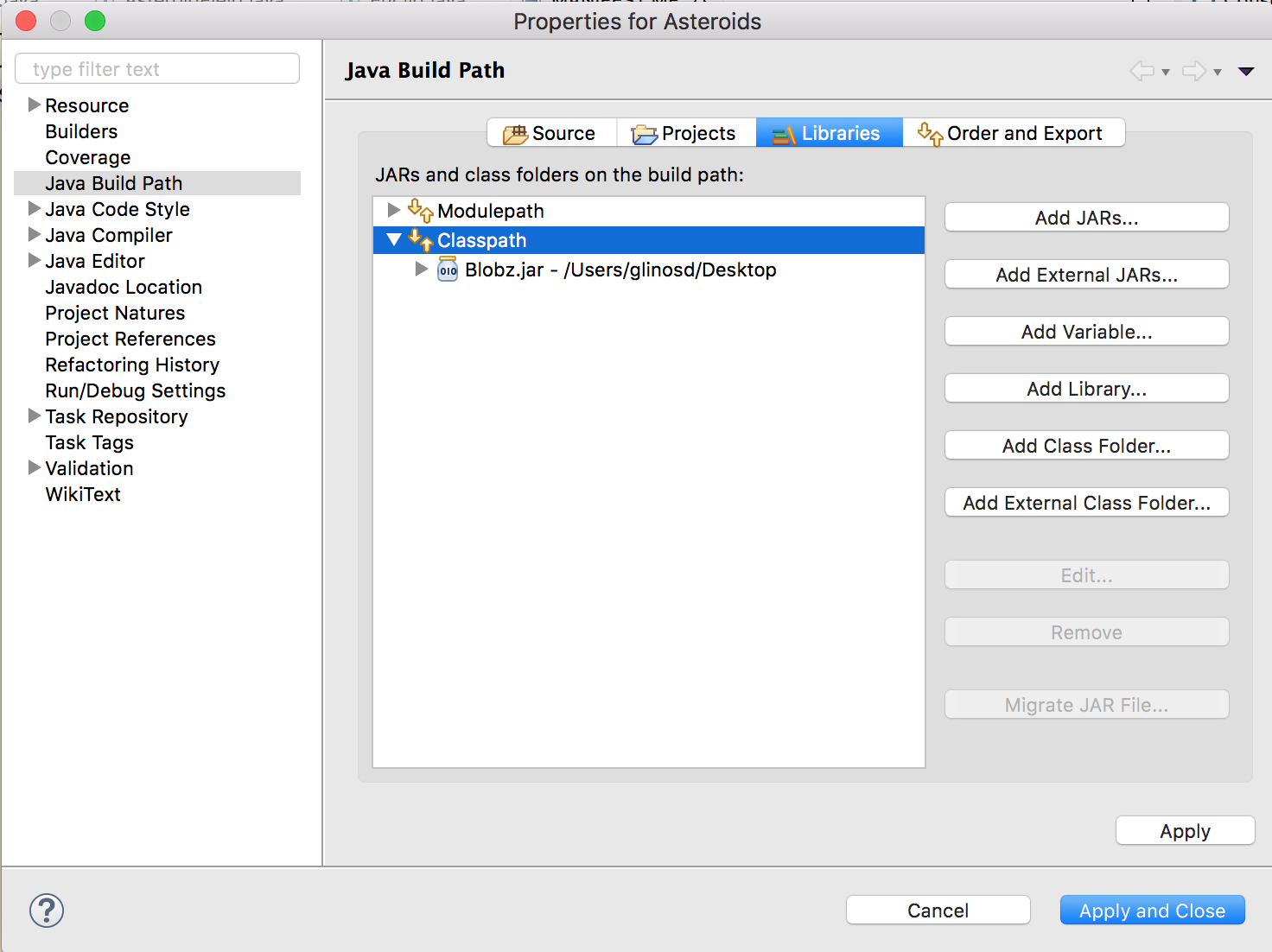
Choose "Apply and Close" to accept the above configuration. Your project is now configured to use the simulation engine for compiling and running your program within Eclipse.
3. In the Package Explorer, select the "src" subfolder of the Asteroids project, right-click, choose "New" and then "File". Enter "MANIFEST.MF" as the file name. Please note that this file name must be all upper case.
4. Edit the MANIFEST.MF file to appear exactly like what you see in the MANIFEST.MF file that is in the AsteroidsTest folder. Within Eclipse, the file should look like this:
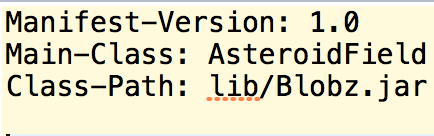
IMPORTANT NOTE: This manifest file assumes that you will develop your source files in the default package. However, if you choose to develop them within a named package, then the "Main-Class" attribute should use the fully-qualified name for your AsteroidField class. For example, if your package is named "asteroids", then the "Main-Class" attribute should read: "Main-Class: asteroids.AsteroidField" (with no quotation marks).
Please note that there are four (4) lines in this text file. The last line is empty. The manifest file must contain an empty last line. You will use this manifest file when you build your executable JAR file.
Program Development
1. Create an Asteroid.java class file in the default package of your Asteroids project. This class must satisfy the following requirements:
(a) it must extend the PolyBlob class so that it inherits from PolyBlob, which in turn inherits from Blob. The class will will have only a constructor and no other methods.
(b) the constructor must take these three input parameters as arguments: (i) an int that represents the x-component of the asteroid's velocity vector; (ii) an int that represents the y-component of the asteroid's velocity vector; and (iii) a double that represents the asteroid's angular rotation rate.
(c) the constructor must set the asteroid to start at the offscreen location (-100, -100), since we will be using "flow" mode, as discussed in the assignment preview lecture.
(d) the constructor must also initialize the asteroid's velocity vector with the velocity component values that the constructor receives as input.
(e) the constructor must create a random simple polygon (no lines crossing) shape for the asteroid that has between 5 and 9 sides and is between 10 and 30 pixels in diameter, as discussed in lecture. When displayed, the shape must not have any lines that cross.
2. Create a separate AsteroidField.java test driver class in the default package to create a field of asteroids. This class must satisfy the following requirements:
(a) it must implement the BlobGUI interface, as explained in lecture.
(b) it must have a one-line main() method that instantiates the class, as follows:

As you can see, the main method takes one (1) command line argument, interprets it as an integer, and passes that integer to the constructor for the class.
(c) the constructor for the class must perform the following actions:
(i) save the input integer in a static variable; this number determines how many asteroids will be created by the program.;
(ii) create a sandbox object;
(iii) set the sandbox to "flow" mode;
(iv) set the sandbox to run at 15 frames per second; and
(v) initialize the sandbox by passing "this" (the AsteroidField object) to the sandbox's init() method.
(d) the class must contain a generate() method, which is required by the BlobGUI interface. The generate() method must perform the following actions:
(i) it must create as many asteroids as are specified by the number that was input to the constructor for the class; each of the asteroids must have velocity components and rotational values as described below;
(ii) it must randomly choose x and y velocity components for each asteroid, where the x and y components are chosen independently of each other and where each of these values is an integer that may range from -3 to +3, but where zero values are disallowed, as discussed in lecture;
(iii) it must randomly choose a rotation value of either -.1 or +.1 for each asteroid, with equal probability. Values in between -.1 and +.1 are not permitted; and
(iv) it must add each asteroid to the sandbox.
3. Run and debug your program in Eclipse until you are satisfied with it.
4. Export an executable JAR file to the AsteroidsTest folder as follows:
- Highlight the project (Asteroids) in the Package Explorer
- Choose File Export and select "JAR file" (not "Runnable JAR file"), then Next
- Choose the project (Asteroids) as the resource to export; check the box to "Export Java source files and resources"; and use the Browse button and text field to choose the name you want for the JAR file and be sure that it will be inside the AsteroidsTest folder on your Desktop; then choose Next
- Make no choices on the "JAR Packaging Options" dialog and choose Next
- On the "JAR Export" dialog, do not choose a main class. Instead, check the box to "Use existing manifest from workspace" and use the "Browse" button to select the MANIFEST.MF file that you created in your project. After you select the manifest file, the "JAR Export" dialog should look like this:
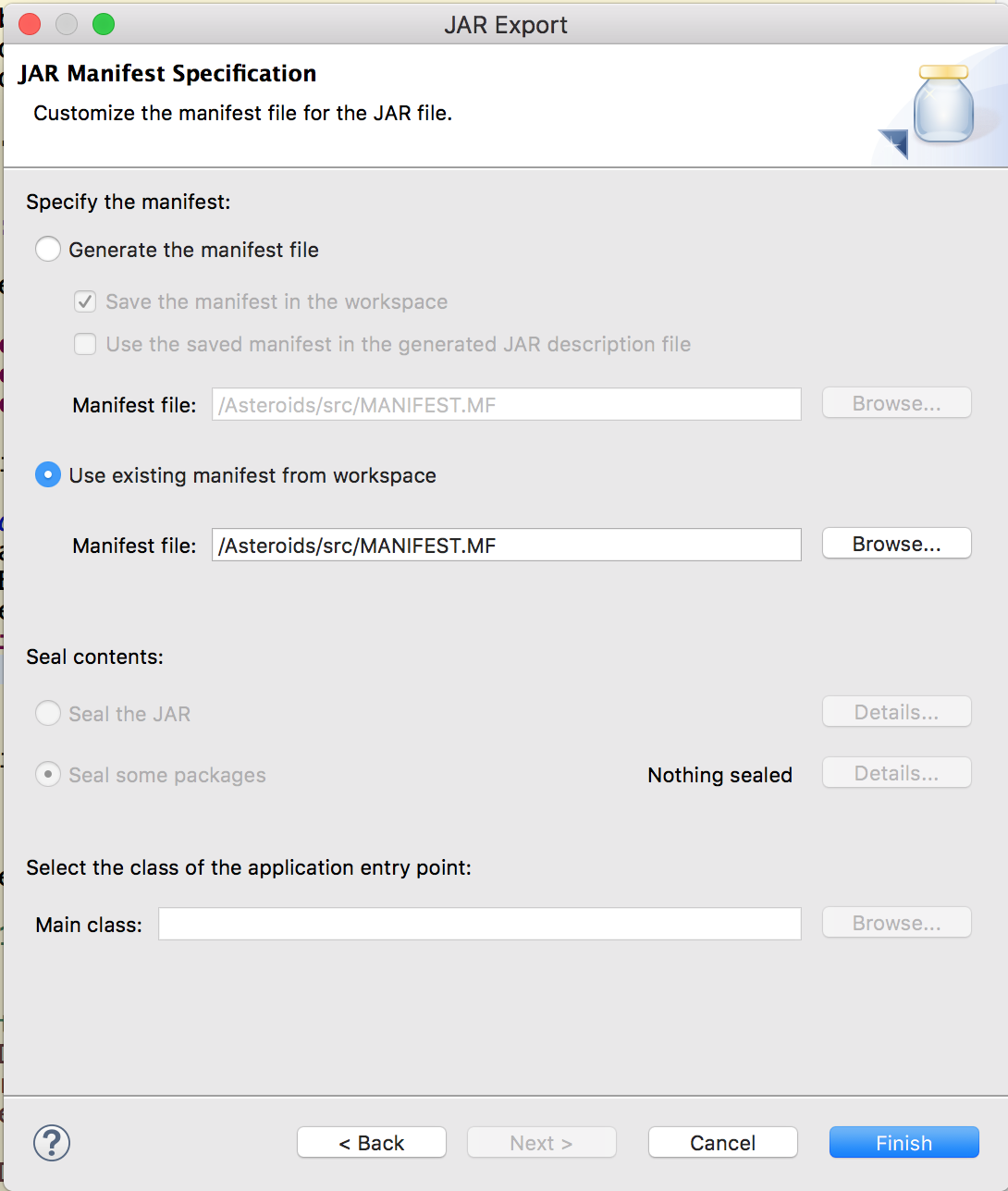
Choose "Finish" to complete the export of the JAR file. Your test folder should contain your JAR file at the top level, as shown below, where the javadoc and lib folders have been collapsed and the JAR file is named AsteroidField.jar:
dropbox link to the asteroidstest zip file.
https://www.dropbox.com/s/hjkv2fvi34z4ucm/AsteroidsTest.zip?dl=0
COP3330 Asteroid Game Start New Game Pause Unpause Stop Score: 0 AsteroidsTest javadoc allclasses-frame.html allclasses...frame.html e constant-values.html deprecated-list.html help-doc.html -index-files index.html e overview-tree.html package-list script.js serialized-form.html stylesheet.css Blobz.jar MANIFEST.MF Properties for Asteroids type filter text Java Build Path Resource Builders Coveragee Java Build Path Java Code Style Java Compiler Java Editor Javadoc Location Project Natures Project Reference:s Refactoring History Run/Debug Settings Task Repository Task Tags Validation WikiText Source Projects Libraries Order and Export JARs and class folders on the build path: 00 Modulepath Add JARs... Classpath (o1o Blobz.jar - /Users/glinosd/Desktop Add External JARs... Add Variable... Add Library... Add Class Folder... Add External Class Folder.. Edit... Remove Migrate JAR File... Apply 2 Cancel Apply and Close Manifest-Version: 1.0 Main-Class: AsteroidField Class-Path: lib/Blobz .jar public static void main( String [] args ) { new AsteroidField( Integer.parseInt args 0] ) ); JAR Export JAR Manifest Specification Customize the manifest file for the JAR file. Specify the manifest: Generate the manifest file Save the manifest in the workspace Use the saved manifest in the generated JAR description file Manifest file: /Asteroids/src/MANIFEST.MF Browse. Use existing manifest from workspace Manifest file: /Asteroids/src/MANIFEST.MF Browse... Seal contents: Seal the JAR Details.. Seal some packages Nothing sealed Details... Select the class of the application entry point: Main class: Browse... 2 Cancel Finish AsteroidsTest AsteroidField.jar javadoc Blobz.jar MANIFEST.MF
Step by Step Solution
There are 3 Steps involved in it

Get step-by-step solutions from verified subject matter experts
 Study Help