







Question: Please help!! HTML CODE: Chapter 5 Data Revise CSS CODE: /* general text formatting */ body { font-family: Roboto, Verdana, Arial, sans-serif; font-size: 100%; background-color:
Please help!!
HTML CODE:
Data
Revise
CSS CODE:
/* general text formatting */
body { font-family: "Roboto", Verdana, Arial, sans-serif; font-size: 100%; background-color: #ECEFF1; }
section { background-color: white; margin: 1em 4em 1em 4em; border: solid 1pt black;
} section h3 { color: white; padding: 0.75rem; background-color: #263238; }
.status { border-radius: 0.25rem; padding: 3px; color: white; } .status-processing { background-color: #E65100; } .status-shipped { background-color: #4CAF50; } .status-pending { background-color: #03A9F4; }
/* table formatting -- you will add these */
PROCESS.PHP CODE:
Form Input
GET Data
if (count($_GET) == 0) echo "
There are no GET variables
"; foreach ($_GET as $key => $value) { echo "" . $key . "=" . $value . ""; } $checked = $_GET['index']; for($i=0; $i "; } ?>
POST Data
There are no POST variables"; foreach ($_POST as $key => $value) { echo "" . $key . "=" . $value . ""; } ?>
RESET.CSS CODE:
html, body, header, footer, hgroup, nav, article, section, figure, figcaption, h1, h2, h3, ul, li, body, div, p, img { margin: 0; padding: 0; font-size: 100%; vertical-align: baseline; border: 0; }
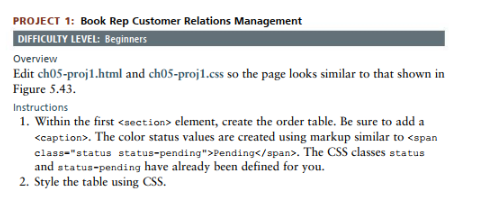
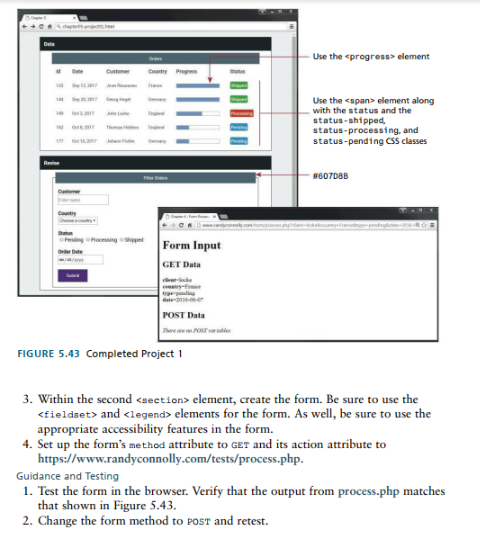
PROJECT 1: Book Rep Customer Relations Management DIFFICULTY LEVEL: Beginners Overview Edit ch05-proj1.html and ch05-proj1.css so the page looks similar to that shown in Figure 5.43. Instructions 1. Within the first element, create the order table. Be sure to add a . The color status values are created using markup similar to > Pending . The CSS classes status and status-pending have already been defined for you. 2. Style the table using CSS. FI 3. Within the second element, create the form. Be sure to use the and elements for the form. As well, be sure to use the appropriate accessibility features in the form. 4. Set up the form's method attribute to GET and its action attribute to https://www.randyconnolly.com/tests/process.php. Guidance and Testing 1. Test the form in the browser. Verify that the output from process.php matches that shown in Figure 5.43. 2. Change the form method to POsT and retest
Step by Step Solution
There are 3 Steps involved in it

Get step-by-step solutions from verified subject matter experts
 Study Help