







Question: PLEASE READ FULL QUESTION.. I need help with all red questions on part B. I created the hello.java file but I have an error in
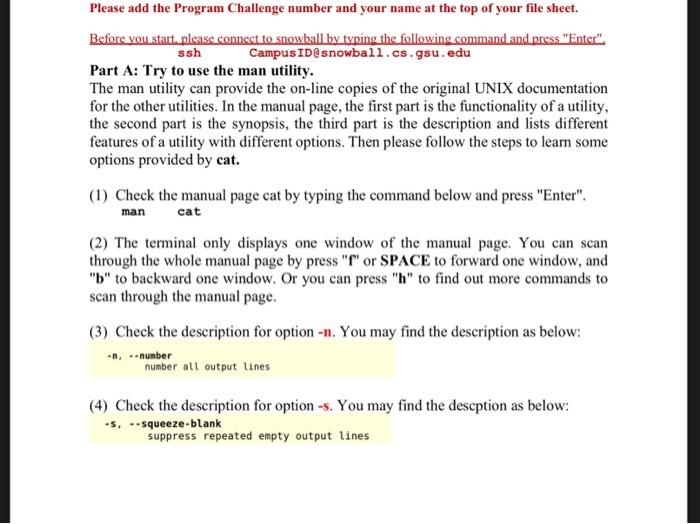
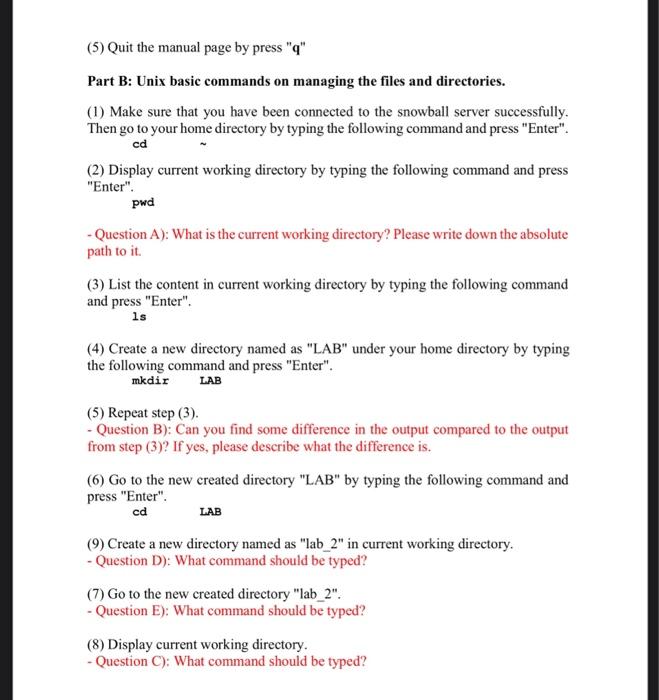
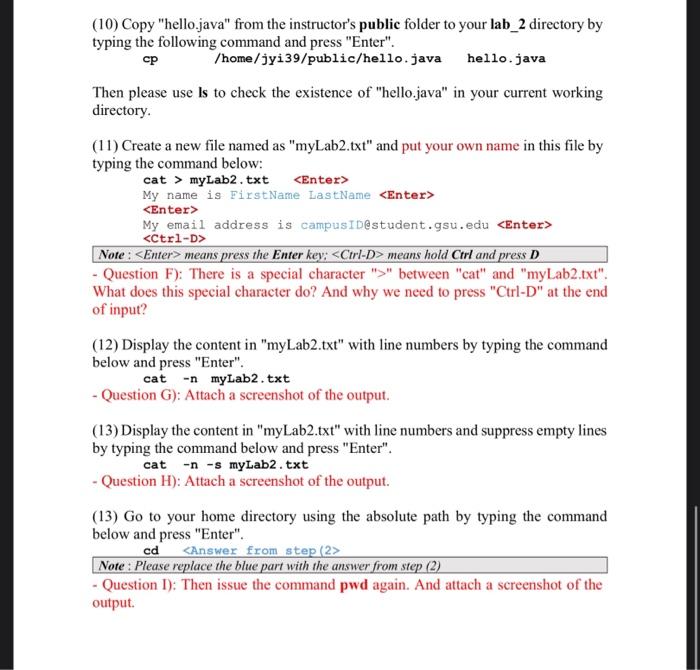
Please add the Program Challenge number and your name at the top of your file sheet. Before you start, please connect to snowball by tyning the following command and press "Enter" ssh Campusidesnowball.cs.gsu.edu Part A: Try to use the man utility. The man utility can provide the on-line copies of the original UNIX documentation for the other utilities. In the manual page, the first part is the functionality of a utility, the second part is the synopsis, the third part is the description and lists different features of a utility with different options. Then please follow the steps to learn some options provided by cat. (1) Check the manual page cat by typing the command below and press "Enter". man cat (2) The terminal only displays one window of the manual page. You can scan through the whole manual page by press "f" or SPACE to forward one window, and "b" to backward one window. Or you can press "h" to find out more commands to scan through the manual page. (3) Check the description for option n. You may find the description as below: n,numbernumberalloutputlines (4) Check the description for option -s. You may find the descption as below: -s,-.squeeze-blanksuppressrepeatedemptyoutputlines (5) Quit the manual page by press " q " Part B: Unix basic commands on managing the files and directories. (1) Make sure that you have been connected to the snowball server successfully. Then go to your home directory by typing the following command and press "Enter". cd (2) Display current working directory by typing the following command and press "Enter". pwd - Question A): What is the current working directory? Please write down the absolute path to it. (3) List the content in current working directory by typing the following command and press "Enter". is (4) Create a new directory named as "LAB" under your home directory by typing the following command and press "Enter". mkdir LAB (5) Repeat step (3). - Question B): Can you find some difference in the output compared to the output from step (3)? If yes, please describe what the difference is. (6) Go to the new created directory "LAB" by typing the following command and press "Enter". cd LAB (9) Create a new directory named as "lab_2" in current working directory. - Question D): What command should be typed? (7) Go to the new created directory "lab_2". - Question E): What command should be typed? (8) Display current working directory. - Question C): What command should be typed? (10) Copy "hello.java" from the instructor's public folder to your lab_2 directory by typing the following command and press "Enter". cp /home/jyi39/public/hello.java hello.java Then please use ls to check the existence of "hello.java" in your current working directory. (11) Create a new file named as "myLab2.txt" and put your own name in this file by typing the command below: cat > myLab2.txt Enter> My email address is campusidestudent.gsu.edu Enter> Ctrl-D> Note: means press the Enter key: means hold Ctrl and press D - Question F): There is a special character ">" between "cat" and "myLab2.txt". What does this special character do? And why we need to press "Ctrl-D" at the end of input? (12) Display the content in "myLab2.txt" with line numbers by typing the command below and press "Enter". cat n mylab2,txt - Question G): Attach a screenshot of the output. (13) Display the content in "myLab2.txt" with line numbers and suppress empty lines by typing the command below and press "Enter". cat ns myLab2. txt - Question H): Attach a screenshot of the output. (13) Go to your home directory using the absolute path by typing the command below and press "Enter". cd Note: Please replace the blue part with the answer from step (2) - Question I): Then issue the command pwd again. And attach a screenshot of the output
Step by Step Solution
There are 3 Steps involved in it

Get step-by-step solutions from verified subject matter experts
 Study Help