







Question: please show step by step 7. Add a subreport to the OfficerTicketListing main report. Reler back to How To: Use a Table or Query as
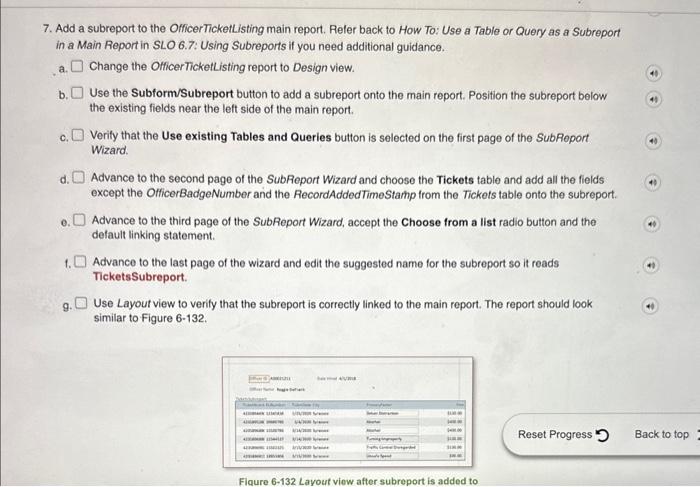
7. Add a subreport to the OfficerTicketListing main report. Reler back to How To: Use a Table or Query as a Subreport in a Main Report in SLO 6.7: Using Subreports if you need additional guidance. a. Change the OfficerTicketlisting report to Design view. b. Use the Subform/Subreport button to add a subreport onto the main report. Position the subreport below the existing fields near the left side of the main report. c. Verify that the Use existing Tables and Queries button is selected on the first page of the SubReport Wizard. d. Advance to the second page of the SubReport Wizard and choose the Tickets table and add all the fields except the OfficerBadgeNumber and the RecordAddedTimeStamp from the Tickets table onto the subreport. o. Advance to the third page of the SubReport Wizard, accept the Choose from a list radio button and the default linking statement. 1. Advance to the last page of the wizard and edit the suggested name for the subreport so it reads TicketsSubreport. 9. Use Layout view to verify that the subreport is correctly linked to the main report. The report should look similar to Figure 6-132. Reset Progress 7. Add a subreport to the OfficerTicketListing main report. Reler back to How To: Use a Table or Query as a Subreport in a Main Report in SLO 6.7: Using Subreports if you need additional guidance. a. Change the OfficerTicketlisting report to Design view. b. Use the Subform/Subreport button to add a subreport onto the main report. Position the subreport below the existing fields near the left side of the main report. c. Verify that the Use existing Tables and Queries button is selected on the first page of the SubReport Wizard. d. Advance to the second page of the SubReport Wizard and choose the Tickets table and add all the fields except the OfficerBadgeNumber and the RecordAddedTimeStamp from the Tickets table onto the subreport. o. Advance to the third page of the SubReport Wizard, accept the Choose from a list radio button and the default linking statement. 1. Advance to the last page of the wizard and edit the suggested name for the subreport so it reads TicketsSubreport. 9. Use Layout view to verify that the subreport is correctly linked to the main report. The report should look similar to Figure 6-132. Reset Progress
Step by Step Solution
There are 3 Steps involved in it

Get step-by-step solutions from verified subject matter experts
 Study Help