







Question: PowerShell Lab18, I need help! Please finish all steps. Please write down commands and screenshots for working commands. Thank you! NOTE For this lab, you
PowerShell Lab18, I need help! Please finish all steps. Please write down commands and screenshots for working commands. Thank you!
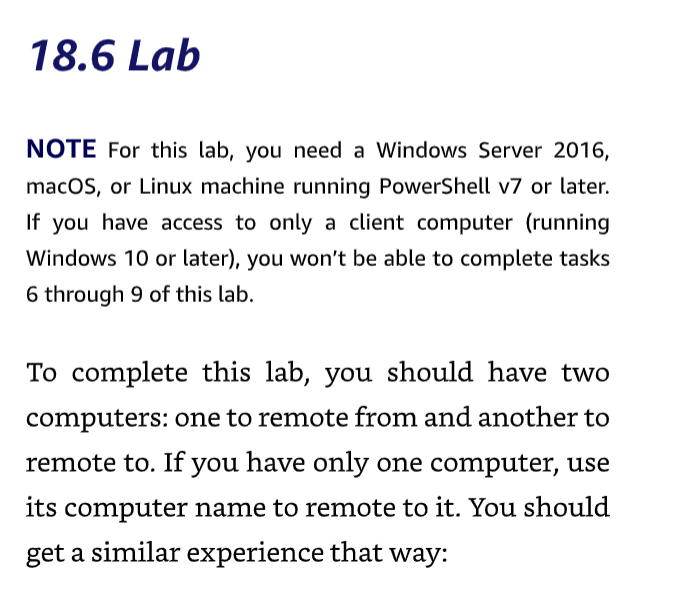
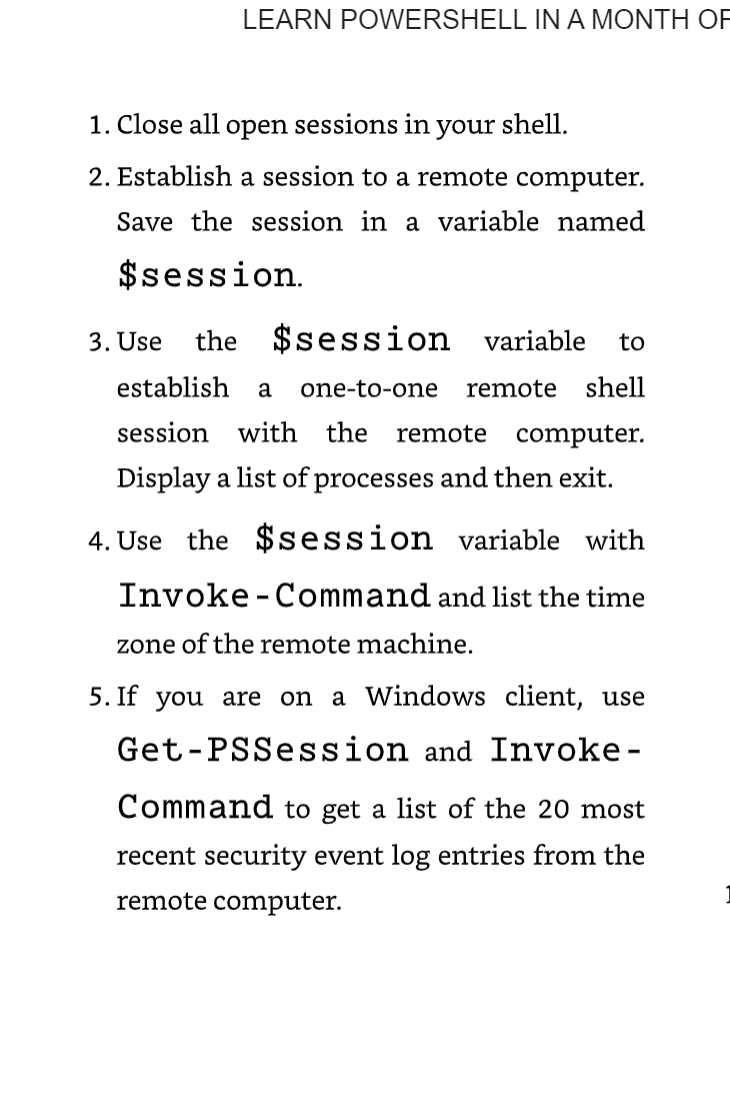
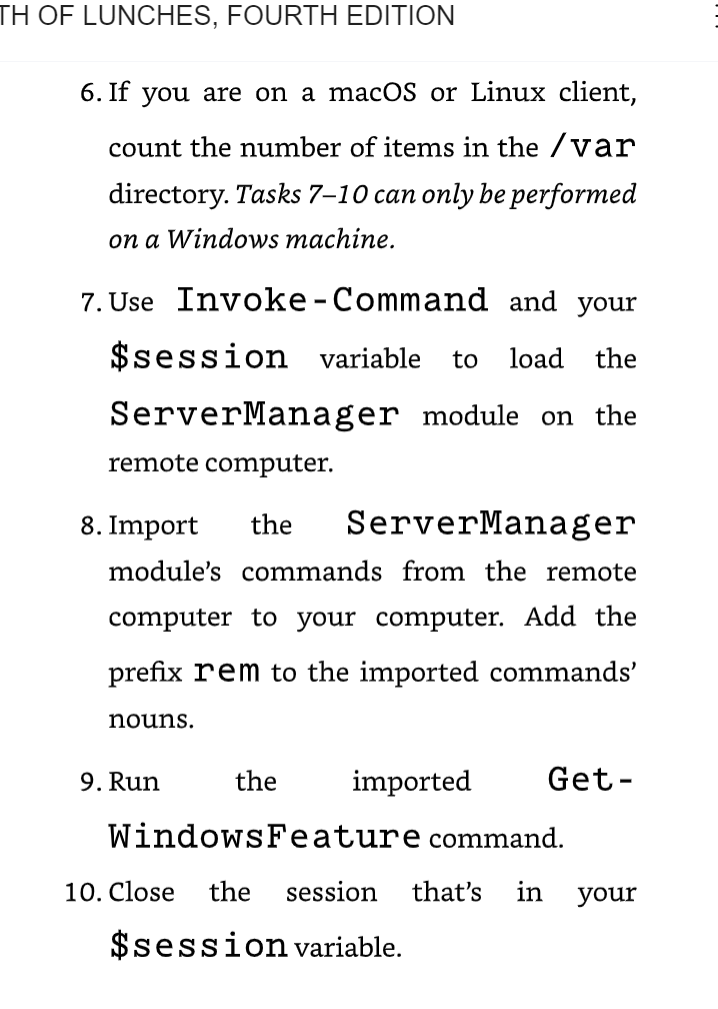
NOTE For this lab, you need a Windows Server 2016, macOS, or Linux machine running PowerShell v7 or later. If you have access to only a client computer (running Windows 10 or later), you won't be able to complete tasks 6 through 9 of this lab. To complete this lab, you should have two computers: one to remote from and another to remote to. If you have only one computer, use its computer name to remote to it. You should get a similar experience that way: LEARN POWERSHELL IN A MONTH OF 1. Close all open sessions in your shell. 2. Establish a session to a remote computer. Save the session in a variable named \$isession. 3. Use the \$session variable to establish a one-to-one remote shell session with the remote computer. Display a list of processes and then exit. 4. Use the \$session variable with Invoke - Command and list the time zone of the remote machine. 5. If you are on a Windows client, use Get-PSSession and InvokeCommand to get a list of the 20 most recent security event log entries from the remote computer. 6. If you are on a macOS or Linux client, count the number of items in the /Var directory. Tasks 7-10 can only be performed on a Windows machine . 7. Use Invoke-Command and your \$session variable to load the ServerManager module on the remote computer. 8. Import the ServerManager module's commands from the remote computer to your computer. Add the prefix rem to the imported commands' nouns. 9. Run the imported GetWindowsFeature command. 10. Close the session that's in your \$isesi ion variable
Step by Step Solution
There are 3 Steps involved in it

Get step-by-step solutions from verified subject matter experts
 Study Help