







Question: Sample Output: 1. First window: Start ordering will start the program. This will be a button, pressing the button will start the code and
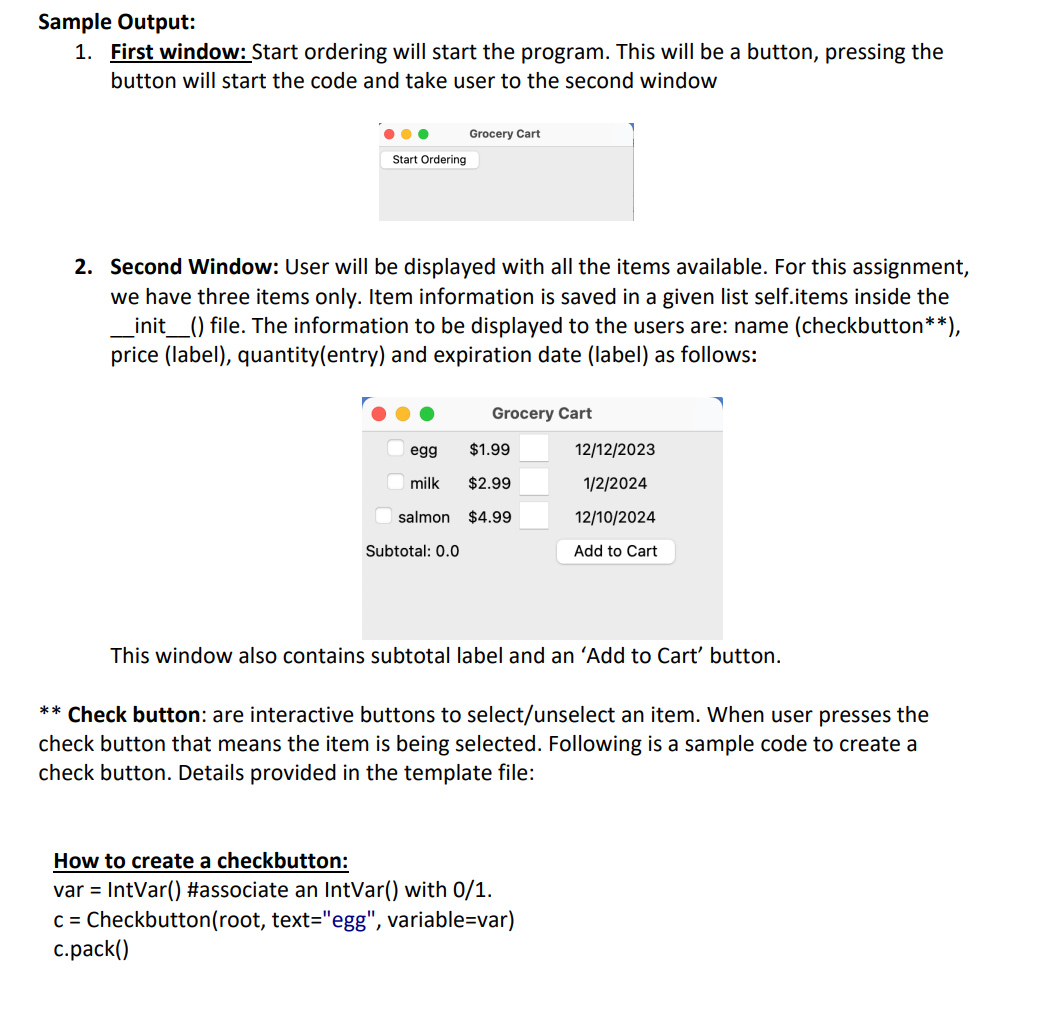
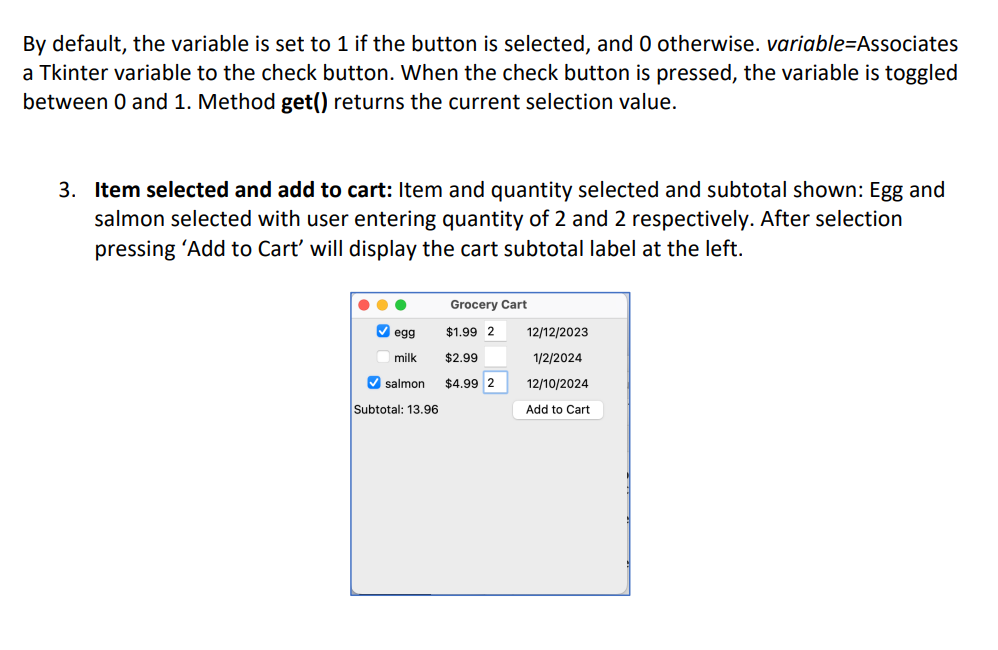
Sample Output: 1. First window: Start ordering will start the program. This will be a button, pressing the button will start the code and take user to the second window Start Ordering Grocery Cart 2. Second Window: User will be displayed with all the items available. For this assignment, we have three items only. Item information is saved in a given list self.items inside the _init__() file. The information to be displayed to the users are: name (checkbutton**), price (label), quantity(entry) and expiration date (label) as follows: Subtotal: 0.0 Grocery Cart egg $1.99 milk $2.99 salmon $4.99 12/12/2023 1/2/2024 12/10/2024 Add to Cart This window also contains subtotal label and an 'Add to Cart' button. ** Check button: are interactive buttons to select/unselect an item. When user presses the check button that means the item is being selected. Following is a sample code to create a check button. Details provided in the template file: How to create a checkbutton: var = IntVar() #associate an IntVar() with 0/1. c = Checkbutton(root, text="egg", variable=var) c.pack() By default, the variable is set to 1 if the button is selected, and 0 otherwise. variable=Associates a Tkinter variable to the check button. When the check button is pressed, the variable is toggled between 0 and 1. Method get() returns the current selection value. 3. Item selected and add to cart: Item and quantity selected and subtotal shown: Egg and salmon selected with user entering quantity of 2 and 2 respectively. After selection pressing 'Add to Cart' will display the cart subtotal label at the left. Grocery Cart egg $1.99 2 milk $2.99 salmon $4.99 2 Subtotal: 13.96 12/12/2023 1/2/2024 12/10/2024 Add to Cart
Step by Step Solution
There are 3 Steps involved in it

Get step-by-step solutions from verified subject matter experts
 Study Help