







Question: Select cell C6 and type the formula =C5+1 to add one to the date in the previous cell. AutoFill the formula to copy it to
Select cell
C6and type the formula
=C5+1to add one to the date in the previous cell.\ AutoFill the formula to copy it to row 51 .\ Type 5 Add On in cell E4 and press Enter.\ Build a formula in cell E5 to add .5 to cell D5 and press Enter to copy the formula. Format results to display two decimal places and apply All Borders.\ Copy dates as values.\ a. Select cell C5. Cell C5 is a reference to the TODAY function in cell F2.\ b. Sort the column by date in newest to oldest order. Because the dates are calculated, the formulas are wrong. The date that was originally in cell
C5sorted to row 51 and now has a relative reference to cell F48. (Figure 4-113).\ c. Click the Undo button [Undo group, home tab] and select cell
C5. The formulas are restored.\ d. Select cells C5:C51. You can copy and paste to replace the formulas with the actual dates.\ e. Press Ctrl+C to copy the range to the Clipboard.
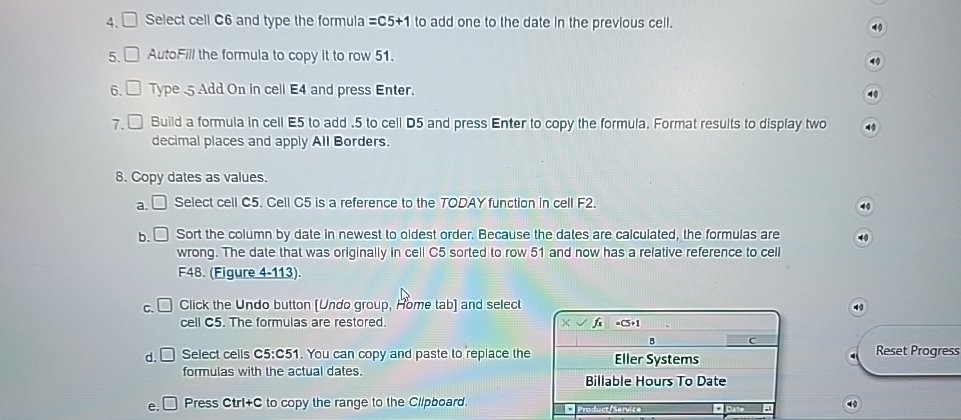
4. Select cell C6 and type the formula =C5+1 to add one to the date in the previous cell. 5. AutoFill the formula to copy it to row 51. 6. Type 5 Add On in cell E4 and press Enter. 7. Build a formula in cell E5 to add .5 to cell D5 and press Enter to copy the formula. Format results to display two decimal places and apply All Borders. 8. Copy dates as values. a. Select cell C5. Cell C5 is a reference to the TODAY function in cell F2. b. Sort the column by date in newest to oldest order. Because the dates are calculated, the formulas are wrong. The date that was originally in cell C5 sorted to row 51 and now has a relative reference to cell F48. (Figure 4-113). c. Click the Undo button [Undo group, Home tab] and select cell C5. The formulas are restored. d. Select cells C5:C51. You can copy and paste to replace the formulas with the actual dates. e. Press Ctrl+C to copy the range to the Clipboard. 4. Select cell C6 and type the formula =C5+1 to add one to the date in the previous cell. 5. AutoFill the formula to copy it to row 51. 6. Type 5 Add On in cell E4 and press Enter. 7. Build a formula in cell E5 to add .5 to cell D5 and press Enter to copy the formula. Format results to display two decimal places and apply All Borders. 8. Copy dates as values. a. Select cell C5. Cell C5 is a reference to the TODAY function in cell F2. b. Sort the column by date in newest to oldest order. Because the dates are calculated, the formulas are wrong. The date that was originally in cell C5 sorted to row 51 and now has a relative reference to cell F48. (Figure 4-113). c. Click the Undo button [Undo group, Home tab] and select cell C5. The formulas are restored. d. Select cells C5:C51. You can copy and paste to replace the formulas with the actual dates. e. Press Ctrl+C to copy the range to the Clipboard
Step by Step Solution
There are 3 Steps involved in it

Get step-by-step solutions from verified subject matter experts
 Study Help