







Question: sh row on Linux & answers + At the command prompt, type vi myscript3 and press Enter to edit a new file called myscript3 in
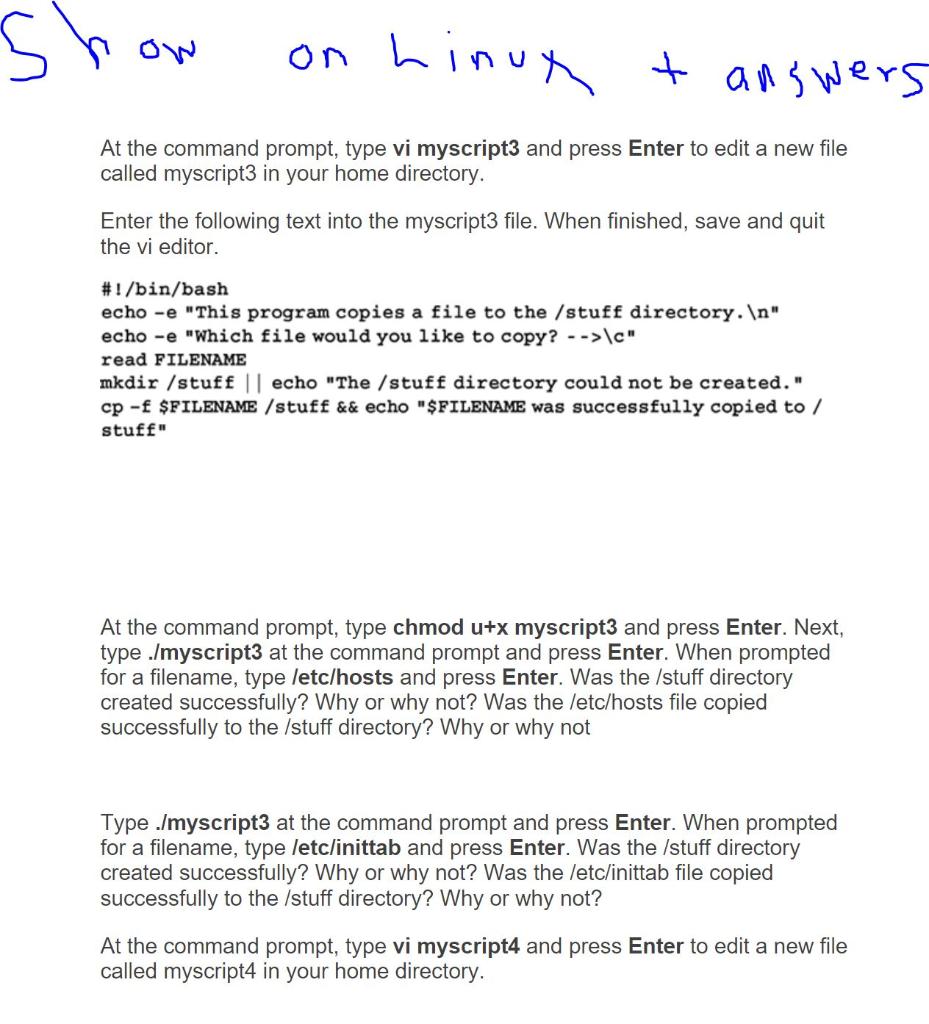
sh row on Linux & answers + At the command prompt, type vi myscript3 and press Enter to edit a new file called myscript3 in your home directory. Enter the following text into the myscript3 file. When finished, save and quit the vi editor. #!/bin/bash echo -e "This program copies a file to the stuff directory. " echo -e "Which file would you like to copy? -->\c" read FILENAME mkdir /stuff | echo "The /stuff directory could not be created." cp - $FILENAME / stuff && echo "$FILENAME was successfully copied to / stuff At the command prompt, type chmod u+x myscript3 and press Enter. Next, type ./myscript3 at the command prompt and press Enter. When prompted for a filename, type /etc/hosts and press Enter. Was the /stuff directory created successfully? Why or why not? Was the /etc/hosts file copied successfully to the /stuff directory? Why or why not Type /myscript3 at the command prompt and press Enter. When prompted for a filename, type letc/inittab and press Enter. Was the /stuff directory created successfully? Why or why not? Was the /etc/inittab file copied successfully to the /stuff directory? Why or why not? At the command prompt, type vi myscript4 and press Enter to edit a new file called myscript4 in your home directory
Step by Step Solution
There are 3 Steps involved in it

Get step-by-step solutions from verified subject matter experts
 Study Help