







Question: Show all the steps please Week 10 Assignment Week 10 Assignment Directions: Create screen shots using a tool such as the Snipping Tool found in
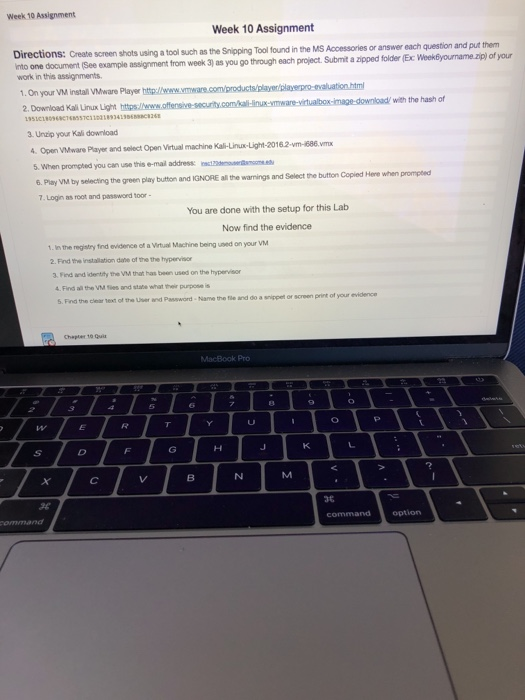
Week 10 Assignment Week 10 Assignment Directions: Create screen shots using a tool such as the Snipping Tool found in te such as the Snipping Tool found in the MS Accessories or answer each question and put them nto one document (See example assignment from week 3) as you go through each project Submit a zipped folder (Ex Week6yourname.zip) of your work in this assignments 1.On your VM install VMware Player 2. Download Kall Linux Ligh with the hash of Unzip your Kali download 4 Open VMware Player and select Open Virtual machine Kali-Linux-Lighnt-2016.2-m-686.mx 5.When prompted you can use this e-mail address: 6. Play VM by selecting the green play button and IGNORE al the wamings and Select the buttion Copied Here when prompte 7. Login as root and passwond toor You are done with the setup for this Lab Now find the evidence . In the registry Ind evidence of a Virtual Machine being used on your VM 2. Find the instalation dabe of the the hypervi 3. Find and identity the VM that has been used on the hypervisor 4. Find al the VM ies and stabe what their purpose is 5. Find the clr clear text of the User and Password-Name the fle and do a snippet or screen print of your evidence Chepter 10 Qui MacBook Pro 3c command option Week 10 Assignment Week 10 Assignment Directions: Create screen shots using a tool such as the Snipping Tool found in te such as the Snipping Tool found in the MS Accessories or answer each question and put them nto one document (See example assignment from week 3) as you go through each project Submit a zipped folder (Ex Week6yourname.zip) of your work in this assignments 1.On your VM install VMware Player 2. Download Kall Linux Ligh with the hash of Unzip your Kali download 4 Open VMware Player and select Open Virtual machine Kali-Linux-Lighnt-2016.2-m-686.mx 5.When prompted you can use this e-mail address: 6. Play VM by selecting the green play button and IGNORE al the wamings and Select the buttion Copied Here when prompte 7. Login as root and passwond toor You are done with the setup for this Lab Now find the evidence . In the registry Ind evidence of a Virtual Machine being used on your VM 2. Find the instalation dabe of the the hypervi 3. Find and identity the VM that has been used on the hypervisor 4. Find al the VM ies and stabe what their purpose is 5. Find the clr clear text of the User and Password-Name the fle and do a snippet or screen print of your evidence Chepter 10 Qui MacBook Pro 3c command option
Step by Step Solution
There are 3 Steps involved in it

Get step-by-step solutions from verified subject matter experts
 Study Help