





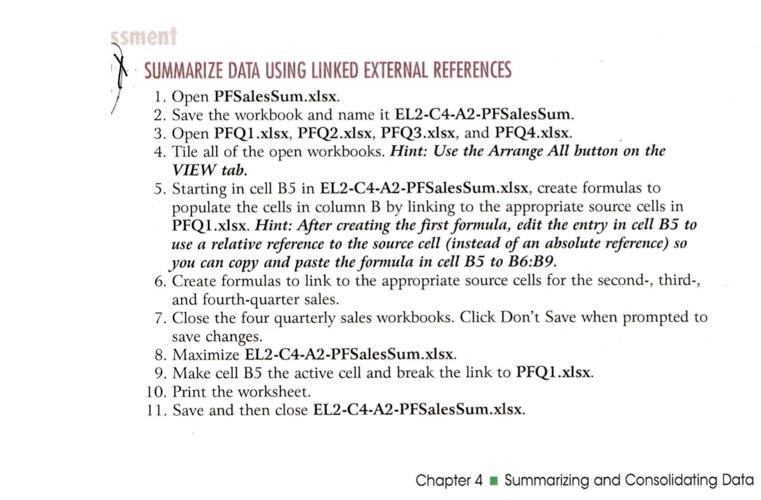
Question: ssment SUMMARIZE DATA USING LINKED EXTERNAL REFERENCES 1. Open PFSales Sum.xlsx. 2. Save the workbook and name it EL2-C4-A2-PFSales Sum. 3. Open PFQ1.xlsx, PFQ2.xlsx, PFQ3.xlsx,
ssment SUMMARIZE DATA USING LINKED EXTERNALssment SUMMARIZE DATA USING LINKED EXTERNAL

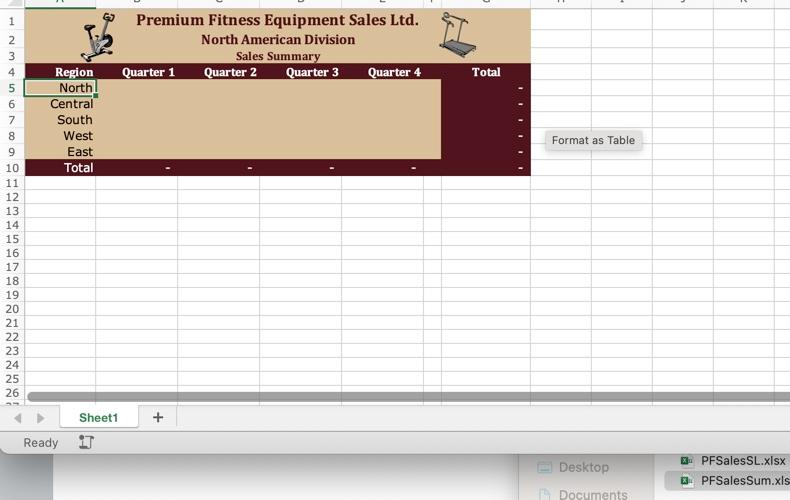
ssment SUMMARIZE DATA USING LINKED EXTERNAL REFERENCES 1. Open PFSales Sum.xlsx. 2. Save the workbook and name it EL2-C4-A2-PFSales Sum. 3. Open PFQ1.xlsx, PFQ2.xlsx, PFQ3.xlsx, and PFQ4.xlsx 4. Tile all of the open workbooks. Hint: Use the Arrange All button on the VIEW tab. 5. Starting in cell B5 in EL2-C4-A2-PFSales Sum.xlsx, create formulas to populate the cells in column B by linking to the appropriate source cells in PFQ1.xlsx. Hint: After creating the first formula, edit the entry in cell B5 to use a relative reference to the source cell (instead of an absolute reference) so you can copy and paste the formula in cell B5 to B6:39. 6. Create formulas to link to the appropriate source cells for the second-, third-, and fourth-quarter sales. 7. Close the four quarterly sales workbooks. Click Don't Save when prompted to save changes. 8. Maximize EL2-C4-A2-PFSalesSum.xlsx 9. Make cell B5 the active cell and break the link to PFQ1.xlsx 10. Print the worksheet. 11. Save and then close EL2-C4-A2-PFSalesSum.xlsx Chapter 4 Summarizing and Consolidating Data - 1 2 3 4 Premium Fitness Equipment Sales Ltd. North American Division Sales Summary Quarter 1 Quarter 2 Quarter 3 Quarter 4 Total Region North Central South West East Total Format as Table 9 10 11 12 13 14 15 16 17 18 19 20 21 22 23 24 25 26 Sheet1 Ready Desktop Documents PFSales SL.xlsx PFSales Sum.xls

Step by Step Solution

There are 3 Steps involved in it

1 Expert Approved Answer
Step: 1 Unlock blur-text-image

Question Has Been Solved by an Expert!

Get step-by-step solutions from verified subject matter experts

Step: 2 Unlock
Step: 3 Unlock

Students Have Also Explored These Related General Management Questions!