







Question: Summarize Data Using Linked External References 1. Open PFSalesSum.xlsx and save it with the name 4-PFSalesSum. 2. Open PFQ1.xlsx, PFQ2.xlsx, PFQ3.xlsx, and PFQ4.xlsx. 3. Tile
Summarize Data Using Linked External References
1. Open PFSalesSum.xlsx and save it with the name 4-PFSalesSum.
2. Open PFQ1.xlsx, PFQ2.xlsx, PFQ3.xlsx, and PFQ4.xlsx.
3. Tile all the open workbooks. Hint: With 4-PFSalesSum as the active workbook, use the Arrange All button on the View tab.
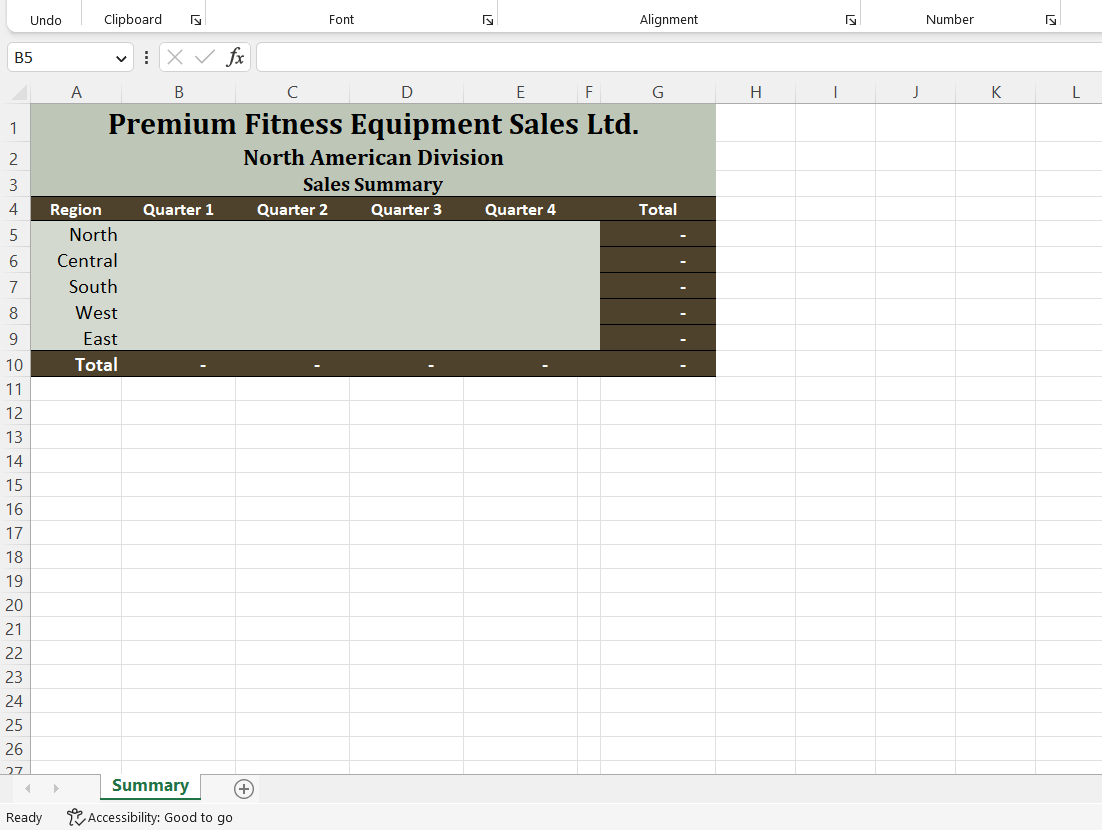
4. Starting in cell B5 in 4-PFSalesSum, create formulas to populate the cells in column B by linking to the appropriate source cells in PFQ1. Hint: After creating the first formula, edit the entry in cell B5 to use a relative reference to the source cell (instead of an absolute reference) so you can copy the formula in cell B5 to the range B6:B9.
5. Create formulas to link to the appropriate source cells for the second-, third-, and fourth-quarter sales.
6. Close the four quarterly sales workbooks. Click Dont Save if prompted to save changes.
7. Maximize 4-PFSalesSum.
8. Make cell B5 the active cell and then break the link to PFQ1.xlsx.
9. Save, preview, and then close 4-PFSalesSum.xlsx.
Create and Customize Sparklines
1. Open 4-PFSalesSum.xlsx and enable the content. Do not update the links.
2. Save the workbook with the name 4-PFSalesSum-6.
3. Select the range H5:H9 and insert line-type Sparklines referencing the range B5:E9.
4. Show the high point on each line.
5. Change the Sparkline color to dark blue (ninth option in the Standard Colors section).
6. Change the width of column H to 21 characters and type the label Region Sales by Quarter in cell H4.
7. Change the page layout to Landscape orientation and then preview the worksheet.
8. Save and then close 4-PFSalesSum-6.xlsx
=
Step by Step Solution
There are 3 Steps involved in it

Get step-by-step solutions from verified subject matter experts
 Study Help