







Question: Step 5. Remove Directories with the rm -r Command The rm -r (recursive) or rm -r command is used to remove directories. It will remove
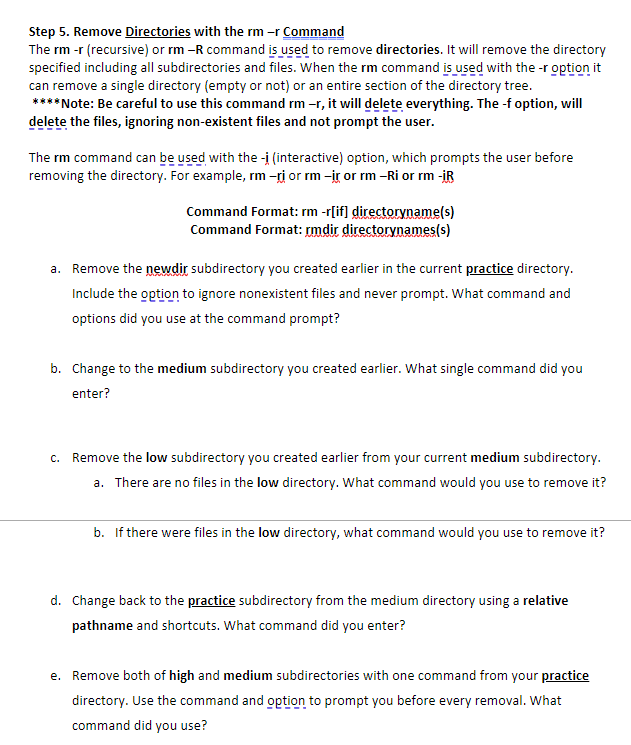
Step 5. Remove Directories with the rm -r Command The rm -r (recursive) or rm -r command is used to remove directories. It will remove the directory specified including all subdirectories and files. When the rm command is used with the -r option it can remove a single directory (empty or not) or an entire section of the directory tree. ****Note: Be careful to use this command rm -r, it will delete everything. The-f option, will delete the files, ignoring non-existent files and not prompt the user. The rm command can be used with the -i (interactive) option, which prompts the user before removing the directory. For example, rm -rior rm ir or rm-Ri or rm-IR Command Format: rm -r[if] directoryname(s) Command Format: rmdir directorynames(s) a. Remove the newdir subdirectory you created earlier in the current practice directory. Include the option to ignore nonexistent files and never prompt. What command and options did you use at the command prompt? b. Change to the medium subdirectory you created earlier. What single command did you enter? C. Remove the low subdirectory you created earlier from your current medium subdirectory. a. There are no files in the low directory. What command would you use to remove it? b. If there were files in the low directory, what command would you use to remove it? d. Change back to the practice subdirectory from the medium directory using a relative pathname and shortcuts. What command did you enter? e. Remove both of high and medium subdirectories with one command from your practice directory. Use the command and option to prompt you before every removal. What command did you use
Step by Step Solution
There are 3 Steps involved in it

Get step-by-step solutions from verified subject matter experts
 Study Help