





Question: Step Instructions Points Possible 10 2 10 3 10 Select Goal Seek tab. This worksheet calculates a student grade in an Excel cless (and drops
Step Instructions Points Possible 10 2 10 3 10
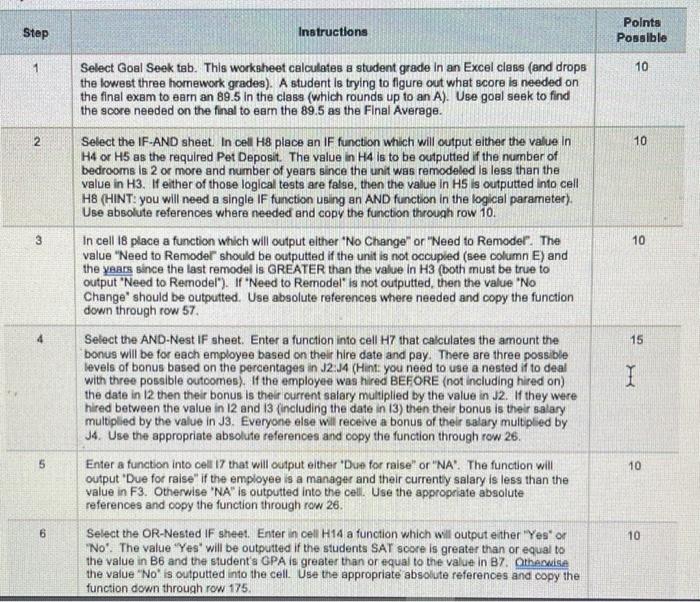
Step Instructions Points Possible 10 2 10 3 10 Select Goal Seek tab. This worksheet calculates a student grade in an Excel cless (and drops the lowest three homework grades). A student is trying to figure out what score is needed on the final exam to earn an 89.5 in the class (which rounds up to an A). Use goal seek to find the score needed on the final to earn the 89.5 as the Final Average. Select the IF-AND sheet. In cell H8 place an IF function which will output either the value in H4 or 5 as the required Pet Deposit . The value in H4 is to be outputted if the number of bedrooms is 2 or more and number of years since the unit was remodeled is less than the value in H3. If either of those logical tests are false, then the value in HS is outputted into cell H8 (HINT: you will need a single IF function using an AND function in the logical parameter). Use absolute references where needed and copy the function through row 10. In cell 18 place a function which will output either "No Change" or "Need to Remodel". The value "Need to Remodel should be outputted if the unit is not occupied (see column E) and the years since the last remodel is GREATER than the value in H3 (both must be true to output "Need to Remodel"). If Need to Remodel is not outputted, then the value "No Change" should be outputted. Use absolute references where needed and copy the function down through row 57. Select the AND-Nest IF sheet. Enter a function into cell H7 that calculates the amount the bonus will be for each employee based on their hire date and pay. There are three possible levels of bonus based on the percentages in 32:14 (Hint: you need to use a nested it to deal with three possible outcomes). If the employee was hired BEFORE (not including hired on) the date in 12 then their bonus is their ourrent salary multiplied by the value in J2. If they were hired between the value in 12 and 13 (Including the date in 13) then their bonus is their salary multiplied by the value in 33. Everyone else will receive a bonus of their salary multiplied by J4. Use the appropriate absolute references and copy the function through row 26. Enter a function into cell 17 that will output either 'Due for raise" or "NA". The function will output "Due for raise" if the employee is a manager and their currently salary is less than the value in F3. Otherwise "NA" is outputted into the cell. Use the appropriate absolute references and copy the function through row 26. Select the OR-Nested IF sheet. Enter in cell H14 a function which will output either 'Yes' or "No". The value 'Yes' will be outputted if the students SAT score is greater than or equal to the value in B6 and the student's GPA is greater than or equal to the value in B7. Otherwise the value "No' is outputted into the cell. Use the appropriate absolute references and copy the function down through row 175. 15 I 5 10 6 10 Step Instructions Points Possible 10 2 10 3 10 Select Goal Seek tab. This worksheet calculates a student grade in an Excel cless (and drops the lowest three homework grades). A student is trying to figure out what score is needed on the final exam to earn an 89.5 in the class (which rounds up to an A). Use goal seek to find the score needed on the final to earn the 89.5 as the Final Average. Select the IF-AND sheet. In cell H8 place an IF function which will output either the value in H4 or 5 as the required Pet Deposit . The value in H4 is to be outputted if the number of bedrooms is 2 or more and number of years since the unit was remodeled is less than the value in H3. If either of those logical tests are false, then the value in HS is outputted into cell H8 (HINT: you will need a single IF function using an AND function in the logical parameter). Use absolute references where needed and copy the function through row 10. In cell 18 place a function which will output either "No Change" or "Need to Remodel". The value "Need to Remodel should be outputted if the unit is not occupied (see column E) and the years since the last remodel is GREATER than the value in H3 (both must be true to output "Need to Remodel"). If Need to Remodel is not outputted, then the value "No Change" should be outputted. Use absolute references where needed and copy the function down through row 57. Select the AND-Nest IF sheet. Enter a function into cell H7 that calculates the amount the bonus will be for each employee based on their hire date and pay. There are three possible levels of bonus based on the percentages in 32:14 (Hint: you need to use a nested it to deal with three possible outcomes). If the employee was hired BEFORE (not including hired on) the date in 12 then their bonus is their ourrent salary multiplied by the value in J2. If they were hired between the value in 12 and 13 (Including the date in 13) then their bonus is their salary multiplied by the value in 33. Everyone else will receive a bonus of their salary multiplied by J4. Use the appropriate absolute references and copy the function through row 26. Enter a function into cell 17 that will output either 'Due for raise" or "NA". The function will output "Due for raise" if the employee is a manager and their currently salary is less than the value in F3. Otherwise "NA" is outputted into the cell. Use the appropriate absolute references and copy the function through row 26. Select the OR-Nested IF sheet. Enter in cell H14 a function which will output either 'Yes' or "No". The value 'Yes' will be outputted if the students SAT score is greater than or equal to the value in B6 and the student's GPA is greater than or equal to the value in B7. Otherwise the value "No' is outputted into the cell. Use the appropriate absolute references and copy the function down through row 175. 15 I 5 10 6 10

Step by Step Solution

There are 3 Steps involved in it

1 Expert Approved Answer
Step: 1 Unlock blur-text-image

Question Has Been Solved by an Expert!

Get step-by-step solutions from verified subject matter experts

Step: 2 Unlock
Step: 3 Unlock

Students Have Also Explored These Related General Management Questions!