







Question: Step Instructions Possible If necessary, load the Solver Add-in. On the GolfLessons worksheet, begin the process of creating a 22 solver model by setting the
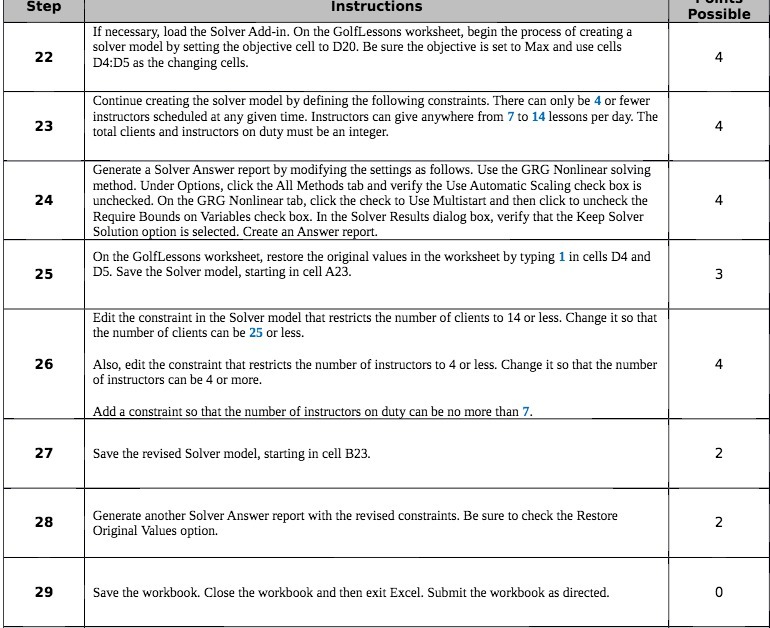
Step Instructions Possible If necessary, load the Solver Add-in. On the GolfLessons worksheet, begin the process of creating a 22 solver model by setting the objective cell to D20. Be sure the objective is set to Max and use cells D4:D5 as the changing cells. 4 Continue creating the solver model by defining the following constraints. There can only be 4 or fewer 23 instructors scheduled at any given time. Instructors can give anywhere from 7 to 14 lessons per day. The total clients and instructors on duty must be an integer. 4 Generate a Solver Answer report by modifying the settings as follows. Use the GRG Nonlinear solving 24 method. Under Options, click the All Methods tab and verify the Use Automatic Scaling check box is unchecked. On the GRG Nonlinear tab, click the check to Use Multistart and then click to uncheck the 4 Require Bounds on Variables check box. In the Solver Results dialog box, verify that the Keep Solver Solution option is selected. Create an Answer report. On the GolfLessons worksheet, restore the original values in the worksheet by typing 1 in cells D4 and 25 D5. Save the Solver model, starting in cell A23. 3 Edit the constraint in the Solver model that restricts the number of clients to 14 or less. Change it so that the number of clients can be 25 or less. 26 Also, edit the constraint that restricts the number of instructors to 4 or less. Change it so that the number 4 of instructors can be 4 or more. Add a constraint so that the number of instructors on duty can be no more than 7. 27 Save the revised Solver model, starting in cell B23. 2 28 Generate another Solver Answer report with the revised constraints. Be sure to check the Restore Original Values option. 2 29 Save the workbook. Close the workbook and then exit Excel. Submit the workbook as directed. 0
Step by Step Solution
There are 3 Steps involved in it

Get step-by-step solutions from verified subject matter experts
 Study Help