







Question: Studying Visual Basic Prompt: Step 1: Program Description Below is Professor Smith's grading scale for his CIS 170 class : Letter Grade Points Percentage A
Studying Visual Basic
Prompt:
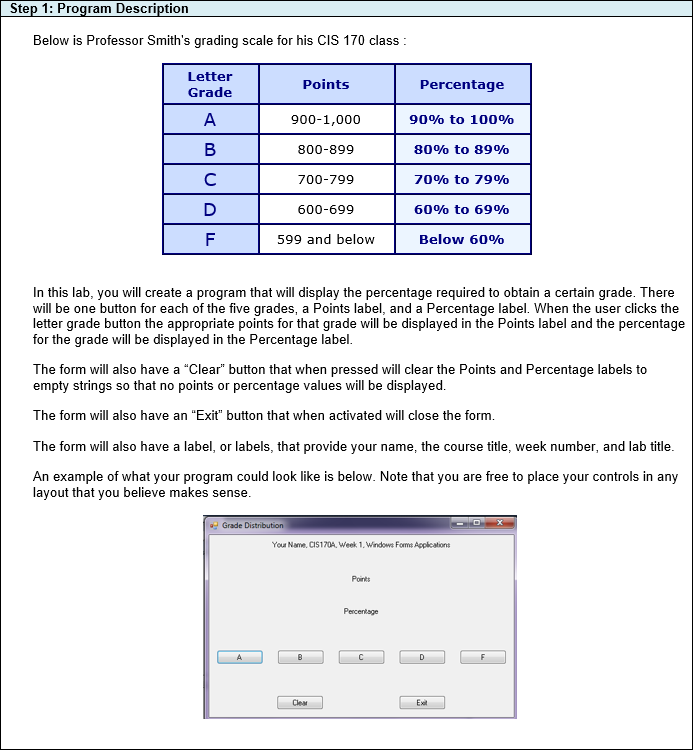
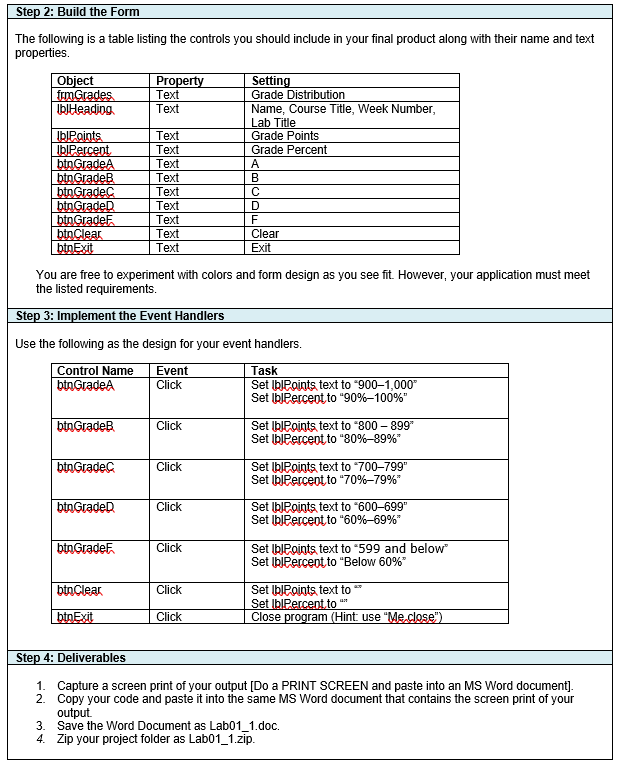
Step 1: Program Description Below is Professor Smith's grading scale for his CIS 170 class : Letter Grade Points Percentage A 900-1,000 90% to 100% B 800-899 80% to 89% 700-799 70% to 79% 600-699 60% to 69% 599 and below Below 60% In this lab, you will create a program that will display the percentage required to obtain a certain grade. There will be one button for each of the five grades, a Points label, and a Percentage label. When the user clicks the letter grade button the appropriate points for that grade will be displayed in the Points label and the percentage for the grade will be displayed in the Percentage label. The form will also have a "Clear" button that when pressed will clear the points and Percentage labels to empty strings so that no points or percentage values will be displayed. The form will also have an "Exit" button that when activated will close the form. The form will also have a label, or labels, that provide your name, the course title, week number, and lab title. An example of what your program could look like is below. Note that you are free to place your controls in any layout that you believe makes sense. Grade Distribution You Name. CIS1704. Week 1, Windows Forme Applications Points Percentage C D F Cle Exit Step 2: Build the Form The following is a table listing the controls you should include in your final product along with their name and text properties Object frm Grades bHeading Property Text Text b Points bJPercent btn GradeA btn Grade btn Gradec btn Grade btn GradeF. btnClear btnExit Text Text Text Text Text Text Text Text Text Setting Grade Distribution Name, Course Title, Week Number, Lab Title Grade Points Grade Percent A B D F Clear Exit You are free to experiment with colors and form design as you see fit. However, your application must meet the listed requirements. Step 3: Implement the Event Handlers Use the following as the design for your event handlers. Control Name Event Task btn GradeA Click Set blPoints text to "9001,000 Set blPercent to "90%-100%" btn Grade Click Set blPoints text to 800 - 899 Set blPercent to "80%-89%* btn Gradec Click Set blPoints text to "700-799" Set blPercent to "70%79%" btn Grade Click Set blPoints text to "600-699" Set blPercent to "60%-69%" btn Grade Click Set blPoints text to '599 and below Set blPercent to "Below 60%" btn Clear Click Set blPoints text to Set blPercent to " Close program (Hint: use "Me.close") btnExit Click Step 4: Deliverables 1. Capture a screen print of your output [Do a PRINT SCREEN and paste into an MS Word document]. 2. Copy your code and paste it into the same MS Word document that contains the screen print of your output 3. Save the Word Document as Labo1_1.doc. 4. Zip your project folder as Labo1_1.zip
Step by Step Solution
There are 3 Steps involved in it

Get step-by-step solutions from verified subject matter experts
 Study Help