



Question: Task 2 - Working With Images So far, none of our GUI programs have included images. Before we display an image in our program, find
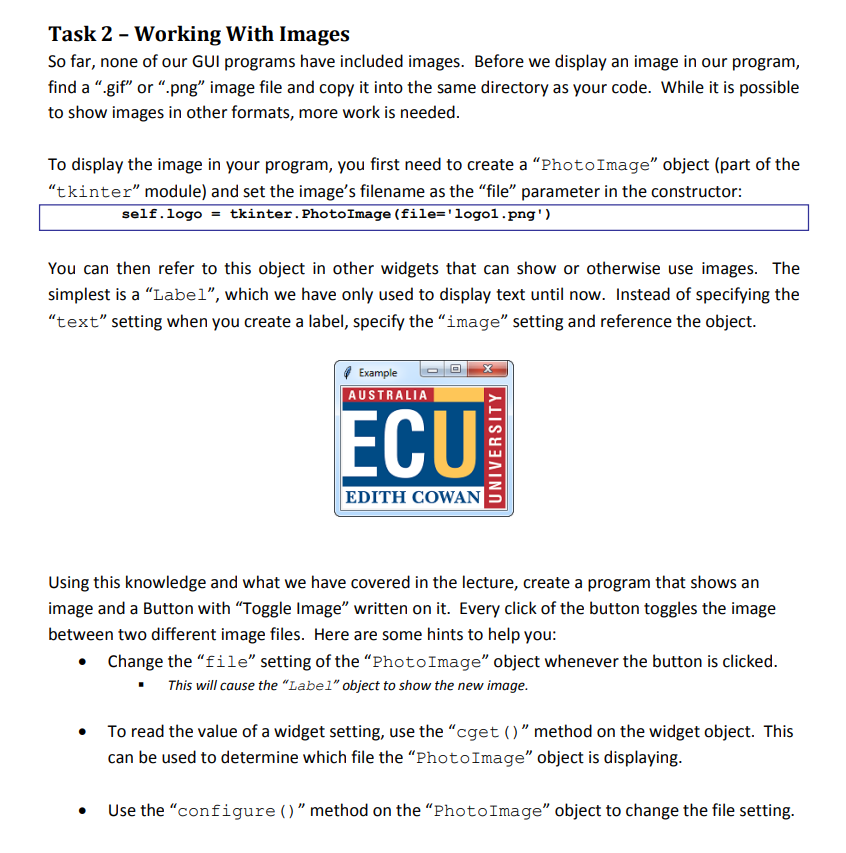
Task 2 - Working With Images So far, none of our GUI programs have included images. Before we display an image in our program, find a ".gif" or ".png" image file and copy it into the same directory as your code. While it is possible to show images in other formats, more work is needed. To display the image in your program, you first need to create a "Photo Image" object (part of the "tkinter" module) and set the image's filename as the "file" parameter in the constructor: self. logo = tkinter. PhotoImage (file=' 'logo1.png' ) You can then refer to this object in other widgets that can show or otherwise use images. The simplest is a "Label", which we have only used to display text until now. Instead of specifying the "text" setting when you create a label, specify the "image" setting and reference the object. Using this knowledge and what we have covered in the lecture, create a program that shows an image and a Button with "Toggle Image" written on it. Every click of the button toggles the image between two different image files. Here are some hints to help you: - Change the "file" setting of the "Photo Image" object whenever the button is clicked. - This will cause the "Label" object to show the new image. - To read the value of a widget setting, use the "cget ( ) " method on the widget object. This can be used to determine which file the "Photo Image" object is displaying. - Use the "configure ()" method on the "Photo Image" object to change the file setting
Step by Step Solution
There are 3 Steps involved in it

Get step-by-step solutions from verified subject matter experts