







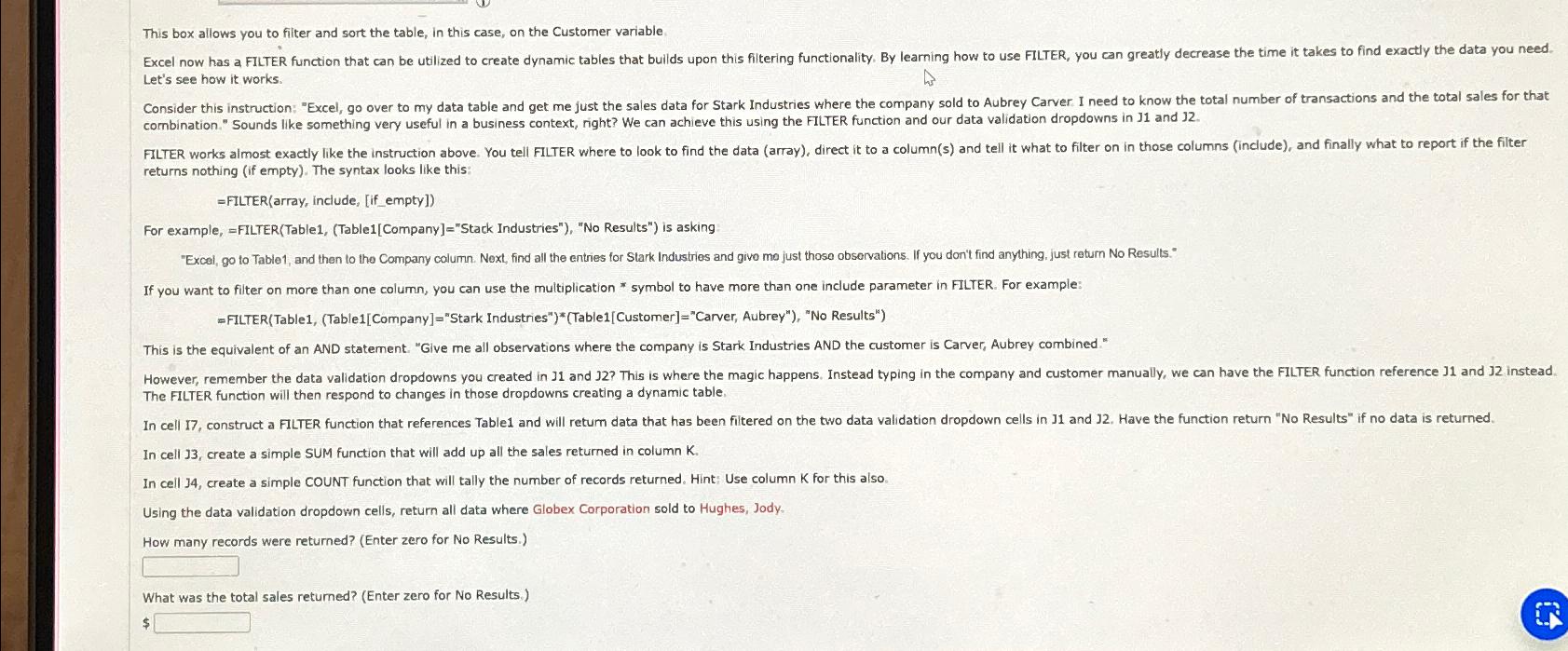
Question: This box allows you to filter and sort the table, in this case, on the Customer variable. Let's see how it works. combination. Sounds like
This box allows you to filter and sort the table, in this case, on the Customer variable. Let's see how it works. combination." Sounds like something very useful in a business context, right? We can achieve this using the FLITER function and our data validation dropdowns in and returns nothing if empty The syntax looks like this:
FILTERarray include, ifempty
For example, FILTERTableTableCompany"Stack Industries"No Results" is asking
"Excel, go to Table and then to the Company column. Next, find all the entries for Stark Industries and givo mo just those observations. If you don't find anything, just return No Results."
If you want to filter on more than one column, you can use the multiplication symbol to have more than one include parameter in FILTER. For example:
FILTERTableTableCompany"Stark Industries"TableCustomer"Carver, Aubrey"No Results"
This is the equivalent of an AND statement. "Glve me all observations where the company is Stark Industries AND the customer is Carver, Aubrey combined." The FILTER function will then respond to changes in those dropdowns creating a dynamic table.
In cell J create a simple SUM function that will add up all the sales returned in column
In cell J create a simple COUNT function that will tally the number of records returned. Hint: Use column K for this also.
Using the data validation dropdown cells, return all data where Globex Corporation sold to Hughes, Jody.
How many records were returned? Enter zero for No Results.
What was the total sales returned? Enter zero for No Results.
$
Step by Step Solution
There are 3 Steps involved in it
1 Expert Approved Answer
Step: 1 Unlock

Question Has Been Solved by an Expert!
Get step-by-step solutions from verified subject matter experts
Step: 2 Unlock
Step: 3 Unlock
 Study Help