







Question: this is main class. import javafx.application.Application; import javafx.event.ActionEvent; import javafx.event.EventHandler; import javafx.geometry.Insets; import javafx.geometry.Pos; import javafx.stage.Stage; import javafx.scene.Scene; import javafx.scene.control.Button; import javafx.scene.control.Label; import javafx.scene.control.TextArea; import
this is main class.
import javafx.application.Application; import javafx.event.ActionEvent; import javafx.event.EventHandler; import javafx.geometry.Insets; import javafx.geometry.Pos; import javafx.stage.Stage; import javafx.scene.Scene; import javafx.scene.control.Button;
import javafx.scene.control.Label; import javafx.scene.control.TextArea; import javafx.scene.control.TextField; import javafx.scene.layout.GridPane; import javafx.scene.layout.Pane; import javafx.scene.layout.BorderPane;
public class Main extends Application {
// define all GUI controls as data fields Button btnAdd, btnSubtract, btnMultiply, btnDivide, btnExponent, btnLoad; Label lbl1, lbl2, lbl3; TextField txfValue1, txfValue2; TextArea txa;
@Override public void start(Stage primaryStage) { Pane grdRootPane = buildGuiPane(); Scene scene = new Scene(grdRootPane,475, 275); primaryStage.setScene(scene); primaryStage.setTitle("MyLittleCalculator"); primaryStage.show(); }
private Pane buildGuiPane() {
btnAdd = new Button("add"); btnSubtract = new Button("subtract"); btnMultiply= new Button("multiply"); btnDivide = new Button("divide"); btnLoad = new Button("load"); btnExponent = new Button("exp");
lbl1 = new Label("Operand 1: "); lbl2 = new Label("Operand 2: "); lbl3 = new Label("Result: "); txfValue1 = new TextField(); txfValue2 = new TextField();
txa = new TextArea(); txa.setEditable(false); txa.setPrefColumnCount(30); txa.setPrefRowCount(5);
//We use gridPane1 to implement the first row of the calculator GridPane gridPane1 = new GridPane();
gridPane1.setAlignment(Pos.CENTER); gridPane1.setHgap(200); gridPane1.setVgap(5);
gridPane1.add(lbl1, 0, 0); gridPane1.add(lbl2, 0, 1); gridPane1.add(txfValue1, 1, 0); gridPane1.add(txfValue2, 1, 1);
//We use gridPane2 to implement the second row of the calculator GridPane gridPane2 = new GridPane();
gridPane2.setAlignment(Pos.CENTER); gridPane2.setHgap(20);
// write your code here to add GUI controls to gridPane2. See the code about gridPane1 for hint
//We use gridPane3 to implement the last row of the calculator GridPane gridPane3 = new GridPane();
gridPane3.setAlignment(Pos.CENTER); gridPane3.setHgap(10);
//write your code here to add GUI controls to gridPane3
// We create our top-level pane here. GridPane topPane = new GridPane();
topPane.setAlignment(Pos.CENTER);
topPane.setVgap(20);
//Here we add gridPane1, gridPane2 and gridPane3 to our topPane, which is our final layout topPane.add(gridPane1, 0, 0); topPane.add(gridPane2, 0, 1); topPane.add(gridPane3, 0, 2);
// Write you code here to register all the buttons to the same event handler function named "calculate". We will implement this function later.
return topPane;
}
public void calculate(ActionEvent e){
// write your code to implement this button-clicking event handler
}
public static void main(String[] args) { launch(args); } }
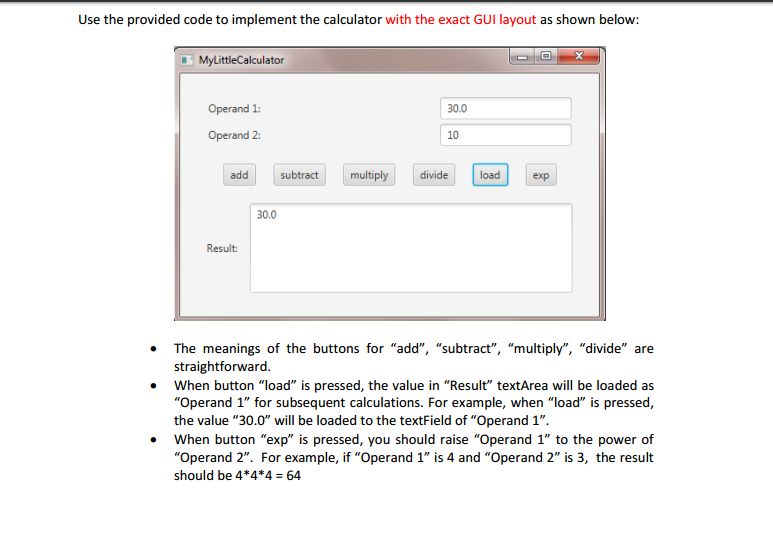
Use the provided code to implement the calculator with the exact GUI layout as shown below: My culator 30.0 Operand 1: operand 2: divide add subtract multiply load 30.0 Result The meanings of the buttons for add subtract", "multiply" divide are straightforward When button "load" is pressed, the value in "Result" textArea will be loaded as Operand 1" for subsequent calculations. For example, when "load" is pressed, the value "30.0" will be loaded to the textField of "Operand 1". When button "exp" is pressed, you should raise "Operand 1" to the power of operand 2" For example, if "Operand 1" is 4 and "Operand 2" is 3, the result should be 4 4 4 64 Use the provided code to implement the calculator with the exact GUI layout as shown below: My culator 30.0 Operand 1: operand 2: divide add subtract multiply load 30.0 Result The meanings of the buttons for add subtract", "multiply" divide are straightforward When button "load" is pressed, the value in "Result" textArea will be loaded as Operand 1" for subsequent calculations. For example, when "load" is pressed, the value "30.0" will be loaded to the textField of "Operand 1". When button "exp" is pressed, you should raise "Operand 1" to the power of operand 2" For example, if "Operand 1" is 4 and "Operand 2" is 3, the result should be 4 4 4 64
Step by Step Solution
There are 3 Steps involved in it

Get step-by-step solutions from verified subject matter experts
 Study Help