







Question: This week's lab is to create a GUI in python and use the tkinter module Use text boxes to retrieve the speed and time traveled
This week's lab is to create a GUI in python and use the tkinter module
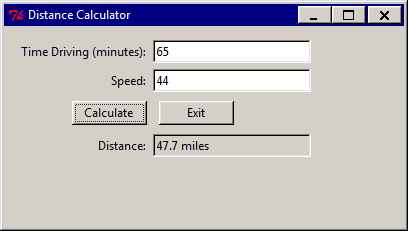
Use text boxes to retrieve the speed and time traveled (in minutes) from the user. From this calculate the distance traveled: distance = rate * time
Deliverables
- A source code Python file.
- A Word document containing both source code and the screen print of the program outputs.
Lab Steps
Sample Output:
The output should be something similar to the following.
Hints:
- The following code below is an implementation of a GUI to solve for miles per gallon. Use the code from the example below calculating miles per gallon, and modify it to display the distance traveled.
- Instead of asking the user for miles driven and gas. You will need to ask for Time driving and Speed. You will also need to modify the formula.
import tkinter as tk
from tkinter import ttk
def click_calculateButton():
miles = float( milesText.get() ) # get miles driven from the miles textfield
gas = float( gasText.get() ) # get gas used from the gas textfield
mpg = miles / gas # do the math!
mpgText.set( round(mpg,1) ) # display the output
def command_exitButton():
root.destroy()
# create root window
root = tk.Tk()
root.title("MPG Calculator")
root.geometry("280x150") # size of window
# create frame and add it to the root window
frame = ttk.Frame(root, padding="10 10 10 10")
frame.pack(fill=tk.BOTH, expand=True)
# create labels and textfields
ttk.Label(frame, text="Miles Driven:").grid(column=0, row=0, padx=5, pady=5, sticky=tk.E) # display label in grid
milesText = tk.StringVar()
ttk.Entry(frame, width=25, textvariable=milesText).grid(column=1, row=0)
ttk.Label(frame, text="Gas Used:").grid(column=0, row=1, padx=5, pady=5, sticky=tk.E)
gasText = tk.StringVar()
ttk.Entry(frame, width=25, textvariable=gasText).grid(column=1, row=1)
# create a button and add it to the window
ttk.Button(frame, text="Calculate", command=click_calculateButton).grid(column=0, row=2, padx=5, pady=5, sticky=tk.E)
ttk.Button(frame, text="Exit", command=command_exitButton).grid(column=1, row=2, padx=5, pady=5, sticky=tk.W)
ttk.Label(frame, text="MPG:").grid(column=0, row=3, padx=5, pady=5, sticky=tk.E)
mpgText = tk.StringVar()
mpgEntry = ttk.Entry(frame, width=25, textvariable=mpgText, state="readonly").grid(column=1, row=3) # notice readonly!
Step by Step Solution
There are 3 Steps involved in it

Get step-by-step solutions from verified subject matter experts
 Study Help