





Question: to A Paste Font Paragraph Styles Dictate Editor G Open Grammarly Grader - Instructions Excel 2016 Sin Pol Post 20 21 22 Instructions You are
to A Paste Font Paragraph Styles Dictate Editor G
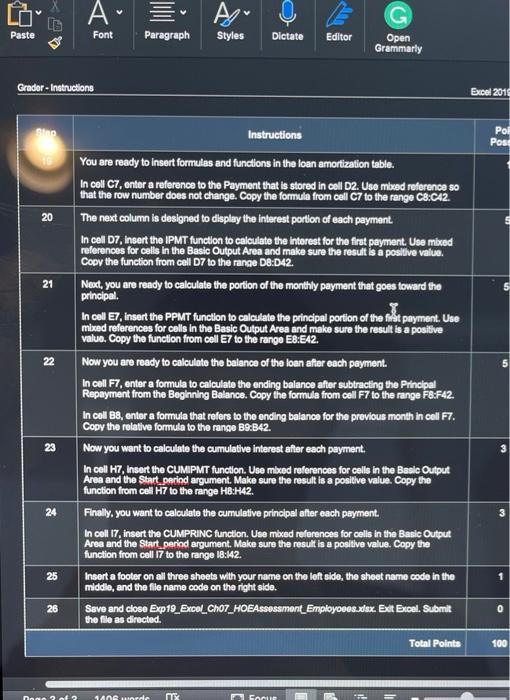
to A Paste Font Paragraph Styles Dictate Editor G Open Grammarly Grader - Instructions Excel 2016 Sin Pol Post 20 21 22 Instructions You are ready to insert formulas and functions in the loan amortization table. In cell C7, enter a reference to the Payment that is stored in coll D2. Use mixed reference so that the row number does not change. Copy the formula from cell C7 to the range C8:C42. The next column is designed to display the interest portion of each payment. In cell D7, Insert the IPMT function to calculate the Interest for the first payment. Use mbed references for cells in the Basic Output Area and make sure the result is a positive value. Copy the function from cell D7 to the range D8:042. Nect, you are ready to calculate the portion of the monthly payment that goes toward the principal In cell E7, Insert the PPMT function to calculate the principal portion of the flat payment. Use mixed references for cells in the Basic Output Area and make sure the result is a positive value. Copy the function from cell E7 to the range EB:642. Now you are ready to calculate the balance of the loan after each payment. In cell F7, enter a formula to calculate the ending balance after subtracting the Principal Repayment from the Beginning Balance. Copy the formula from cell F7 to the range FB:F42. In coll 88, enter a formula that refers to the ending balance for the previous month in cel F7. Copy the relative formula to the range B9.842. Now you want to calculate the cumulative interest after each payment In cell H7, Insert the CUMIPMT function. Use mixed references for cells in the Basic Output Area and the Start period argument. Make sure the result is a positive value. Copy the function from cell H7 to the range HB:H42. Finally, you want to calculate the cumulative principal after each payment. In cell 17 insert the CUMPRINC function. Use mixed references for cells in the Basic Output Area and the Start period argument. Make sure the result is a positive value. Copy the function from cell 17 to the range 18:42. Insert a footer on all three sheets with your name on the left side, the sheet name code in the middle, and the file name code on the right side. Save and close Exp19_Excol_Cho7_HOEAssessment Employees.xdsx Exit Excel. Submit the file as directed. 23 24 25 26 0 Total Points 10 Doon 2 of 2 HAOSworde MEX Focus

Step by Step Solution

There are 3 Steps involved in it

1 Expert Approved Answer
Step: 1 Unlock blur-text-image

Question Has Been Solved by an Expert!

Get step-by-step solutions from verified subject matter experts

Step: 2 Unlock
Step: 3 Unlock

Students Have Also Explored These Related General Management Questions!