







Question: This project must be completed using an Oracle database with all statements manually typed into an SQL file and run as a batch in
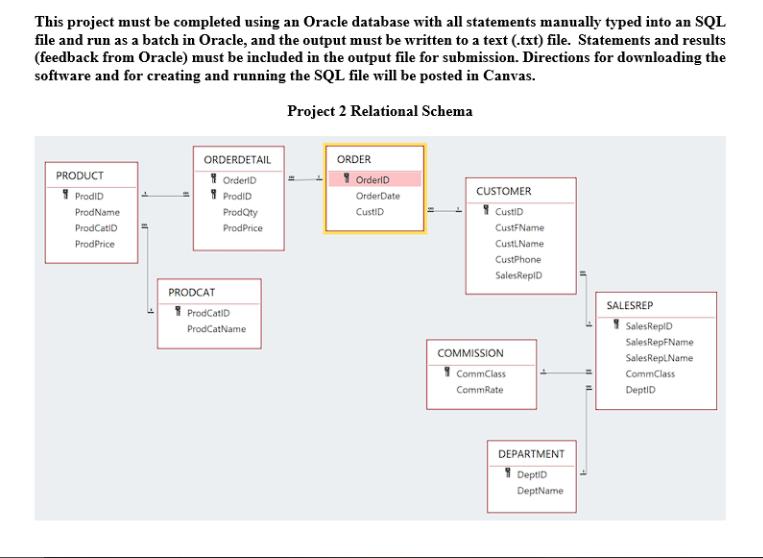
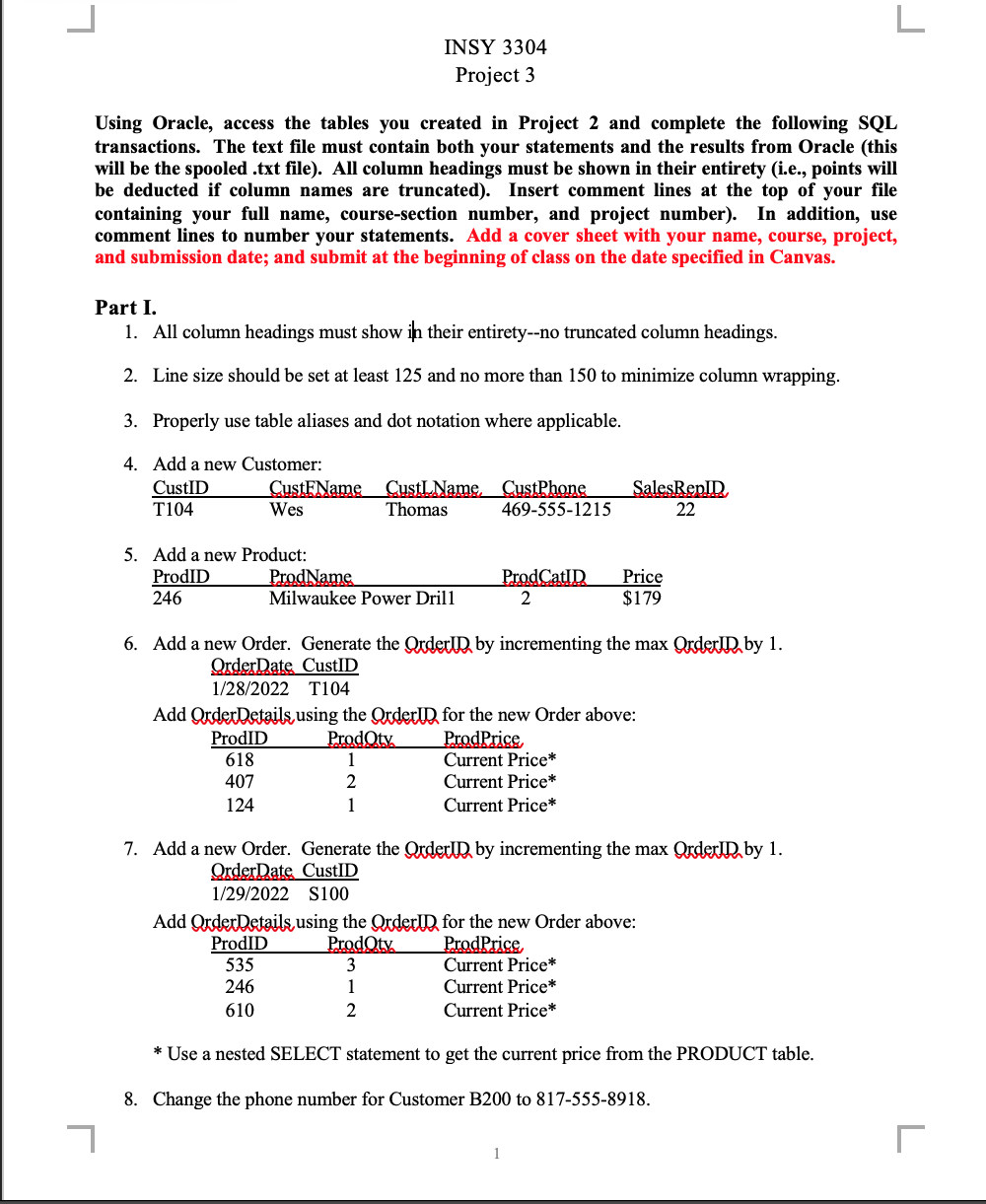
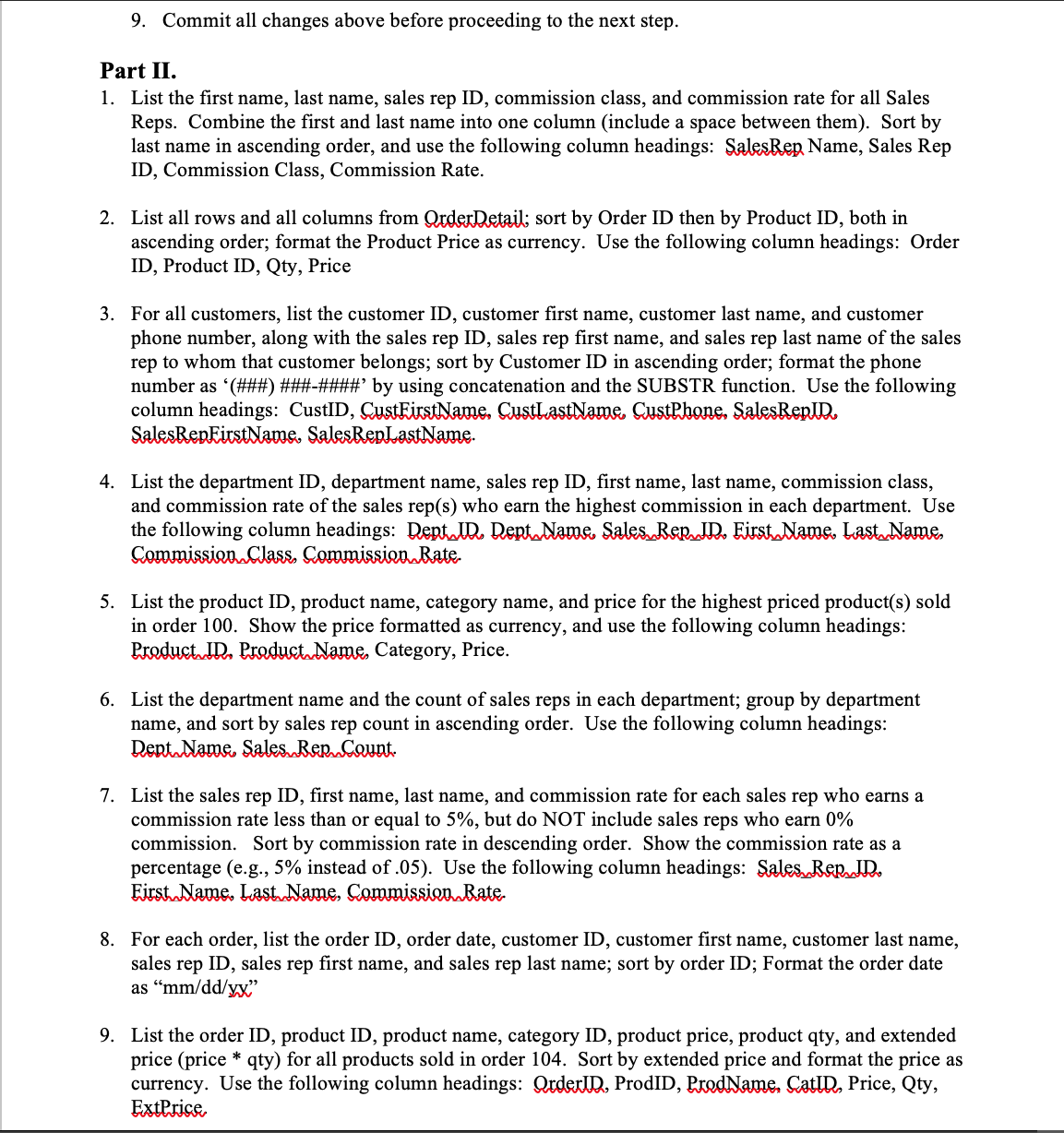
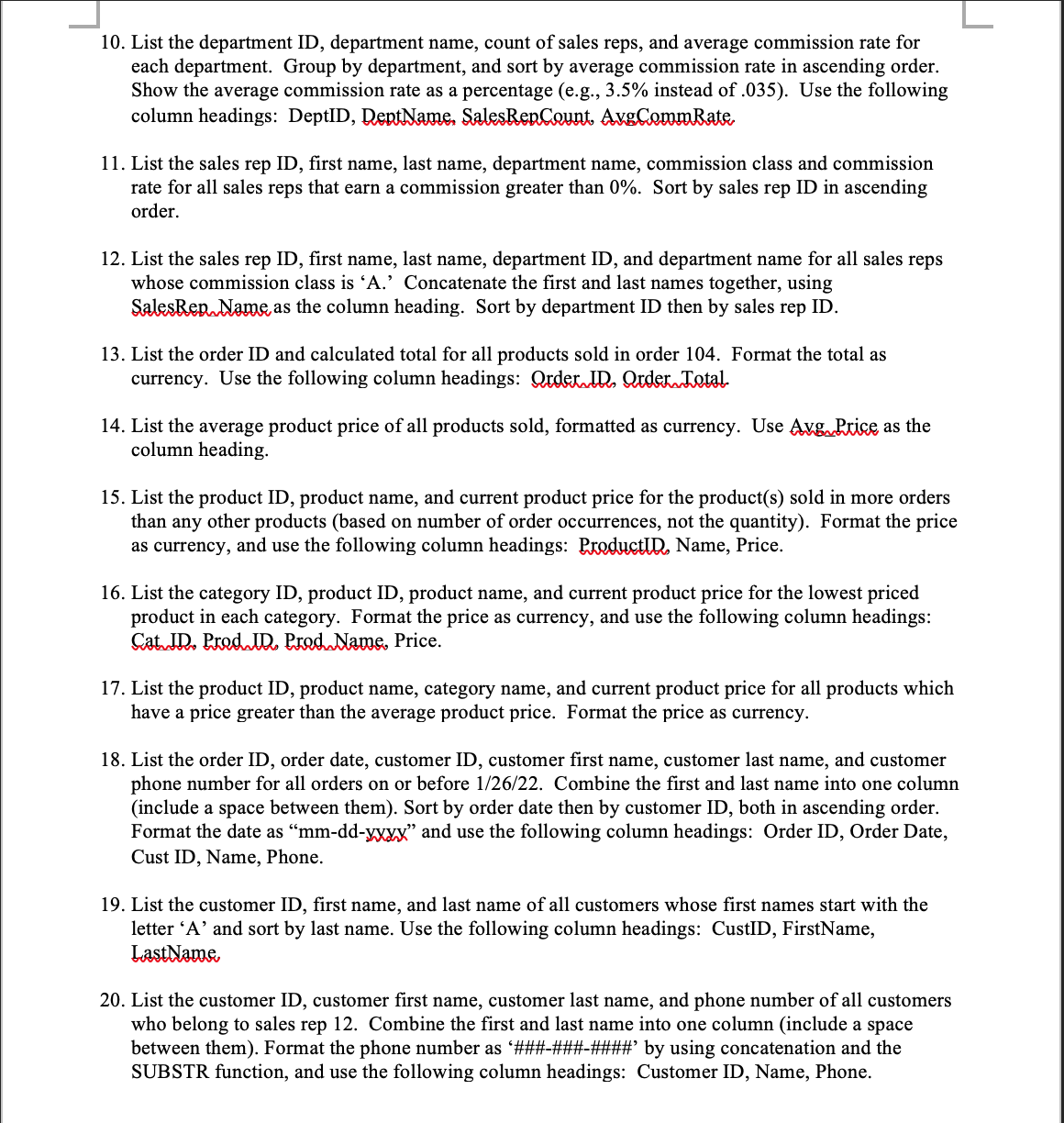
This project must be completed using an Oracle database with all statements manually typed into an SQL file and run as a batch in Oracle, and the output must be written to a text (.txt) file. Statements and results (feedback from Oracle) must be included in the output file for submission. Directions for downloading the software and for creating and running the SQL file will be posted in Canvas. Project 2 Relational Schema PRODUCT ProdID ProdName ProdCatID ProdPrice ORDERDETAIL OrderD ProdID ProdQty ProdPrice PRODCAT ProdCatID ProdCatName ORDER OrderID OrderDate CustID CUSTOMER CustID CustFName Custl Name CustPhone SalesRepID COMMISSION CommClass CommRate DEPARTMENT DeptiD DeptName SALESREP Sales ReplD SalesRepFName Sales ReplName CommClass DeptID Using Oracle, access the tables you created in Project 2 and complete the following SQL transactions. The text file must contain both your statements and the results from Oracle (this will be the spooled .txt file). All column headings must be shown in their entirety (i.e., points will be deducted if column names are truncated). Insert comment lines at the top of your file containing your full name, course-section number, and project number). In addition, use comment lines to number your statements. Add a cover sheet with your name, course, project, and submission date; and submit at the beginning of class on the date specified in Canvas. Part I. 1. All column headings must show in their entirety--no truncated column headings. 2. Line size should be set at least 125 and no more than 150 to minimize column wrapping. 3. Properly use table aliases and dot notation where applicable. 4. Add a new Customer: CustID T104 7 5. Add a new Product: ProdID 246 CustFName Wes ProdID 618 407 124 Add Order Details using the Order Prodoty INSY 3304 Project 3 ProdName Milwaukee Power Drill ProdID 535 246 610 CustLName, Thomas 1 2 1 6. Add a new Order. Generate the Order by incrementing the max QrderID, by 1. OrderDate CustID 1/28/2022 T104 Add Order Details, using the Order Prodoty 3 1 2 CustPhone 469-555-1215 ProdCatID 2 SalesRenID 22 7. Add a new Order. Generate the Order by incrementing the max OrderID by 1. OrderDate CustID 1/29/2022 S100 Price $179 for the new Order above: ProdPrice Current Price* Current Price* Current Price* Current Price* Current Price* Current Price* for the new Order above: ProdPrice L * Use a nested SELECT statement to get the current price from the PRODUCT table. 8. Change the phone number for Customer B200 to 817-555-8918. L 9. Commit all changes above before proceeding to the next step. Part II. 1. List the first name, last name, sales rep ID, commission class, and commission rate for all Sales Reps. Combine the first and last name into one column (include a space between them). Sort by last name in ascending order, and use the following column headings: SalesRep Name, Sales Rep ID, Commission Class, Commission Rate. 2. List all rows and all columns from QrderDetail; sort by Order ID then by Product ID, both in ascending order; format the Product Price as currency. Use the following column headings: Order ID, Product ID, Qty, Price 3. For all customers, list the customer ID, customer first name, customer last name, and customer phone number, along with the sales rep ID, sales rep first name, and sales rep last name of the sales rep to whom that customer belongs; sort by Customer ID in ascending order; format the phone number as '(###) ###-####' by using concatenation and the SUBSTR function. Use the following column headings: CustID, CustFirstName, CustLastName, CustPhone, SalesRepID SalesRepFirstName. SalesRepLastName. 4. List the department ID, department name, sales rep ID, first name, last name, commission class, and commission rate of the sales rep(s) who earn the highest commission in each department. Use the following column headings: Dept ID. Dept Name, Sales Rep JD. First Name. Last Name, Commission Class, Commission Rate 5. List the product ID, product name, category name, and price for the highest priced product(s) sold in order 100. Show the price formatted as currency, and use the following column headings: Product ID, Product Name, Category, Price. 6. List the department name and the count of sales reps in each department; group by department name, and sort by sales rep count in ascending order. Use the following column headings: Dept Name, Sales Rep Count. 7. List the sales rep ID, first name, last name, and commission rate for each sales rep who earns a commission rate less than or equal to 5%, but do NOT include sales reps who earn 0% commission. Sort by commission rate in descending order. Show the commission rate as a percentage (e.g., 5% instead of .05). Use the following column headings: Sales Rep JD. First Name, Last Name, Commission Rate 8. For each order, list the order ID, order date, customer ID, customer first name, customer last name, sales rep ID, sales rep first name, and sales rep last name; sort by order ID; Format the order date as "mm/dd/yx" 9. List the order ID, product ID, product name, category ID, product price, product qty, and extended price (price* qty) for all products sold in order 104. Sort by extended price and format the price as currency. Use the following column headings: QrderID, ProdID, ProdName, CatID, Price, Qty, ExtPrice 10. List the department ID, department name, count of sales reps, and average commission rate for each department. Group by department, and sort by average commission rate in ascending order. Show the average commission rate as a percentage (e.g., 3.5% instead of .035). Use the following column headings: DeptID, DeptName, SalesRepCount. AvgCommRate 11. List the sales rep ID, first name, last name, department name, commission class and commission rate for all sales reps that earn a commission greater than 0%. Sort by sales rep ID in ascending order. 12. List the sales rep ID, first name, last name, department ID, and department name for all sales reps whose commission class is 'A.' Concatenate the first and last names together, using SalesRep Name as the column heading. Sort by department ID then by sales rep ID. 13. List the order ID and calculated total for all products sold in order 104. Format the total as currency. Use the following column headings: Qrder ID, Order Total 14. List the average product price of all products sold, formatted as currency. Use Avg Price as the column heading. 15. List the product ID, product name, and current product price for the product(s) sold in more orders than any other products (based on number of order occurrences, not the quantity). Format the price as currency, and use the following column headings: ProductID, Name, Price. 16. List the category ID, product ID, product name, and current product price for the lowest priced product in each category. Format the price as currency, and use the following column headings: Cat JD. Prod ID. Prod Name, Price. 17. List the product ID, product name, category name, and current product price for all products which have a price greater than the average product price. Format the price as currency. 18. List the order ID, order date, customer ID, customer first name, customer last name, and customer phone number for all orders on or before 1/26/22. Combine the first and last name into one column (include a space between them). Sort by order date then by customer ID, both in ascending order. Format the date as "mm-dd-xxxx" and use the following column headings: Order ID, Order Date, Cust ID, Name, Phone. 19. List the customer ID, first name, and last name of all customers whose first names start with the letter 'A' and sort by last name. Use the following column headings: CustID, FirstName, LastName 20. List the customer ID, customer first name, customer last name, and phone number of all customers who belong to sales rep 12. Combine the first and last name into one column (include a space between them). Format the phone number as '###-###-####' by using concatenation and the SUBSTR function, and use the following column headings: Customer ID, Name, Phone.
Step by Step Solution
There are 3 Steps involved in it

Get step-by-step solutions from verified subject matter experts
 Study Help