







Question: Visual Basic Creating Employee Data Create an application that allows the user to enter the following employee data: First Name, Middle Name, Last Name, Employee
Visual Basic
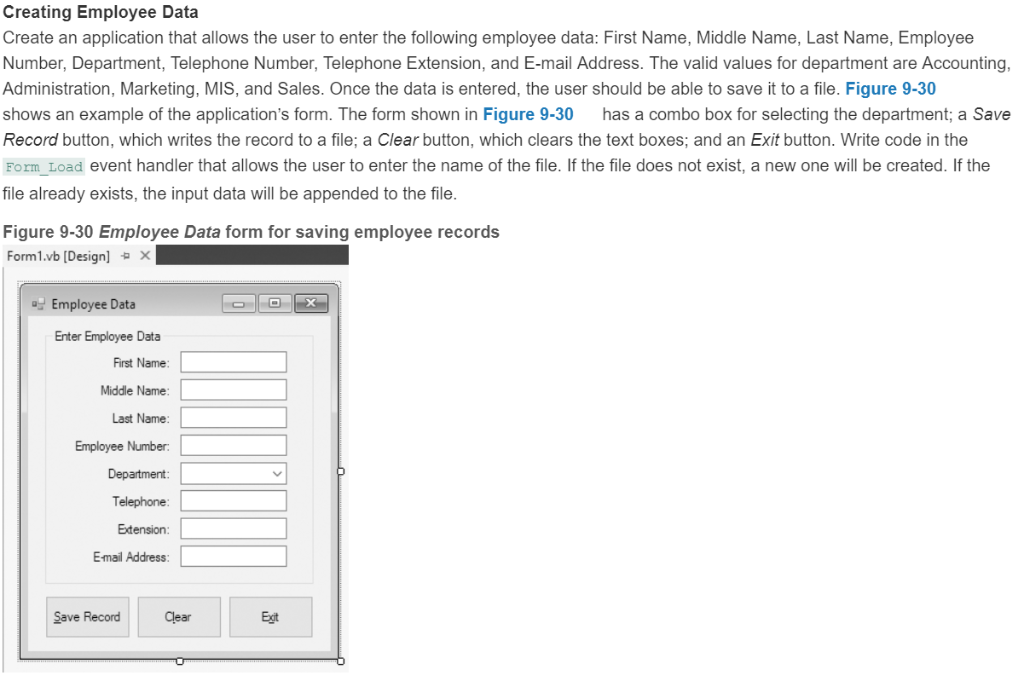
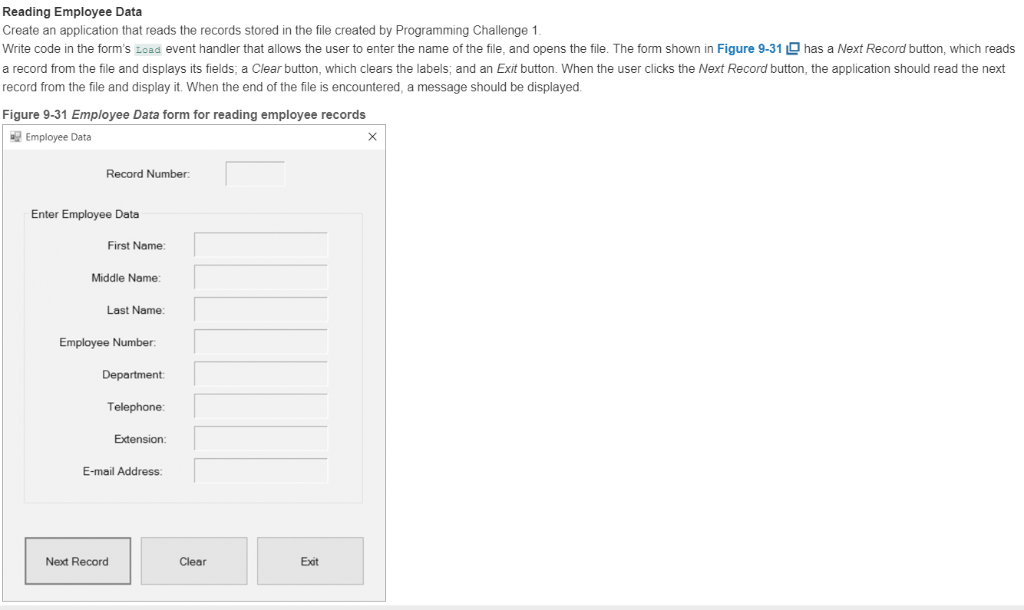

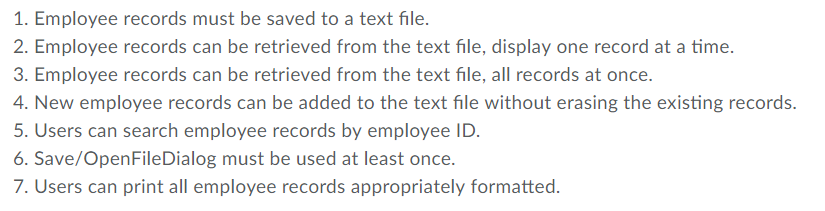
Creating Employee Data Create an application that allows the user to enter the following employee data: First Name, Middle Name, Last Name, Employee Number, Department, Telephone Number, Telephone Extension, and E-mail Address. The valid values for department are Accounting Administration, Marketing, MIS, and Sales. Once the data is entered, the user should be able to save it to a file. Figure 9-30 shows an example of the application's form. The form shown in Figure 9-30 has a combo box for selecting the department; a Save Record button, which writes the record to a file; a Clear button, which clears the text boxes; and an Exit button. Write code in the Form_Load event handler that allows the user to enter the name of the file. If the file does not exist, a new one will be created. If the file already exists, the input data will be appended to the file. Figure 9-30 Employee Data form for saving employee records Forml.vb [Design] Employee Data Enter Employee Data First Name Middle Name Last Name Employee Number Department: Telephone Extension Email Address Save Record Clear Egt Reading Employee Data Create an application that reads the records stored in the file created by Programming Challenge 1 Write code in the form's Load event handler that allows the user to enter the name of the file, and opens the file. The form shown in Figure 9-31has a Next Record button, which reads a record from the file and displays its fields; a Clear button, which clears the labels and an Exit button. When the user clicks the Next Record button, the application should read the next record from the file and display it. When the end of the file is encountered, a message should be displayed Figure 9-31 Employee Data form for reading employee records Employee Data Record Number: Enter Employee Data First Name: Middle Name: Last Name Employee Number: Department Telephone: Extension E-mail Address Next Record Clear Exat Employee Data, Enhanced Create an application that performs the following operations with the employee file created by the application in Programming Challenge 1: Uses an Open dialog box to allow the user to select the file Allows the user to enter a new employee record and then saves the record to the file Allows the user to enter an employee number and searches for a record containing that employee number. If the record is found, the record is displayed Displays all records, one after the other Prints an employee record 1. Employee records must be saved to a text file. 2. Employee records can be retrieved from the text file, display one record at a time. 3. Employee records can be retrieved from the text file, all records at once 4. New employee records can be added to the text file without erasing the existing records. 5. Users can search employee records by employee ID. 6. Save/OpenFileDialog must be used at least once 7. Users can print all employee records appropriately formatted Creating Employee Data Create an application that allows the user to enter the following employee data: First Name, Middle Name, Last Name, Employee Number, Department, Telephone Number, Telephone Extension, and E-mail Address. The valid values for department are Accounting Administration, Marketing, MIS, and Sales. Once the data is entered, the user should be able to save it to a file. Figure 9-30 shows an example of the application's form. The form shown in Figure 9-30 has a combo box for selecting the department; a Save Record button, which writes the record to a file; a Clear button, which clears the text boxes; and an Exit button. Write code in the Form_Load event handler that allows the user to enter the name of the file. If the file does not exist, a new one will be created. If the file already exists, the input data will be appended to the file. Figure 9-30 Employee Data form for saving employee records Forml.vb [Design] Employee Data Enter Employee Data First Name Middle Name Last Name Employee Number Department: Telephone Extension Email Address Save Record Clear Egt Reading Employee Data Create an application that reads the records stored in the file created by Programming Challenge 1 Write code in the form's Load event handler that allows the user to enter the name of the file, and opens the file. The form shown in Figure 9-31has a Next Record button, which reads a record from the file and displays its fields; a Clear button, which clears the labels and an Exit button. When the user clicks the Next Record button, the application should read the next record from the file and display it. When the end of the file is encountered, a message should be displayed Figure 9-31 Employee Data form for reading employee records Employee Data Record Number: Enter Employee Data First Name: Middle Name: Last Name Employee Number: Department Telephone: Extension E-mail Address Next Record Clear Exat Employee Data, Enhanced Create an application that performs the following operations with the employee file created by the application in Programming Challenge 1: Uses an Open dialog box to allow the user to select the file Allows the user to enter a new employee record and then saves the record to the file Allows the user to enter an employee number and searches for a record containing that employee number. If the record is found, the record is displayed Displays all records, one after the other Prints an employee record 1. Employee records must be saved to a text file. 2. Employee records can be retrieved from the text file, display one record at a time. 3. Employee records can be retrieved from the text file, all records at once 4. New employee records can be added to the text file without erasing the existing records. 5. Users can search employee records by employee ID. 6. Save/OpenFileDialog must be used at least once 7. Users can print all employee records appropriately formatted
Step by Step Solution
There are 3 Steps involved in it

Get step-by-step solutions from verified subject matter experts
 Study Help