



Question: Windows Registry: (A Screenshot of each task and script is required) . 1. Type Regedit into a Run dialog or your search box and open
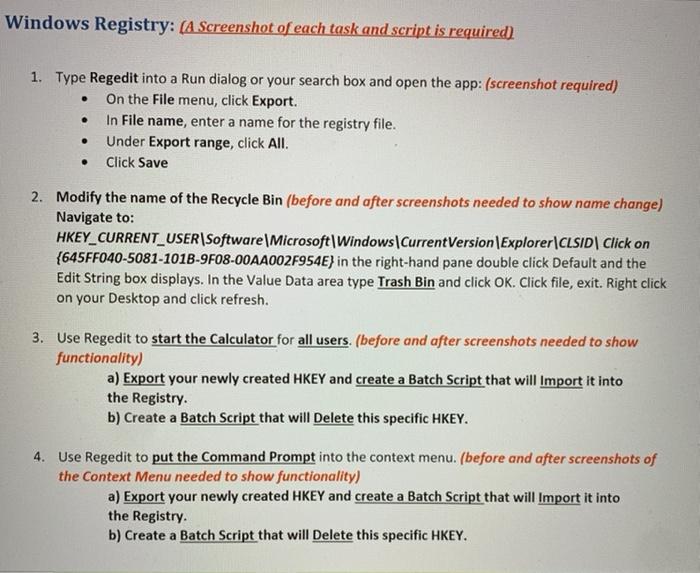
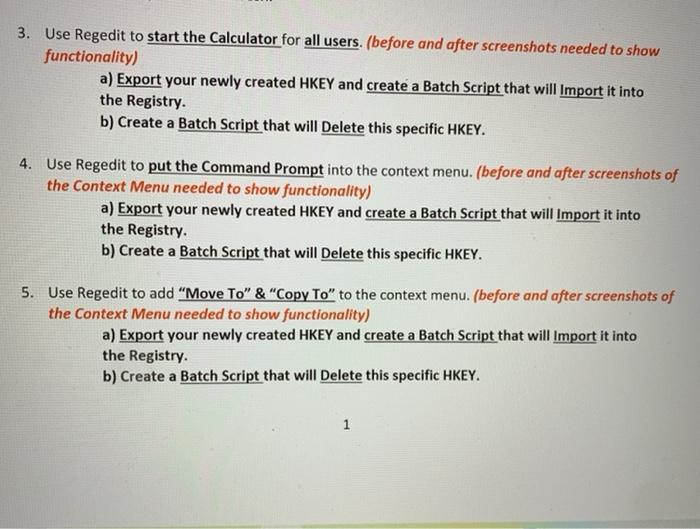
Windows Registry: (A Screenshot of each task and script is required) . 1. Type Regedit into a Run dialog or your search box and open the app: (screenshot required) On the file menu, click Export. In File name, enter a name for the registry file. Under Export range, click All. . Click Save . . 2. Modify the name of the Recycle Bin (before and after screenshots needed to show name change) Navigate to: HKEY_CURRENT_USER\Software\Microsoft\Windows\CurrentVersion\Explorer\CLSID Click on {645FF040-5081-101B-9F08-00AA002F954E) in the right-hand pane double click Default and the Edit String box displays. In the Value Data area type Trash Bin and click OK. Click file, exit. Right click on your Desktop and click refresh. 3. Use Regedit to start the Calculator for all users. (before and after screenshots needed to show functionality) a) Export your newly created HKEY and create a Batch Script that will Import it into the Registry b) Create a Batch Script that will Delete this specific HKEY. 4. Use Regedit to put the Command Prompt into the context menu. (before and after screenshots of the context Menu needed to show functionality) a) Export your newly created HKEY and create a Batch Script that will Import it into the Registry. b) Create a Batch Script that will Delete this specific HKEY. 3. Use Regedit to start the Calculator for all users. (before and after screenshots needed to show functionality) a) Export your newly created HKEY and create a Batch Script that will Import it into the Registry b) Create a Batch Script that will Delete this specific HKEY. 4. Use Regedit to put the Command Prompt into the context menu. (before and after screenshots of the context Menu needed to show functionality) a) Export your newly created HKEY and create a Batch Script that will Import it into the Registry b) Create a Batch Script that will Delete this specific HKEY. 5. Use Regedit to add "Move To" & "Copy To" to the context menu. (before and after screenshots of the context Menu needed to show functionality) a) Export your newly created HKEY and create a Batch Script that will Import it into the Registry. b) Create a Batch Script that will Delete this specific HKEY. 1
Step by Step Solution
There are 3 Steps involved in it

Get step-by-step solutions from verified subject matter experts