







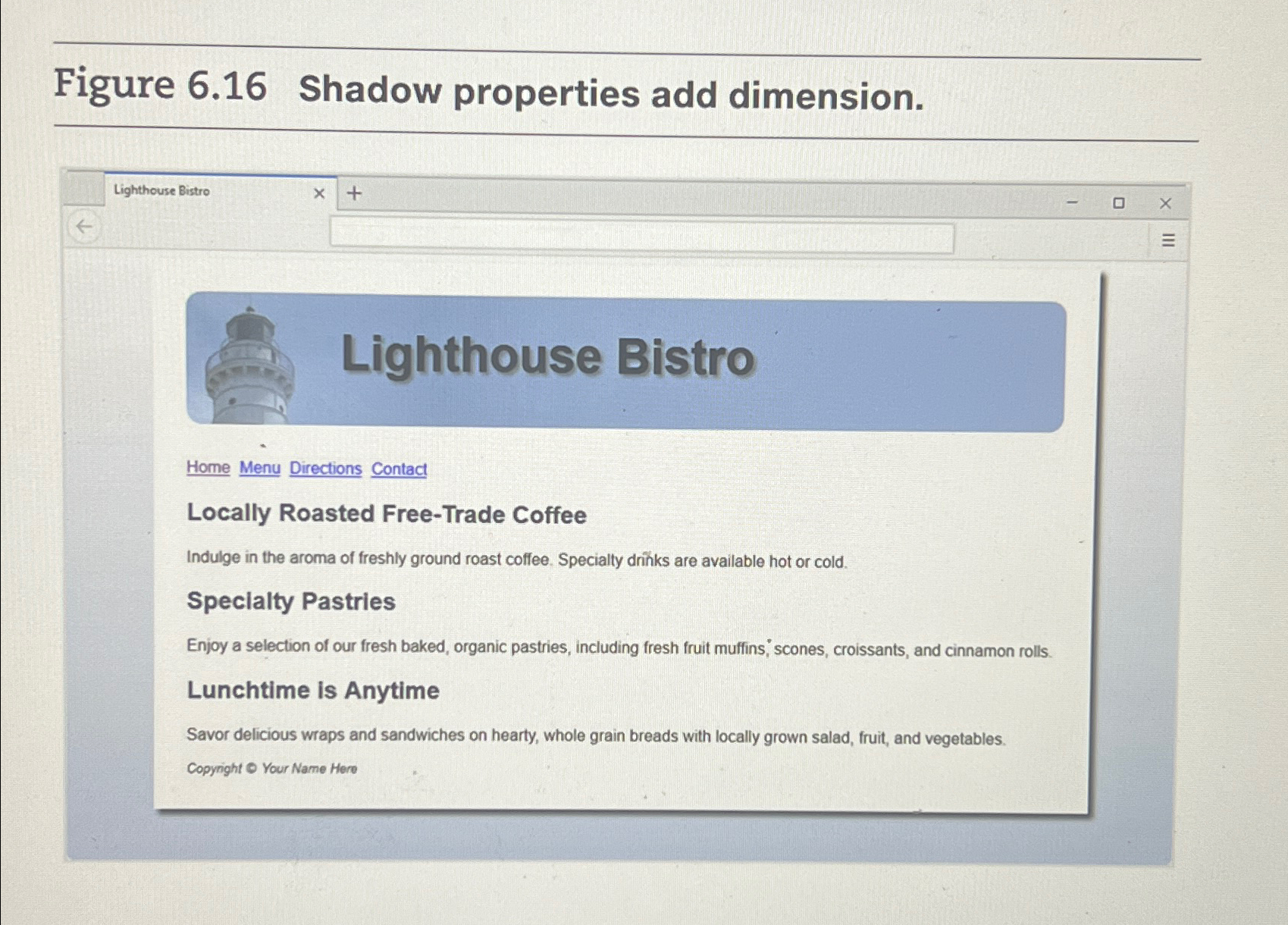
Question: Youll configure text - shadow and box - shadow in this Hands - On Practice. When complete, your web page will look similar to the
Youll configure textshadow and boxshadow in this HandsOn Practice. When complete, your web page will look similar to the one shown in Figure Create a new folder called shadowch Copy the index.html lighthouselogo.jpg and the background.jpg files from the chapter folder to your shadowch folder. Launch a text editor and open the index.html file.
Edit the embedded CSS and add the following style declarations to the #container selector to configure a box shadow:
boxshadow: px px px #EEE;Add the following style declaration to the h element selector to configure a dark gray text shadow:
textshadow: px px px #;Add the following style declaration to the h element selector to configure a light gray text shadow with no blur: textshadow: px px #CCC;
Save the file. When you test your index.html file in a browser, it should look similar to the one shown in Figure if you are using a browser that supports the boxshadow and textshadow properties. Otherwise, the shadows will not display, but the web page will still be usable. See the student files for a solution chapterindexhtml
Step by Step Solution
There are 3 Steps involved in it
1 Expert Approved Answer
Step: 1 Unlock

Question Has Been Solved by an Expert!
Get step-by-step solutions from verified subject matter experts
Step: 2 Unlock
Step: 3 Unlock
 Study Help