







Question: 3.0 a. Write a Powershell script (in a .ps1 file) called greeting that prints a greeting to the user -- perhaps Good morning or something
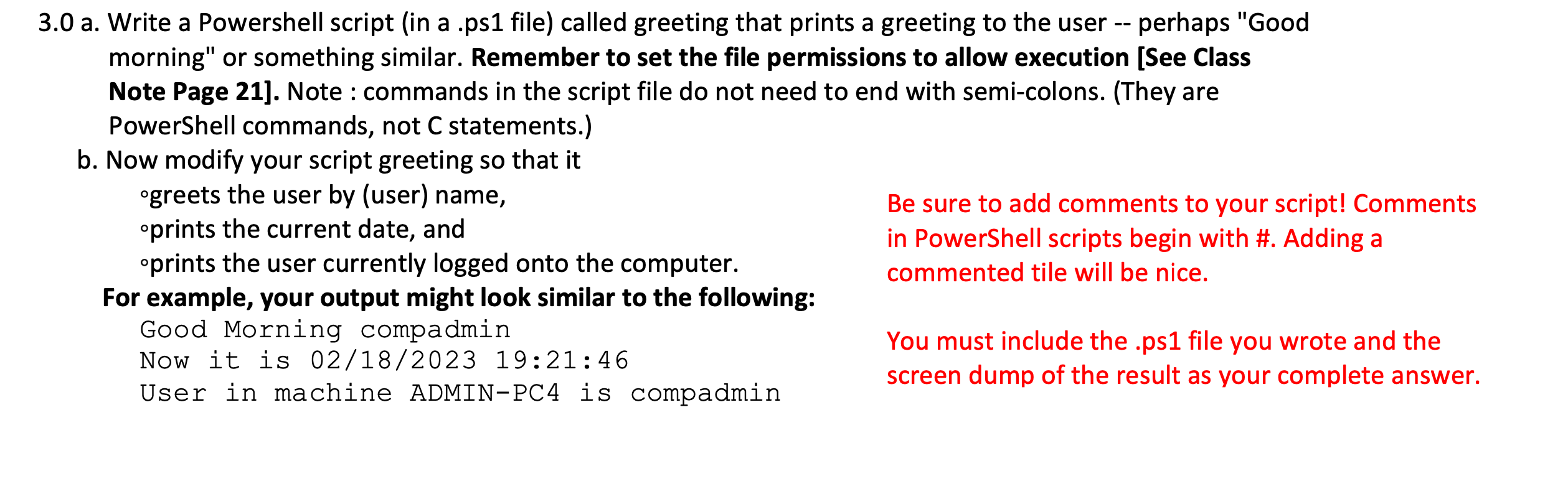
3.0 a. Write a Powershell script (in a .ps1 file) called greeting that prints a greeting to the user -- perhaps "Good morning" or something similar. Remember to set the file permissions to allow execution [See Class Note Page 21]. Note : commands in the script file do not need to end with semi-colons. (They are PowerShell commands, not C statements.) b. Now modify your script greeting so that it -greets the user by (user) name, Be sure to add comments to your script! Comments - prints the current date, and in PowerShell scripts begin with \#. Adding a oprints the user currently logged onto the computer. commented tile will be nice. For example, your output might look similar to the following: Good Morning compadmin You must include the .ps1 file you wrote and the Now it is 02/18/2023 19:21:46 screen dump of the result as your complete answer. User in machine ADMIN-PC4 is compadmin 3.0 a. Write a Powershell script (in a .ps1 file) called greeting that prints a greeting to the user -- perhaps "Good morning" or something similar. Remember to set the file permissions to allow execution [See Class Note Page 21]. Note : commands in the script file do not need to end with semi-colons. (They are PowerShell commands, not C statements.) b. Now modify your script greeting so that it -greets the user by (user) name, Be sure to add comments to your script! Comments - prints the current date, and in PowerShell scripts begin with \#. Adding a oprints the user currently logged onto the computer. commented tile will be nice. For example, your output might look similar to the following: Good Morning compadmin You must include the .ps1 file you wrote and the Now it is 02/18/2023 19:21:46 screen dump of the result as your complete answer. User in machine ADMIN-PC4 is compadmin
Step by Step Solution
There are 3 Steps involved in it

Get step-by-step solutions from verified subject matter experts
 Study Help